In this article, I will introduce how to visualize and analyze data from the no-code app platform JODOO with Power BI.
What JODOO?
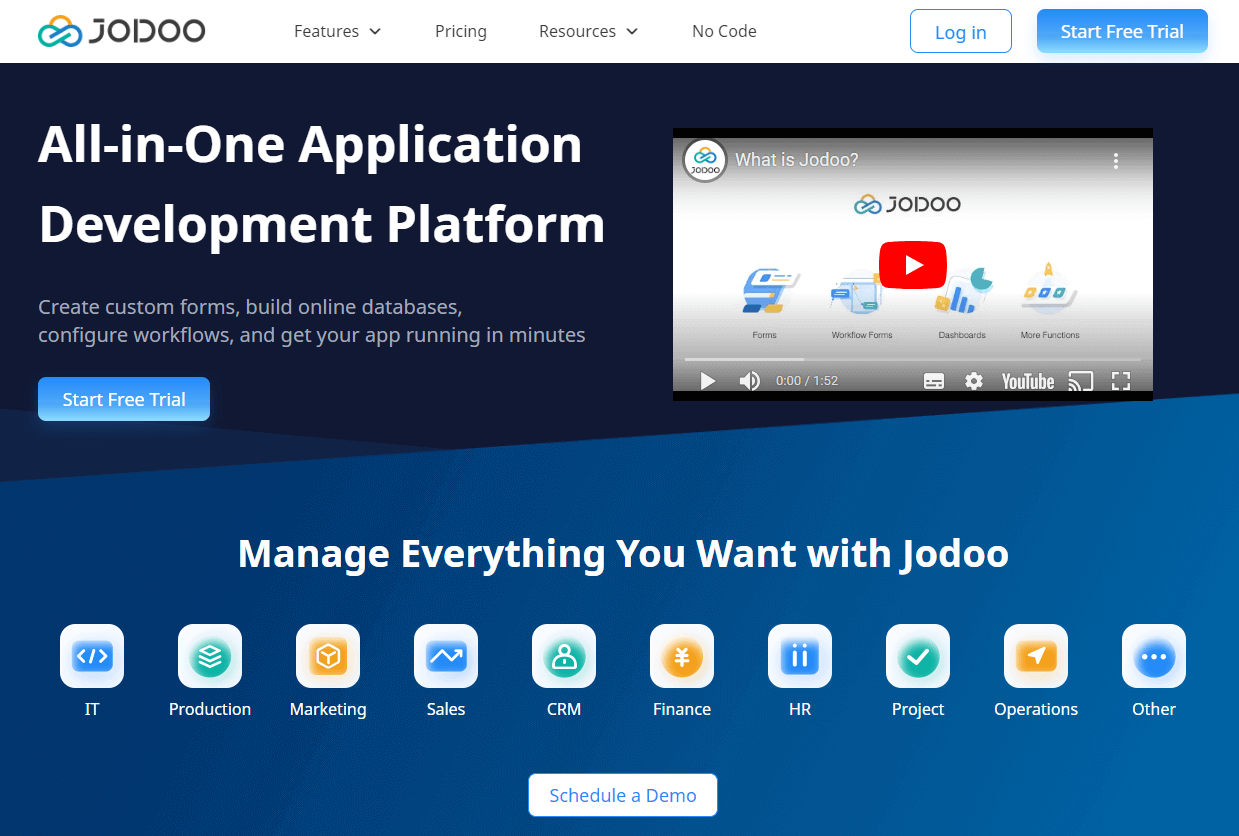
JODOO is SaaS that allows you to create online databases, forms, and workflows with no-code.
https://www.jodoo.com/
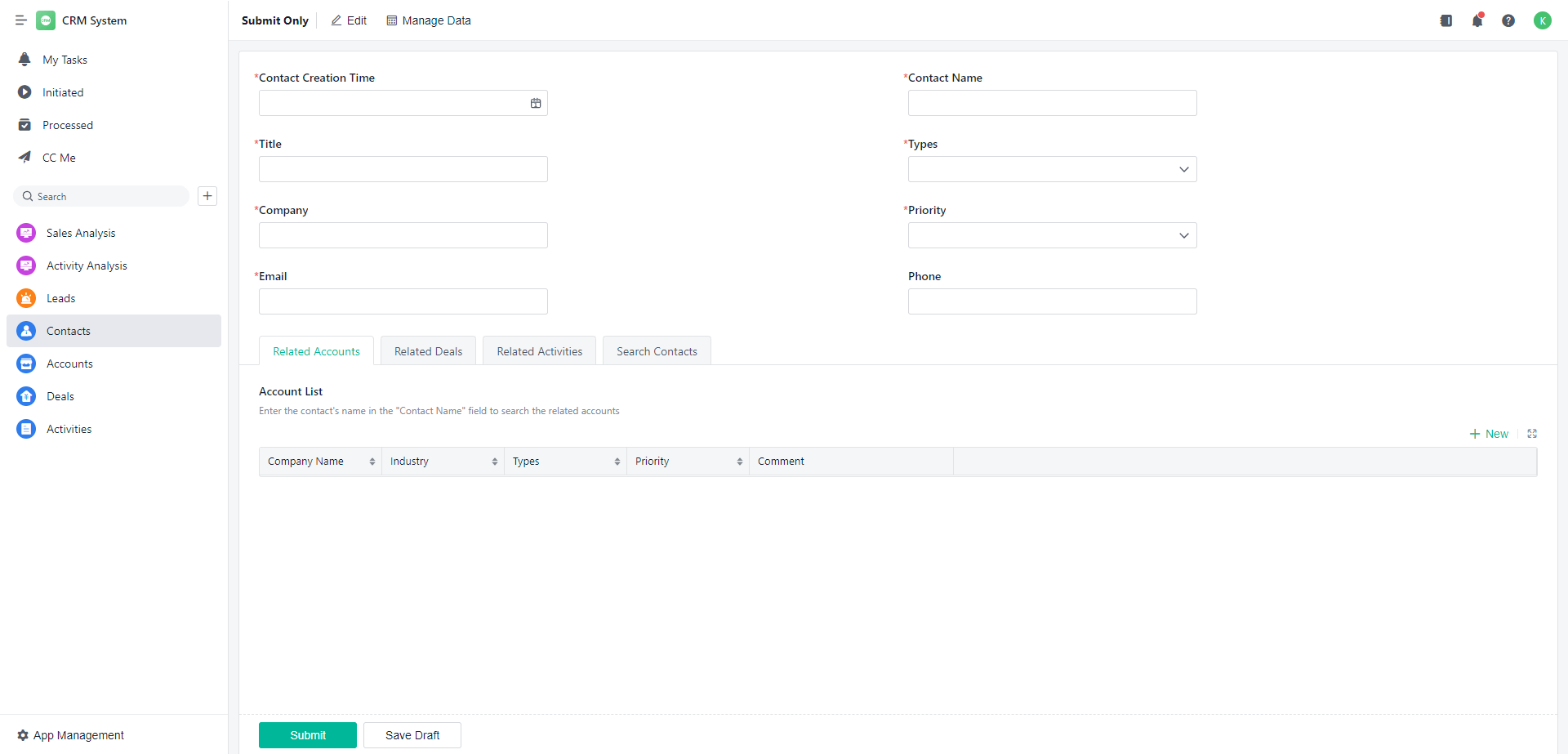
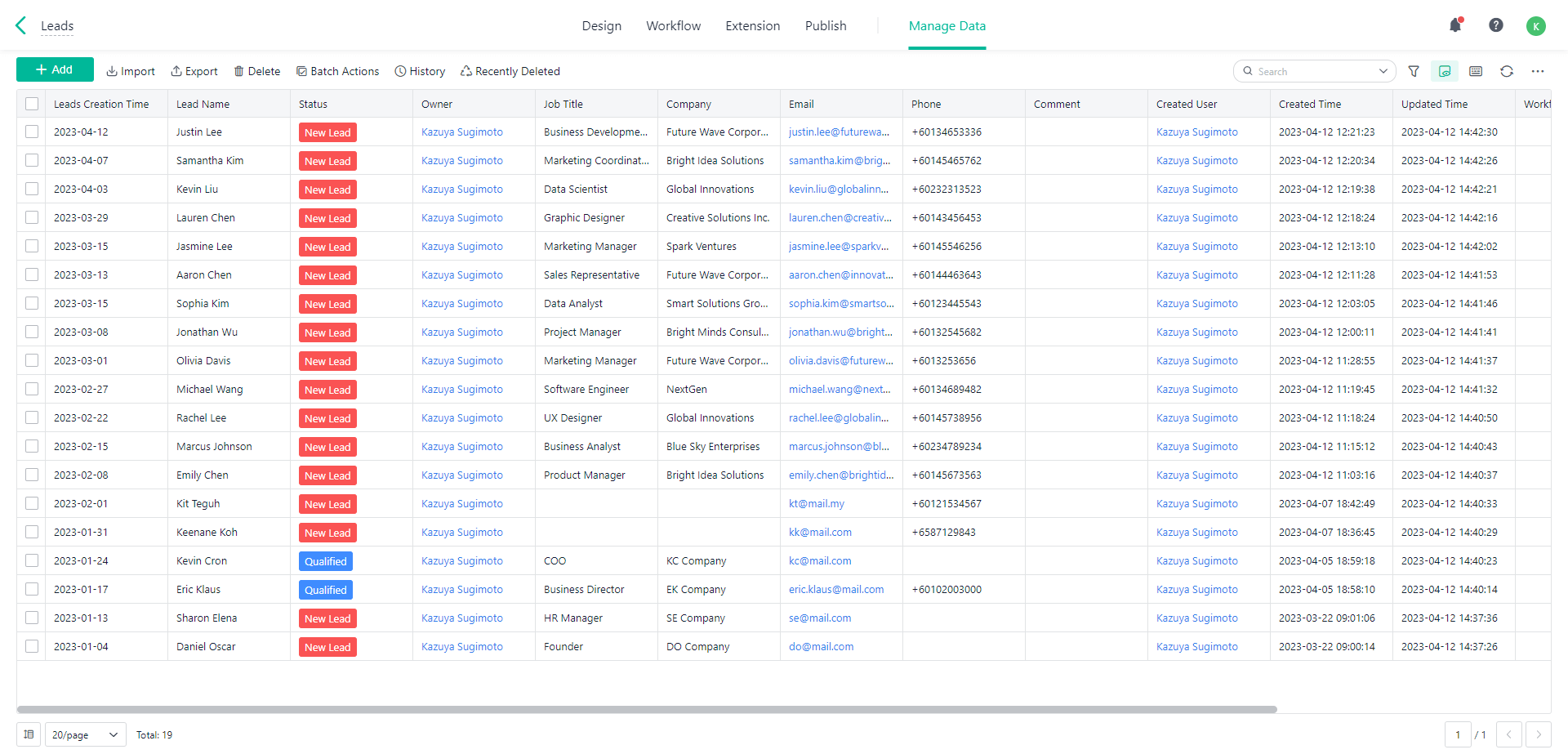
You can easily develop applications such as CRM, SFA, HR, etc, like below with no-code.
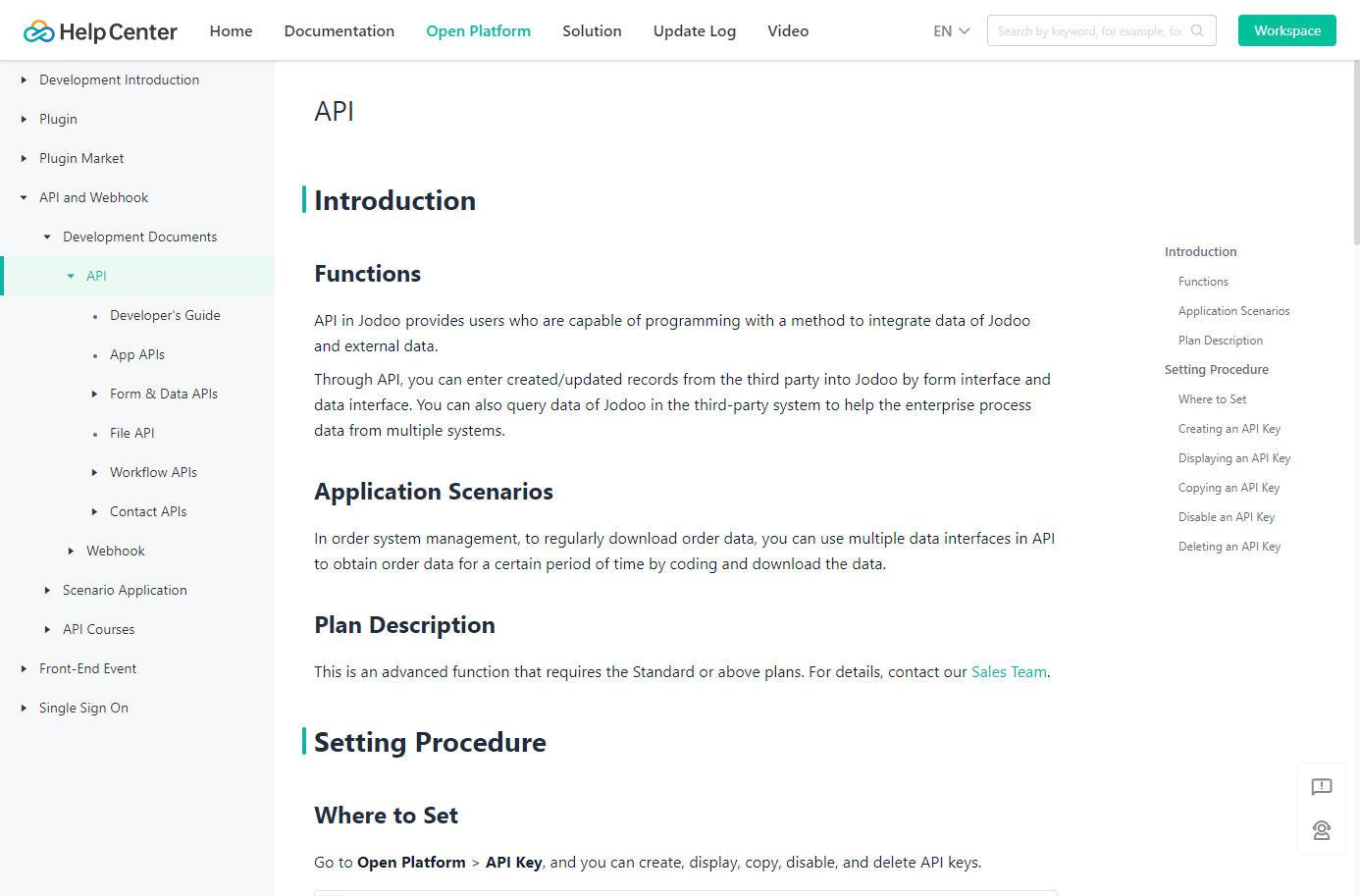
In addition, API is provided as standard from JODOO, So developers or customers can realize data integration for your various services or tools by developing programs.
https://help.jodoo.com/open/10992
How to connect JODOO API from BI tools
In this article, we will use Power BI as a BI tool for connecting to JODOO API, but various Web APIs cannot simply be connected from BI tools. Because almost Web APIs have no information of metadata about Web APIs specification so each BI tools don't know how should send requests to each Web APIs.
Therefore, we use CData ODBC API Driver to solve this bottleneck.
https://www.cdata.com/apidriver/
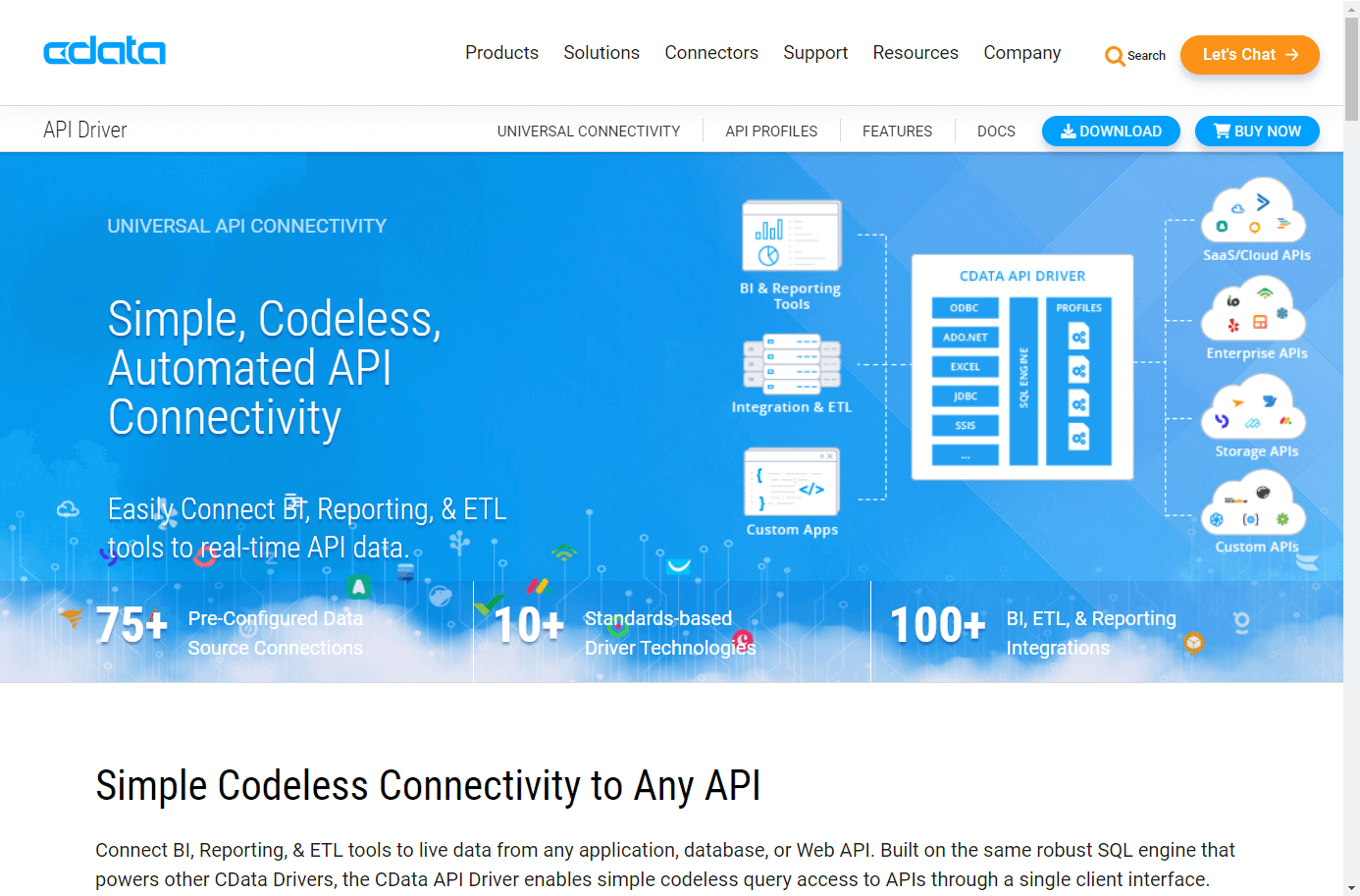
CData API Driver is a connector that virtualizes various APIs to like databases and allows them to be connected through general-purpose interfaces such as ODBC and JDBC etc.
By combining this connector with Power BI's standard ODBC integration function, you can achieve integration with various APIs.
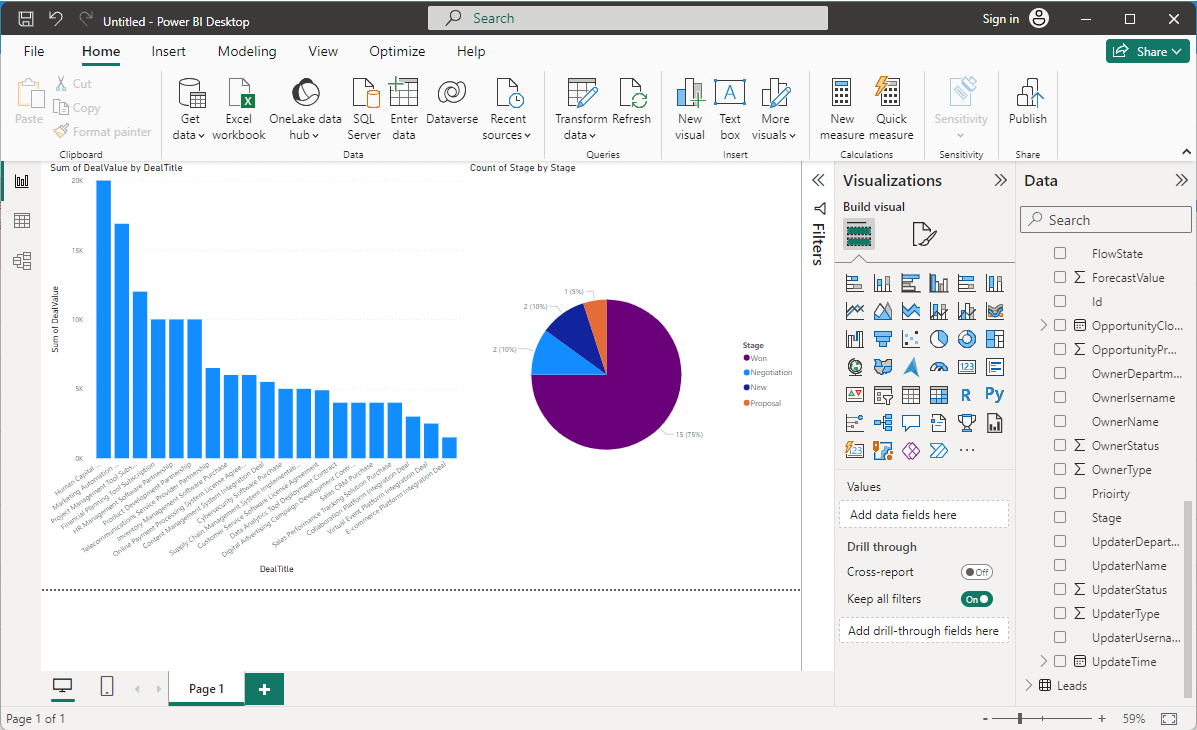
We will finally visualize JODOO's CRM data in Power BI as the following like.
Prerequisites
・Power BI
・ODBC Driver for API
Preparation for JODOO
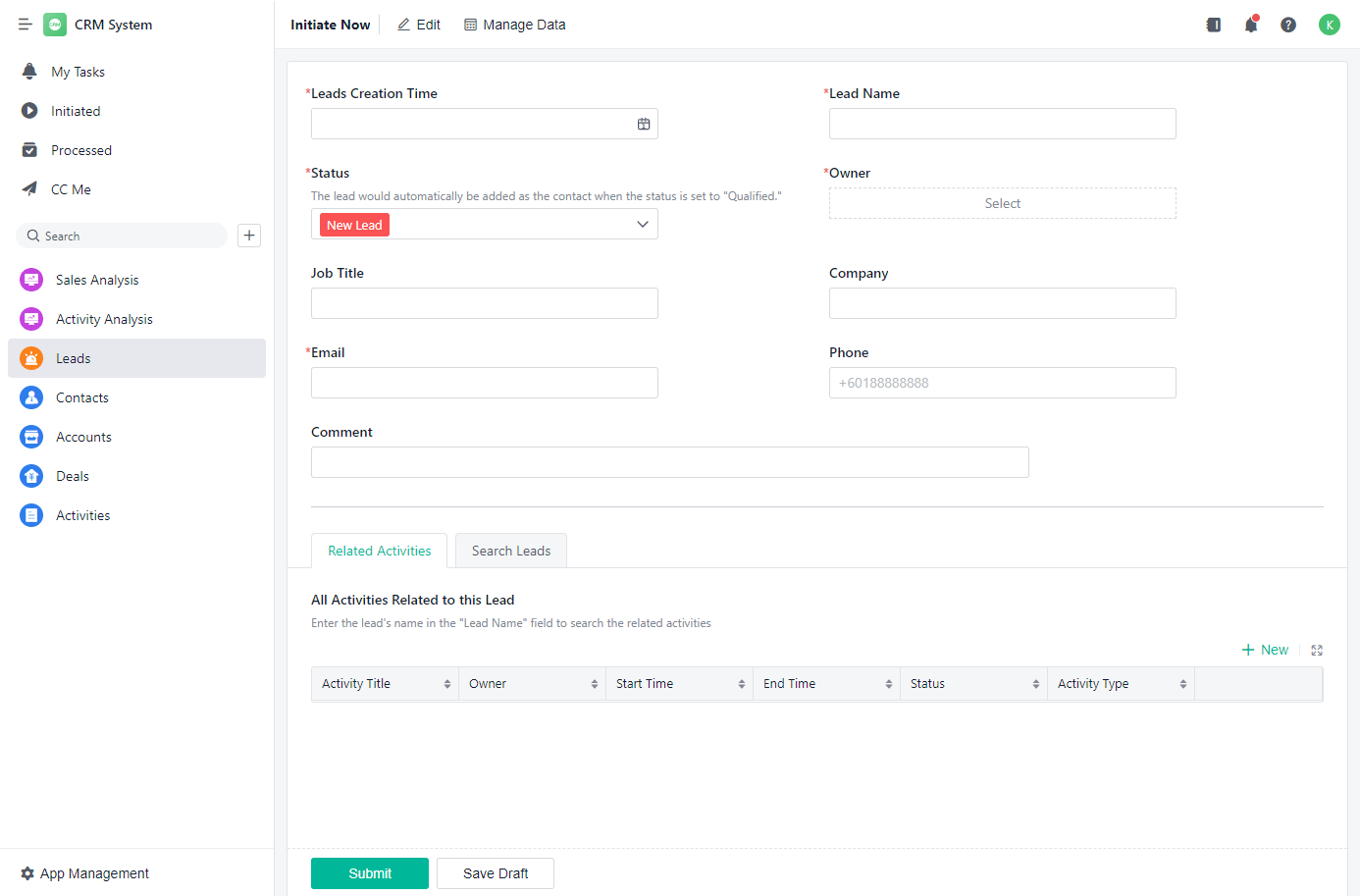
First, as a preparation on the JODOO side, create the CRM application to be connected in advance.
Click "New App" to "CRM System",
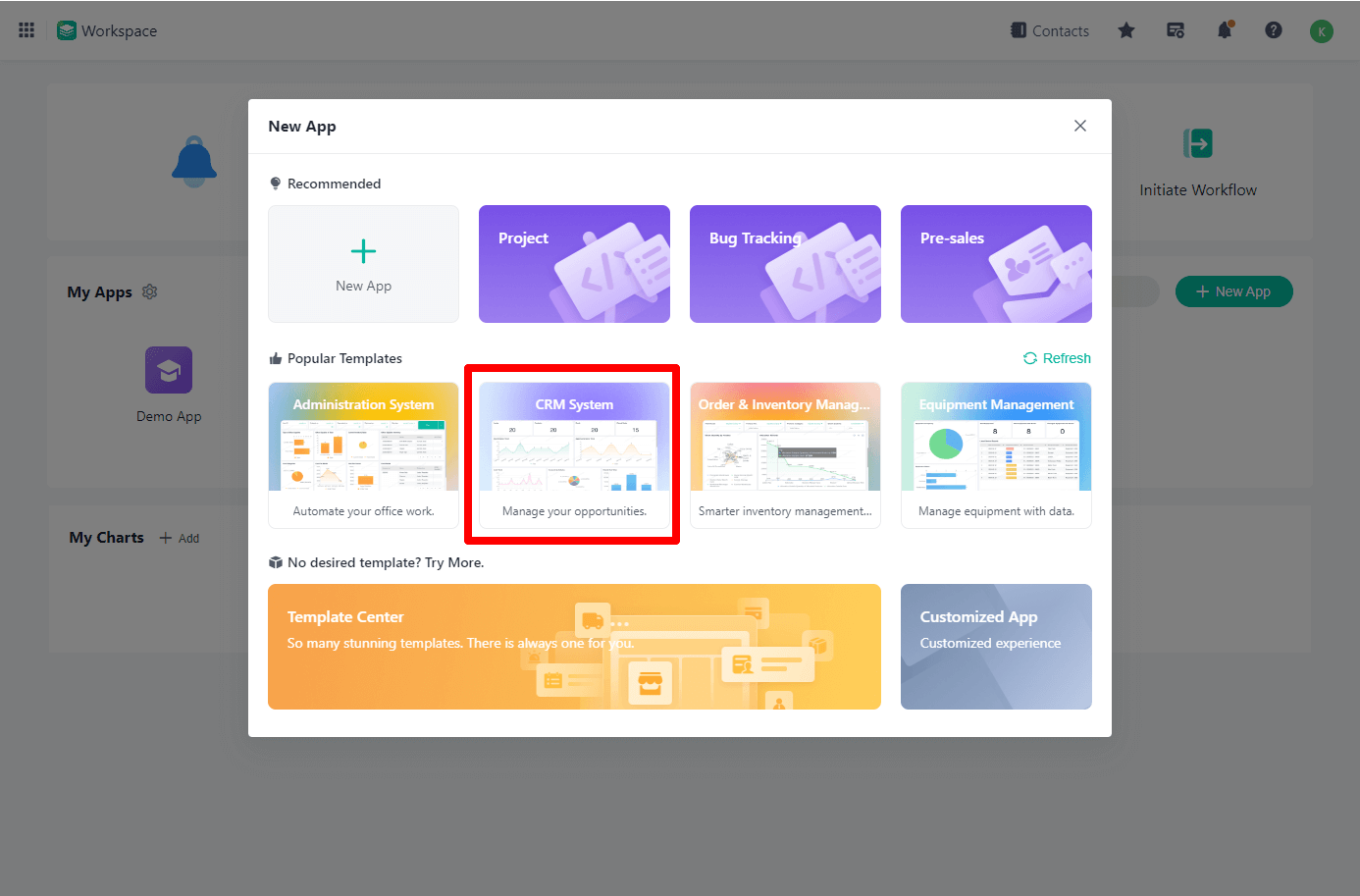
Prepare an app like the following.
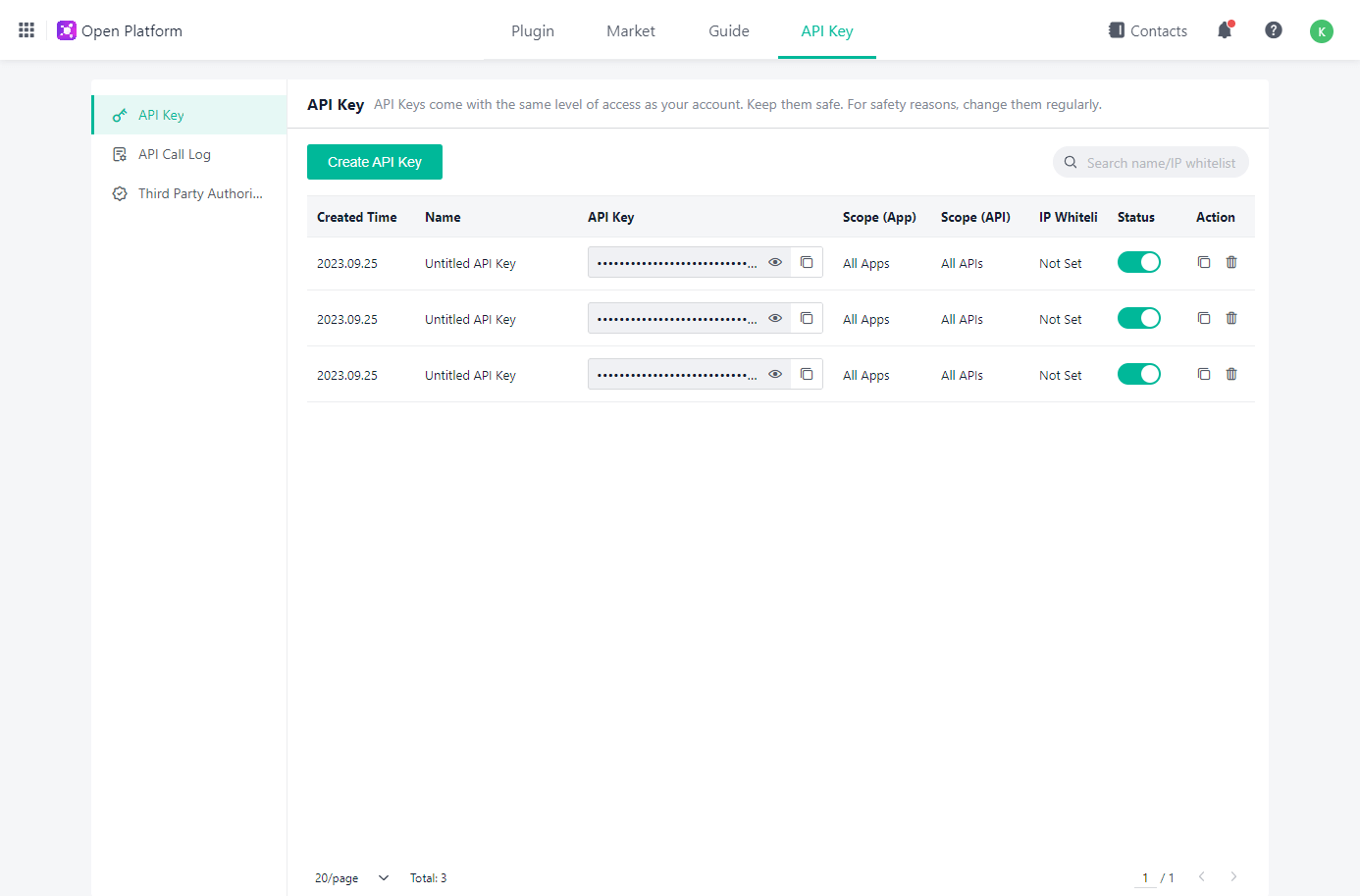
Also, an API key is required for API connection of JODOO.
Access the URL below, create an API Key.
https://www.jodoo.com/open#/key/api_key
Preparation for API Profile
In order to connect to any API with CData API Driver, you need to create a configuration file called API Profile in advance.
JODOO is a platform that allows users to freely customize apps, so create a configuration file for each app/form you want to connect.
However this time, I have already created sample configuration files for JODOO, so please download this from the following URL.
https://cdatajbuilds.s3.ap-northeast-1.amazonaws.com/APIProfiles/JODOO.apip
This configuration file can be changed to ZIP and unzipped.
Each table has an XML file(.rsb), and it is configured to perform API cooperation with JODOO through this XML configuration.
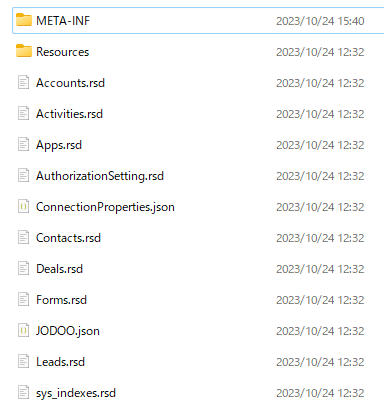
When you open RSD file with a text editor you like, it will look like the following XML. By customizing the attr attribute, EntryId, and AppId, you can connect to your applications by CData API Driver.
If you have customized these files, please zip it again in the Root directory and change the extension to ".apip".
Installing CData ODBC API Driver
Next, install CData ODBC API Driver, which is required to connect Power BI and JODOO API.
https://www.cdata.com/apidriver/download/
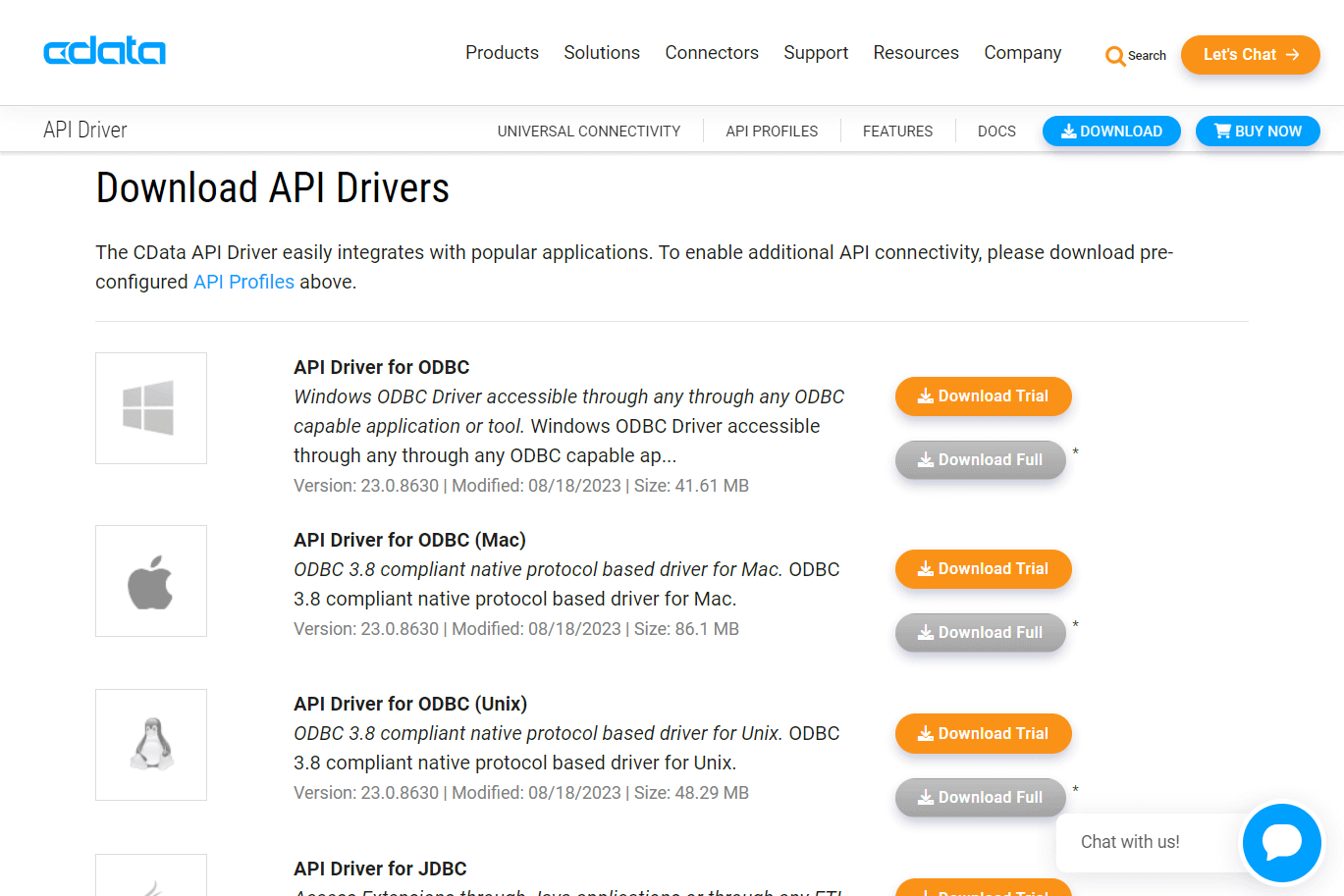
Install the downloaded setup.exe file on the machine where the BI tool is installed. Follow the installation wizard, confirm the EULA, and complete the installation.
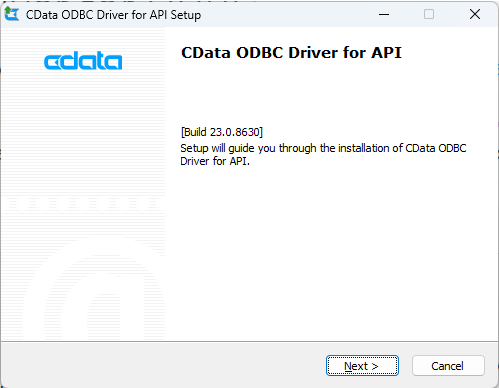
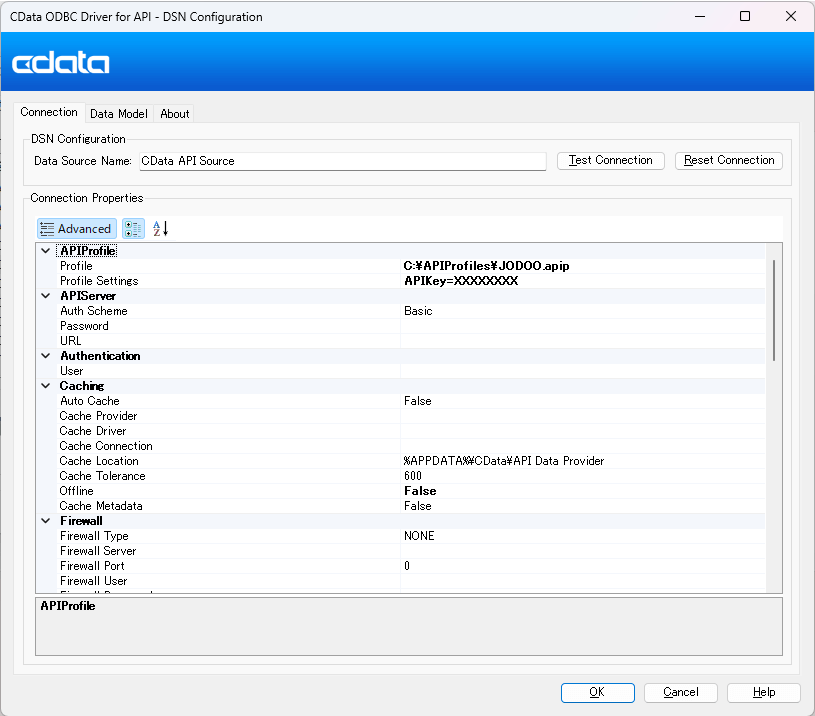
When the installation is complete, the ODBC DSN settings window will appear.
Set the following items and save.
|
Property
|
Value
|
|
|
Profile
|
C:\APIProfiles\JODOO.apip
|
File path of API Profile
|
|
Profile Settings
|
APIKey=your_api_key
|
Set JODOO API Key
|
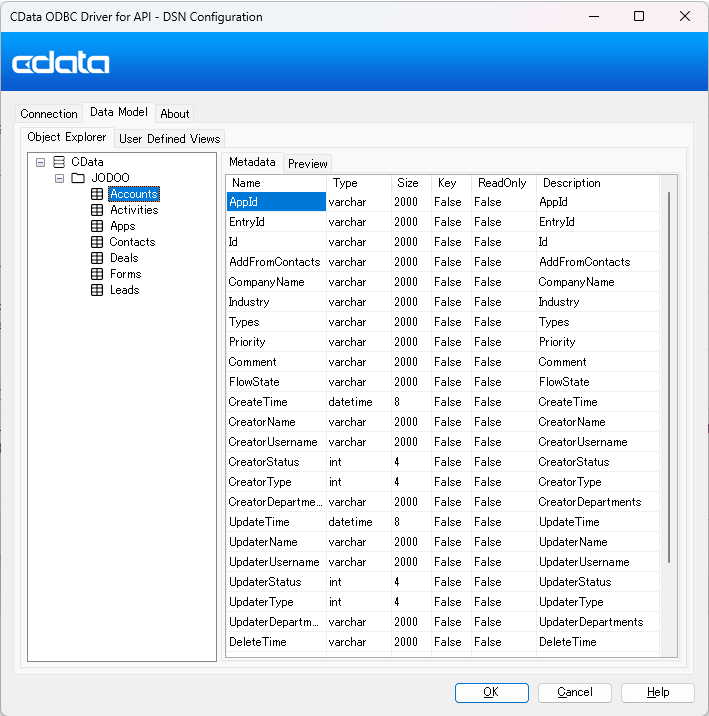
After the connection is completed, you can confirm the available app/form data models from the "Data Model" tab.
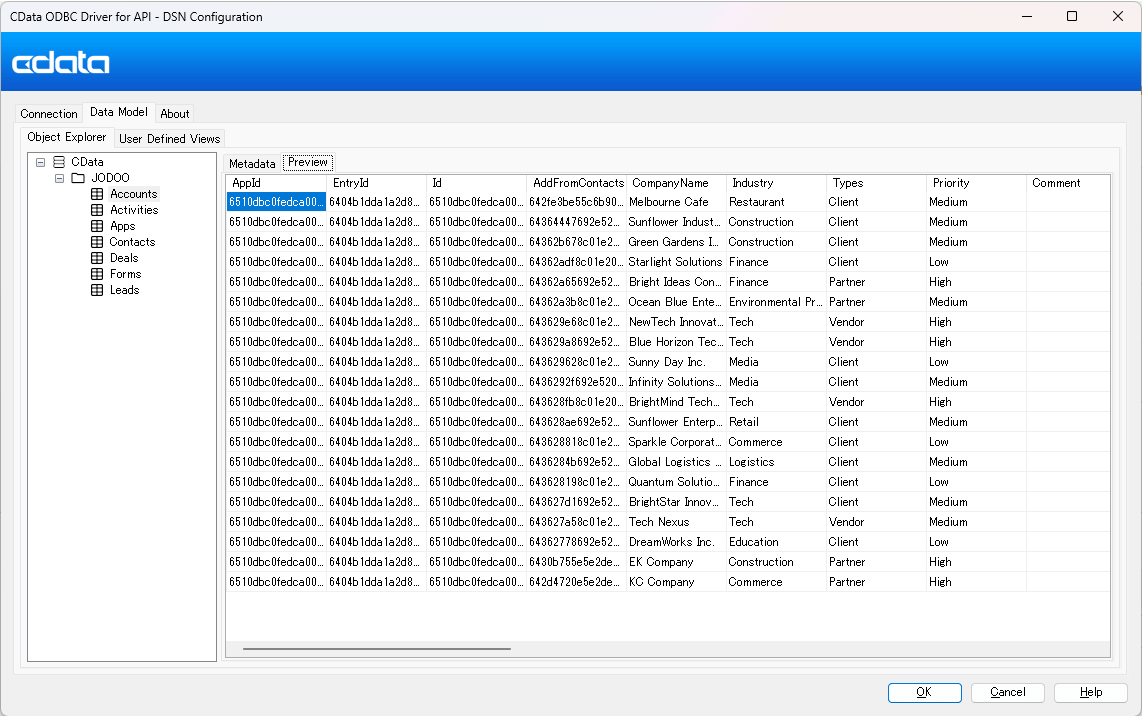
Also, You can confirm the actual JODOO data by clicking "Preview".
Connect to JODOO API from Power BI
Finally, let's access JODOO data using Power BI Desktop.
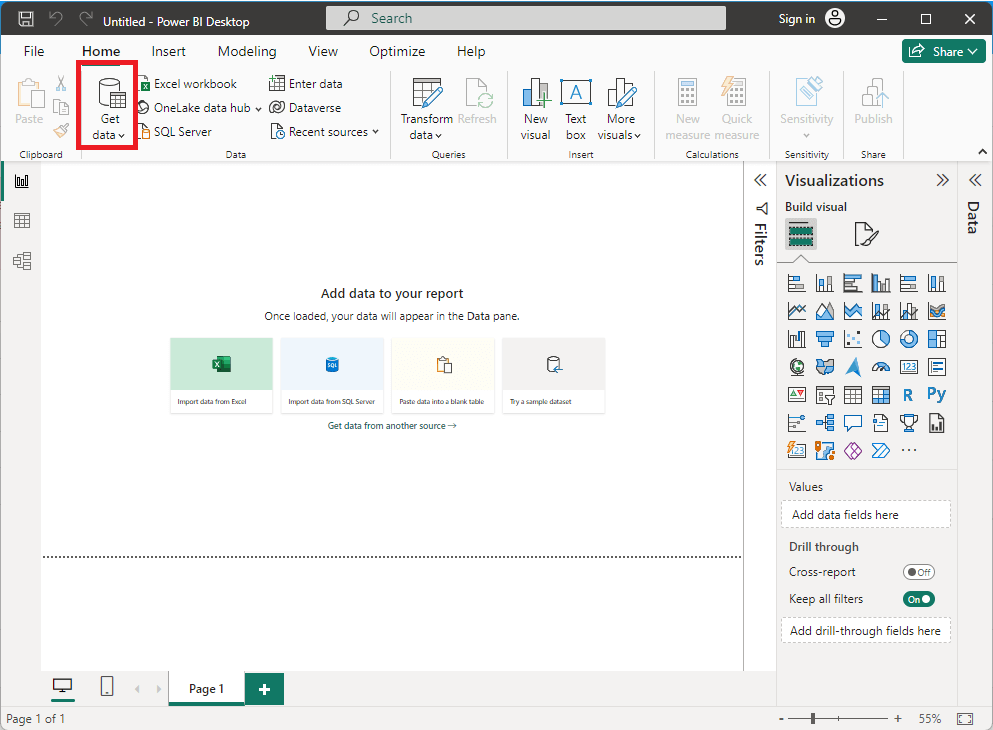
Launch Power BI Desktop and click "Get data".
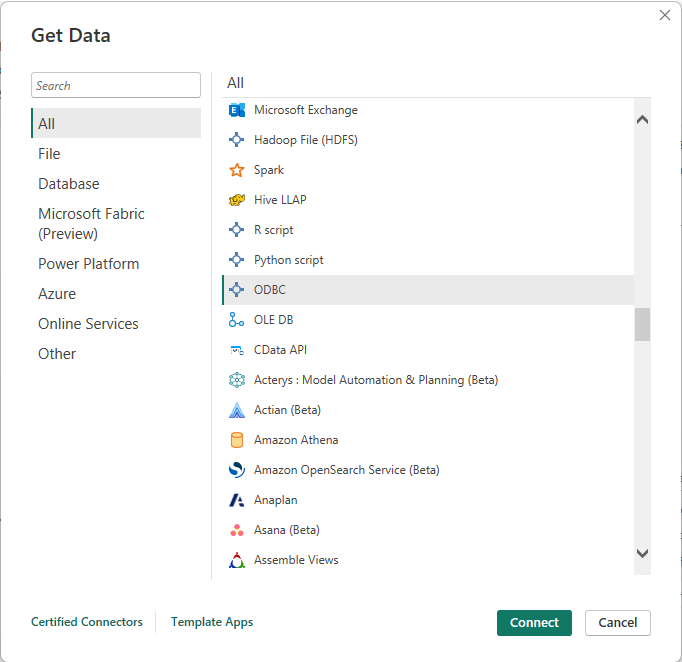
Select ODBC from the list of data sources.
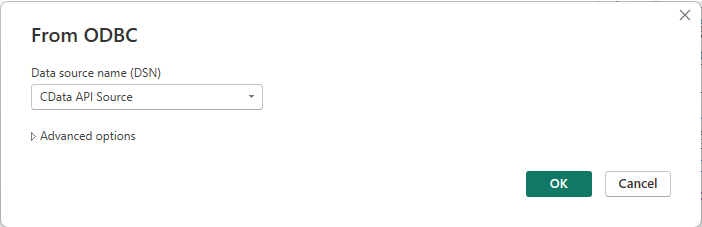
Select the ODBC DSN for JODOO you created before from the Data source name list.
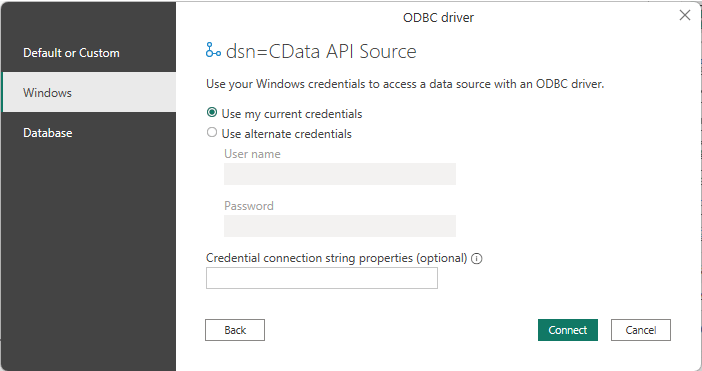
Next, an authentication screen will be displayed, but the authentication information for JODOO is included in ODBC DSN, so there is no need to specify it here. Select "Use my current credentials" under "Windows" and click "Connect".
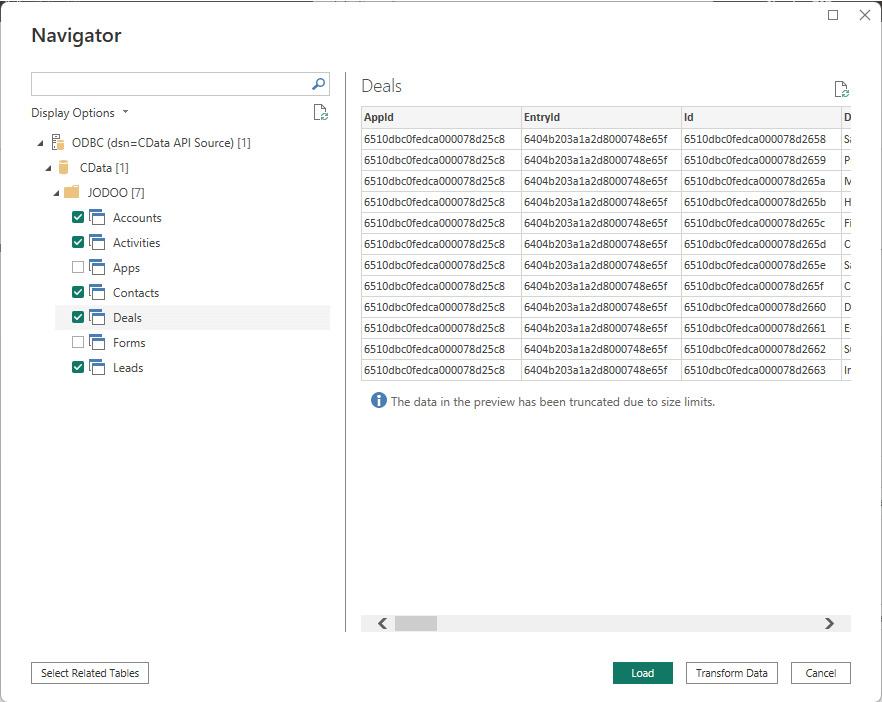
When you move to the Navigator screen, you will see a list of the data models you checked on the ODBC DSN screen earlier, so select the JODOO app/form you want to get and click "Load."
With just this, you can seamlessly import JODOO data into Power BI as like the following.

After that you can take full advantage of Power BI's features to visualize JODOO data.
Conclusion
This time we introduced the connection from Power BI, but by using the CData Drivers, you are possible to connect with BI tools and ETL tools other than Power BI you like.
The following page introduces how to connect with many tools, so please try to connect each APIs from various tools.
https://www.cdata.com/kb/tech/rest-article-list.rst