





RunMyProcess DSEC を使用して DigitalSuite Studio で SAP Netweaver Gateway のデータ に接続

CData JDBC Driver for SAP Netweaver Gateway は JDBC 標準を実装しており、BI からIDE まで幅広いアプリケーションから SAP Netweaver Gateway への接続を可能にします。この記事では、Arkobi Digital RunMyProcess の DSEC から SAP Netweaver Gateway のデータ に接続し、RunMyProcess で SAP Netweaver Gateway に接続する方法を説明します。
EnterpriseConnect Agent のセットアップ
RunMyProcess ドキュメントの EnterpriseConnect ページに従って、EnterpriseConnect Agent を設定します。
JDBC Adapter のセットアップ
JDBC Adapter のセクションでは、JDBC を使用して RDBMS に接続する手順が説明されています。手順に従って JDBC.config ファイルを開きます。
- CData JDBC Driver for SAP Netweaver Gateway 用の JSON エントリを作成します。例:
SAPGateway = { "sqlDriver" : "...", "sqlSource" : "...", "sqlDriverPath" : "..." } - "sqlDriver" フィールドに CData JDBC Driver のクラス名を設定します。例:
cdata.jdbc.sapgateway.SAPGatewayDriver - "sqlSource" フィールドに SAP Netweaver Gateway に接続するための JDBC URL を設定します。例:
jdbc:sapgateway:User=user;Password=password;URL=https://sapes5.sapdevcenter.com/sap/opu/odata/IWBEP/GWSAMPLE_BASIC/;組み込みの接続文字列デザイナー
JDBC URL の作成には、SAP Netweaver Gateway JDBC Driver に組み込まれている接続文字列デザイナーをご利用ください。JAR ファイルをダブルクリックするか、コマンドラインから JAR ファイルを実行します。
java -jar cdata.jdbc.sapgateway.jar
接続プロパティを入力し、接続文字列をクリップボードにコピーします。
SAP Gateway 接続プロパティの取得・設定方法
SAP Gateway のテーブルにアクセスするには、次の接続プロパティを設定します。
- URL = お使いの環境のURL、またはサービスの完全URL。例えば、完全URL は次のようになります:https://sapes5.sapdevcenter.com/sap/opu/odata/IWBEP/GWSAMPLE_BASIC/。この例では、環境URL は次のようになります:https://sapes5.sapdevcenter.com。CustomUrlParams プロパティを使用して、追加プロパティを追加します。
- Namespace = 適切なService Namespace。先ほどの例では、IWBEP が名前空間です。サービスへの完全URL が指定されている場合は任意です。
- Service = データを取得するサービス。先ほどの例では、サービスはGWSAMPLE_BASIC です。完全URL が指定されている場合は必須ではありません。
- CustomUrlParams = HTTP リクエストに含まれる必要のある追加プロパティ;例えばsap-client=001&sap-language=EN。
SAP Gateway への認証
SAP Gateway はBasic 認証、OAuth 2.0 認証、SAP BTP Destination 認証を許可します。
Basic 認証
Basic 認証を有効にするには、以下のプロパティを設定します。
- AuthScheme = Basic。
- User = SAP Gateway へのログインに使用するユーザー名。
- Password = SAP Gateway へのログインに使用するパスワード。
上記のプロパティを設定したら、接続の準備は完了です。ローカルデータにアクセスするには、個人の認証情報を使用します。
他の認証方法については、ヘルプドキュメントの「接続の確立」セクションを参照してください。

- "sqlDriverPath" フィールドに CData JDBC Driver JAR ファイルの名前を設定します。例:
cdata.jdbc.sapgateway.jar
JDBC.config ファイルの例
#DBAgent Configuration
SAPGateway = {"sqlDriver" : "cdata.jdbc.sapgateway.SAPGatewayDriver", "sqlSource" = "jdbc:sapgateway:User=user;Password=password;URL=https://sapes5.sapdevcenter.com/sap/opu/odata/IWBEP/GWSAMPLE_BASIC/;","sqlDriverPath" = "cdata.jdbc.sapgateway.jar" }
JDBC ドライバー JAR ファイル(cdata.jdbc.sapgateway.jar)を unified-adapter-[version].jar と同じディレクトリに配置します。

注意:CData ライセンスファイル(cdata.jdbc.sapgateway.lic)も同じディレクトリに配置してください。ライセンスは製品がインストールされているマシンの一意の識別子に基づいて生成されるため、ファイルを別のマシンに配置する場合はオフラインアクティベーションが必要になります。
DigitalSuite EnterpriseConnect Agent の起動
Windows では、Windows サービスから RunMyProcess DigitalSuite EnterpriseConnect Agent を起動します。コマンドラインでアプリケーションを起動する場合は、RunMyProcess ドキュメントの Starting the EnterpriseConnect Agent を参照してください。
JDBC Adapter の起動
runAdapter.bat から JDBC Adapter を起動します。Adapter が起動したら、エージェントアドレス(例:127.0.0.1:8080)を通じてアプリケーションにアクセスできます。以下は Windows でコマンドを実行した例です。
... > java -Djava.util.logging.config.file=./log.properties -cp lib/* org.runmyprocess.sec2.AdapterHandler :
2021-06-09 14:37:58|INFO|correlationId=|Searching for config file...
2021-06-09 14:37:58|INFO|correlationId=|Adapter Handler started with [JDBC] configuration
2021-06-09 14:37:59|INFO|correlationId=|agent address: 127.0.0.1:8080
2021-06-09 14:38:00.251:INFO::ConnectionThread: Logging initialized @1820ms to org.eclipse.jetty.util.log.StdErrLog
2021-06-09 14:38:00|INFO|correlationId=|onConnect() websocket connection between Agent and Adapter established
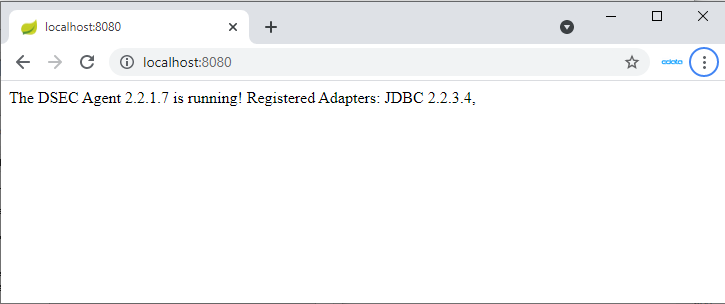
DigitalSuite EnterpriseConnect Agent と JDBC Adapter が起動したら、ブラウザで http://localhost:(指定したポート番号)/ にアクセスして、以下のページを開きます。
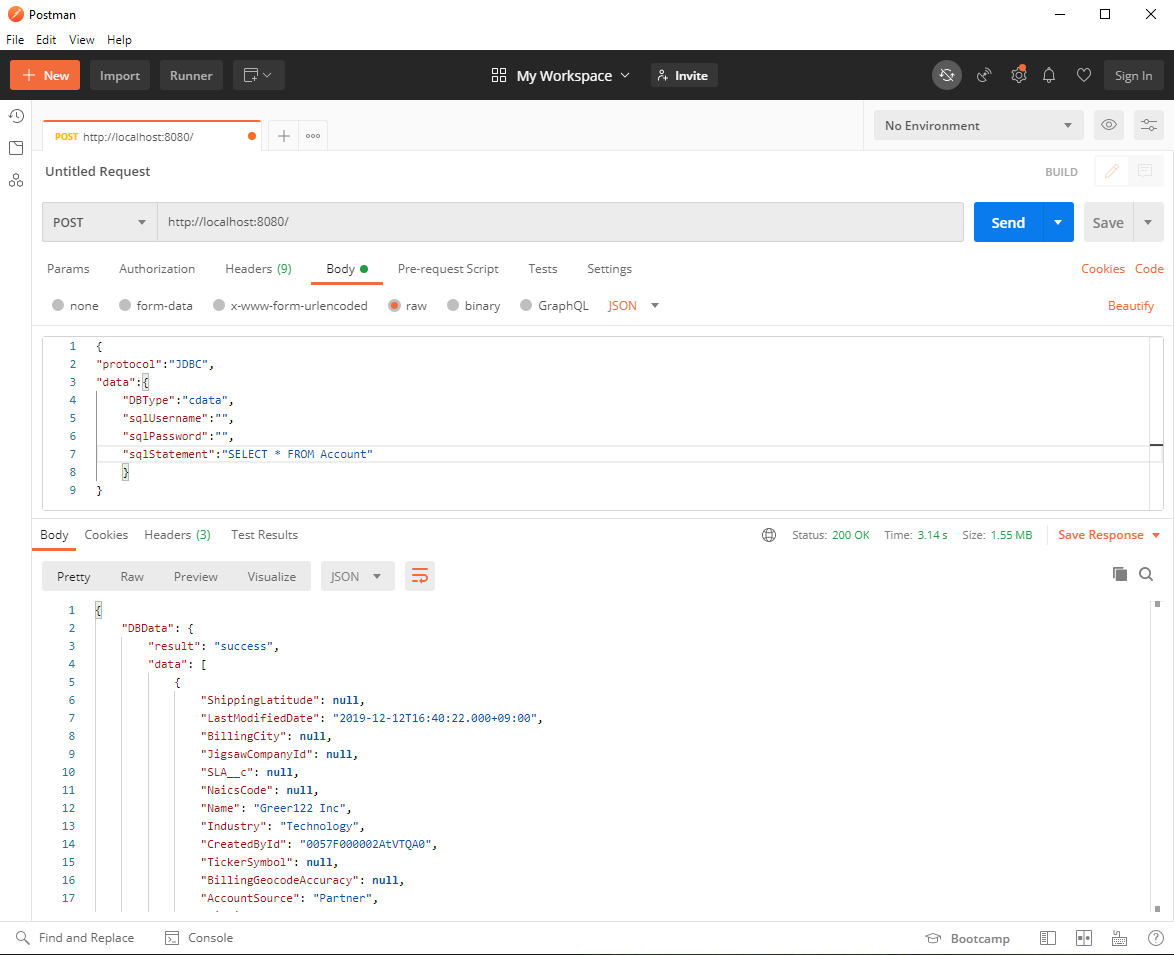
Postman や cURL などのツールを使用して JDBC Adapter の接続確認を行います。ここでは Postman を使用して HTTP POST リクエストを送信します。
RequestHeader を以下のように設定します:
Content-Type application/json
RequestBody を以下のように設定します:
{
	"protocol":"JDBC",
	"data":{
		"DBType":"SAPGateway",
		"sqlUsername":"",
		"sqlPassword":"",
		"sqlStatement":"SELECT * FROM SalesOrderLineItems"
	}
}
JDBC.config ファイルに認証情報が含まれている場合、sqlUsername と sqlPassword は空のままにできます。テーブル名が不明な場合は、SELECT * FROM sys_tables リクエストを使用してテーブルの一覧を取得できます。
ステータスが 200 で、ボディに JSON 形式の SAP Netweaver Gateway のデータ データが含まれていれば、リクエストは成功です。
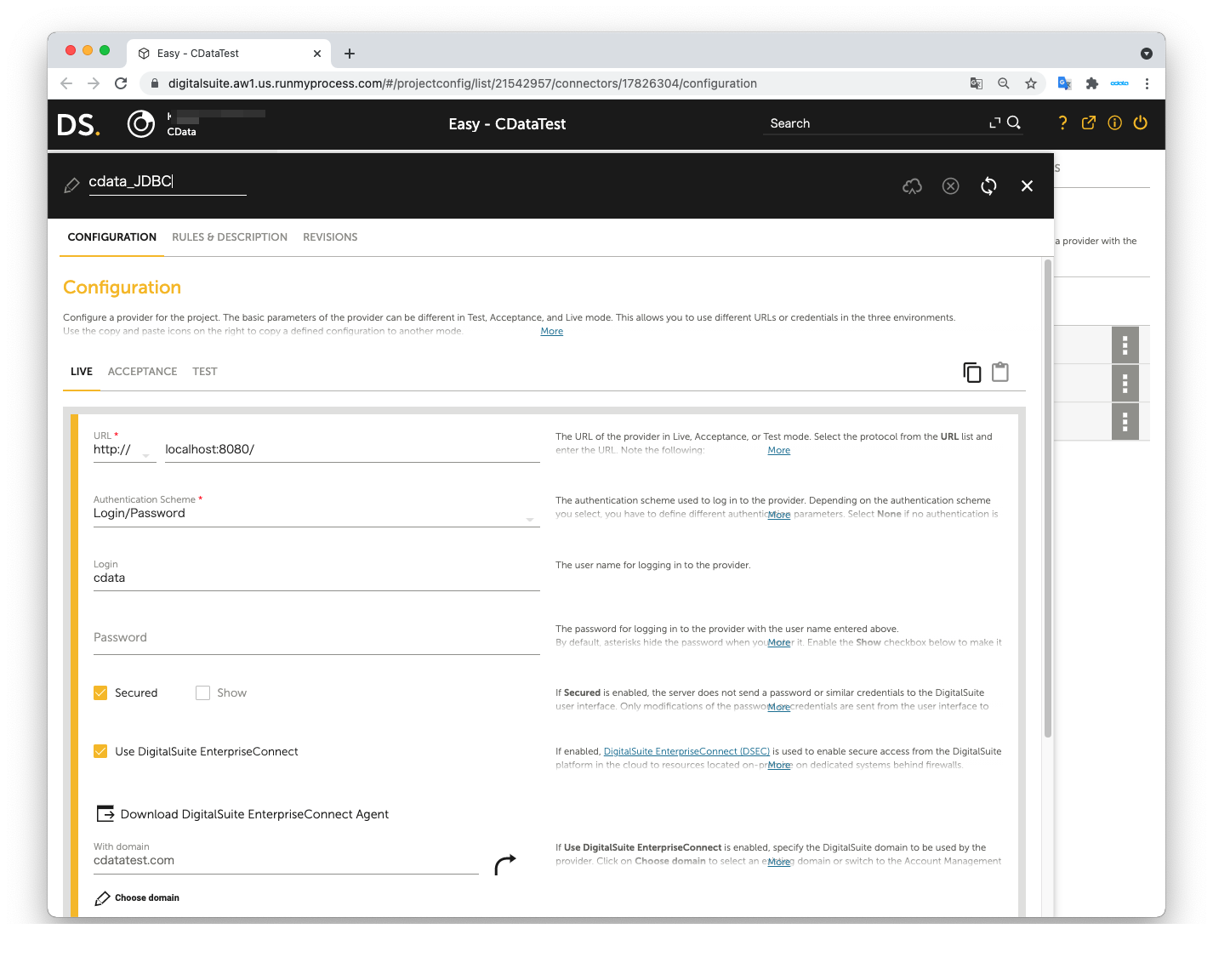
DigitalSuite Studio で DSEC Agent を介して SAP Netweaver Gateway に接続
DigitalSuite Studio プロジェクトを作成し、プロジェクト内に Provider を作成します。
- URL:JDBC Agent にアクセスするための URL(例:http:localhost:8080/)
- Authentication Scheme:Login/password
- Login:application.properties ファイルの agent.user の値
- Password:application.properties ファイルの agent.password の値
- Secured:チェックを入れる
- Use DigitalSuite EnterpriseConnect:チェックを入れる
- With domain:application.properties ファイルの agent.domain の値
次に、Provider 内に Connector を作成します。
- Connector URL:空のままにする
- Architecture:REST/XML-RPC
- Method:POST
- Result format:JSON
- Accept media type:application/json
- Character set:Automatic
- Content:JDBC Adapter で使用した Request body と同じ内容
- Content type: application/json
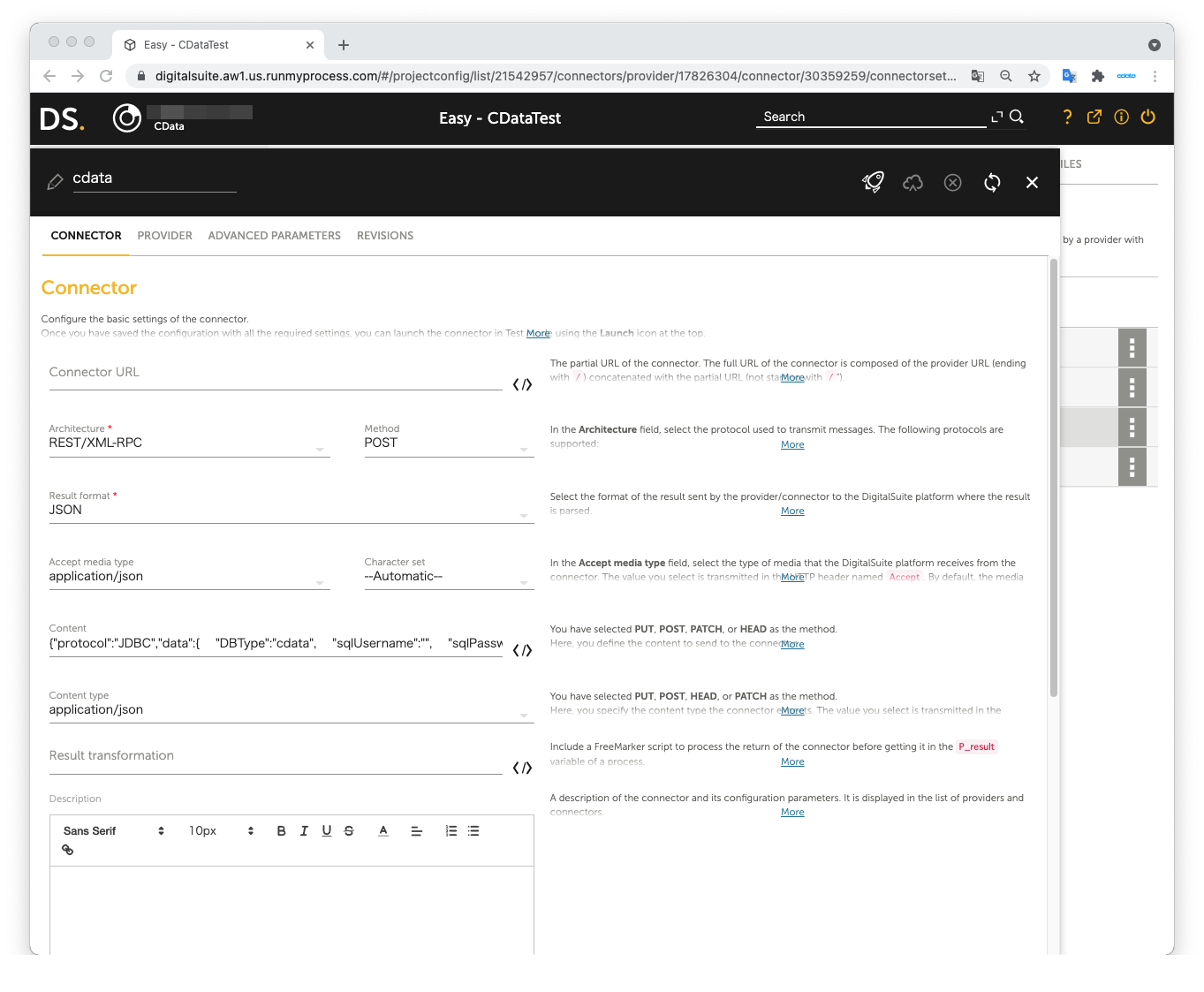
JDBC Adapter で Request body として使用した JSON データ:
{
	"protocol":"JDBC",
	"data":{
		"DBType":"SAPGateway",
		"sqlUsername":"",
		"sqlPassword":"",
		"sqlStatement":"SELECT * FROM SalesOrderLineItems"
	}
}
Launch Test を開いてテストを実行します。右側のペインの Result に SAP Netweaver Gateway のデータ データが表示されれば、テストは成功です。

これで、DSEC を介して RunMyProcess DigitalSuite Studio で SAP Netweaver Gateway のデータ を使用できるようになりました。
サポートされる SQL コマンドの詳細については、ヘルプドキュメントの「SQL Compliance」セクションを参照してください。テーブルの詳細については、「Data Model」セクションを参照してください。
はじめる準備はできましたか?
SAP Netweaver Gateway Driver の無料トライアルをダウンロードしてお試しください:
ダウンロード詳細:
 SAP Netweaver Gateway JDBC Driver
お問い合わせ
SAP Netweaver Gateway JDBC Driver
お問い合わせ
SAP Netweaver Gateway に連携するJava アプリケーションを素早く、簡単に開発できる便利なドライバー。