





AngularJS を使用し、Xero のデータで動的なWeb ページを構築

AngularJS (Angular) は、動的なWeb アプリの構造フレームワークです。CData API Server であるAngular およびADO.NET Provider for Xero (または250+ その他のADO.NET Providers) のCData API Server を使用して、Xero からリアルタイムデータにアクセスできるシングルページアプリケーション(SPAs) を構築できます。 この記事では、CData API Server の設定と、Xero へのライブアクセスを持つ単純なSPA の作成について説明します。 SPA はHTML テーブルを動的に作成して入力します。
Xero データ連携について
CData を使用すれば、Xero のライブデータへのアクセスと統合がこれまでになく簡単になります。お客様は CData の接続機能を以下の目的で利用しています:
- Xero Accounts と、米国およびオーストラリアの Payroll API の両方に接続できます。
- Customers、Transactions、Invoices、Sales Receipts などの Xero オブジェクトの読み取り、書き込み、更新、削除ができます。
- SQL ストアドプロシージャを使用して、カートへのアイテム追加、注文の送信、添付ファイルのダウンロードなどのアクションを実行できます。
- 会計、給与、ファイル、固定資産、プロジェクトデータを扱うことができます。
お客様は、Tableau、Qlik Sense、Excel などのお気に入りのツールと Xero データを定期的に統合し、Xero データをデータベースやデータウェアハウスに統合しています。
はじめに
API Server の設定
以下のリンクからAPI Server の無償トライアルをスタートしたら、セキュアなXero OData サービスを作成していきましょう。
Xero への接続
Angular からXero のデータを操作するには、まずXero への接続を作成・設定します。
- API Server にログインして、「Connections」をクリック、さらに「接続を追加」をクリックします。
- 「接続を追加」をクリックして、データソースがAPI Server に事前にインストールされている場合は、一覧から「Xero」を選択します。
- 事前にインストールされていない場合は、コネクタを追加していきます。コネクタ追加の手順は以下の記事にまとめてありますので、ご確認ください。
CData コネクタの追加方法はこちら >> - それでは、Xero への接続設定を行っていきましょう!
-
接続には、認証用の値に加えてSchema 接続プロパティを設定してください。Xero はプライベートアプリケーション、 パブリックアプリケーション、パートナーアプリケーションに認証を提供します。設定したアプリケーションに応じて、XeroAppAuthentication プロパティを PUBLIC、PRIVATE、またはPARTNER に設定する必要があります。プライベートアプリケーションから接続するには、追加でOAuthAccessToken、OAuthClientId、 OAuthClientSecret、CertificateStoreType、CertificateStore、およびCertificateStorePassword を設定してください。
パブリックまたはパートナーアプリケーションから接続する場合は、埋め込みOAuthClientId、OAuthClientSecret、 およびCallbackURL を指定するか、アプリを登録してOAuth の値を入手できます。
Xero への認証については、ヘルプドキュメントの「はじめに」を参照してください。
- 接続情報の入力が完了したら、「保存およびテスト」をクリックします。
接続には、認証用の値に加えてSchema 接続プロパティを設定してください。Xero はプライベートアプリケーション、 パブリックアプリケーション、パートナーアプリケーションに認証を提供します。設定したアプリケーションに応じて、XeroAppAuthentication プロパティを PUBLIC、PRIVATE、またはPARTNER に設定する必要があります。プライベートアプリケーションから接続するには、追加でOAuthAccessToken、OAuthClientId、 OAuthClientSecret、CertificateStoreType、CertificateStore、およびCertificateStorePassword を設定してください。
パブリックまたはパートナーアプリケーションから接続する場合は、埋め込みOAuthClientId、OAuthClientSecret、 およびCallbackURL を指定するか、アプリを登録してOAuth の値を入手できます。
Xero への認証については、ヘルプドキュメントの「はじめに」を参照してください。
API Server のユーザー設定
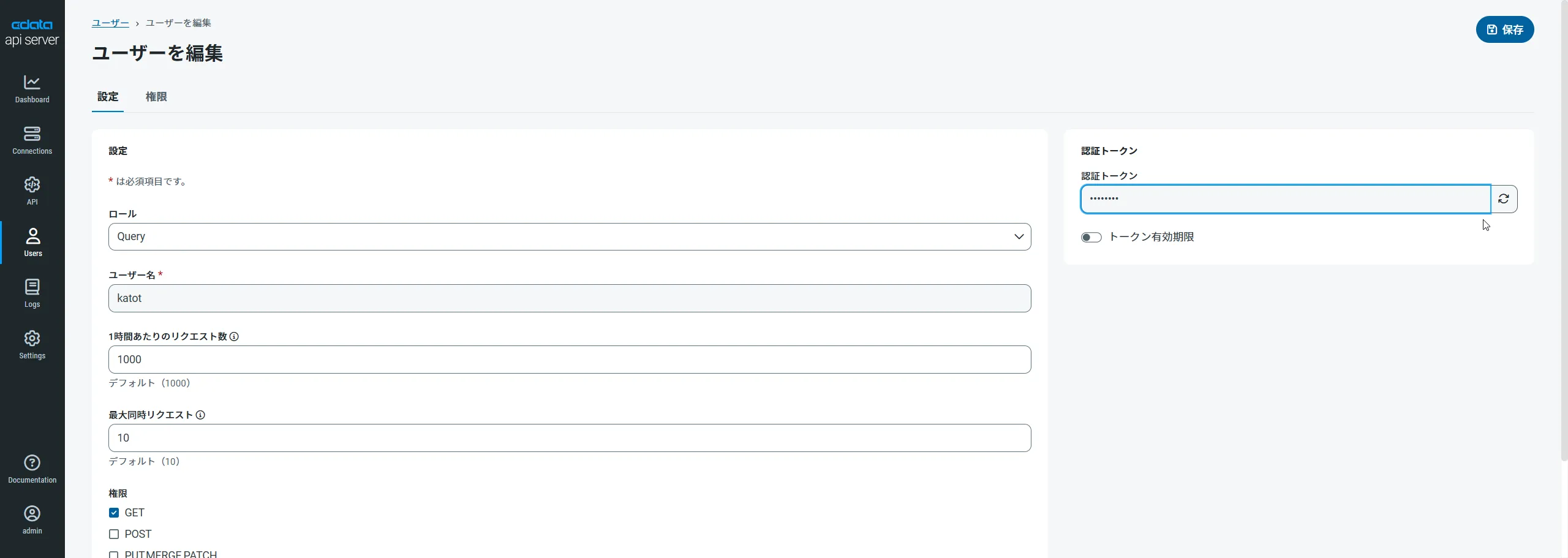
次に、API Server 経由でXero にアクセスするユーザーを作成します。「Users」ページでユーザーを追加・設定できます。やってみましょう。
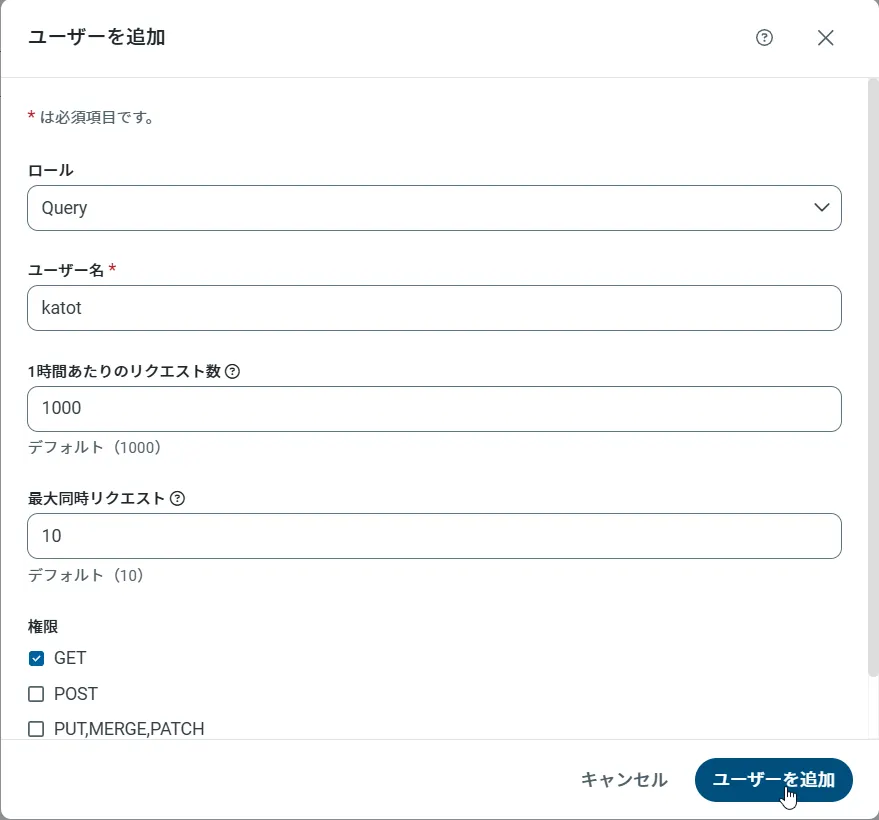
- 「Users」ページで ユーザーを追加をクリックすると、「ユーザーを追加」ポップアップが開きます。
-
次に、「ロール」、「ユーザー名」、「権限」プロパティを設定し、「ユーザーを追加」をクリックします。
-
その後、ユーザーの認証トークンが生成されます。各ユーザーの認証トークンとその他の情報は「Users」ページで確認できます。
Xero 用のAPI エンドポイントの作成
ユーザーを作成したら、Xero のデータ用のAPI エンドポイントを作成していきます。
-
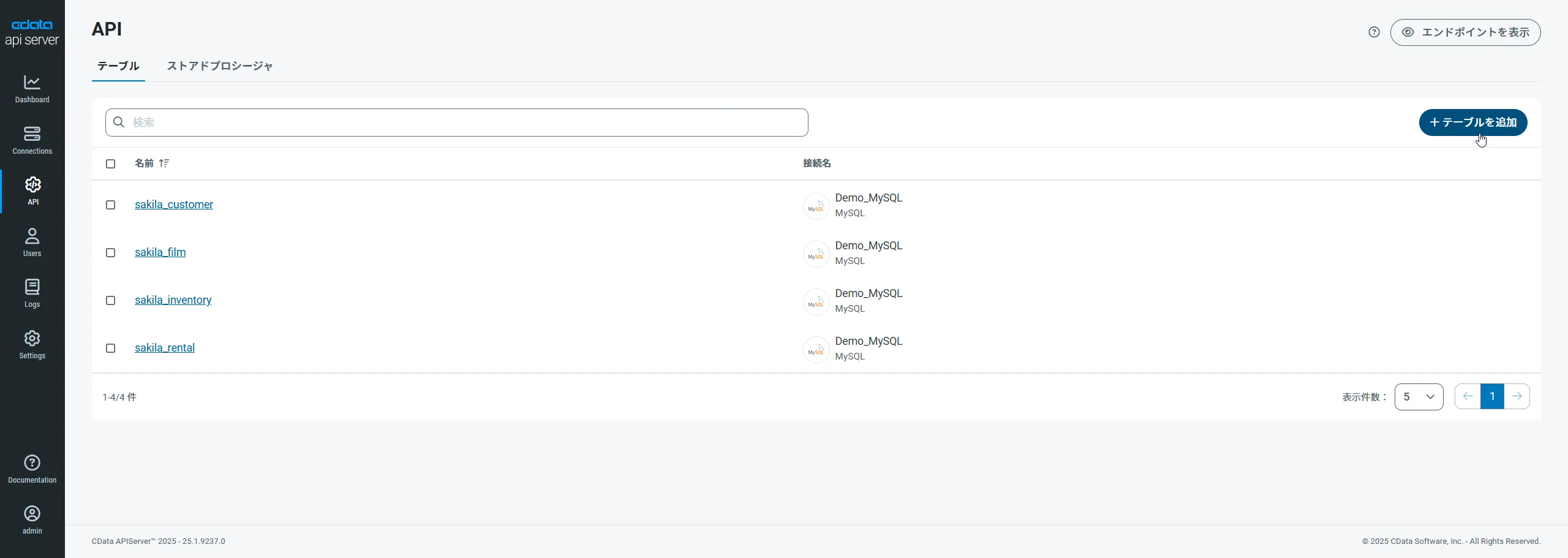
まず、「API」ページに移動し、
「 テーブルを追加」をクリックします。
-
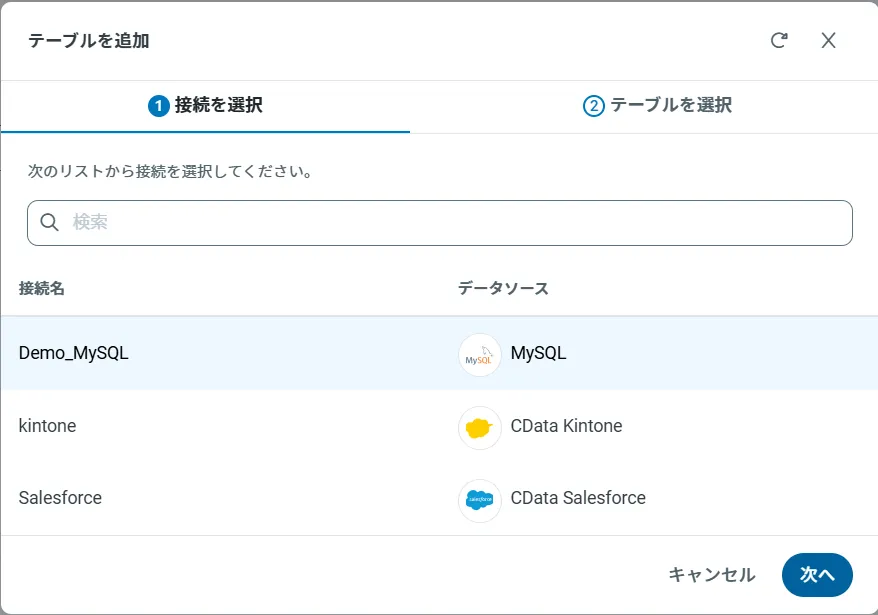
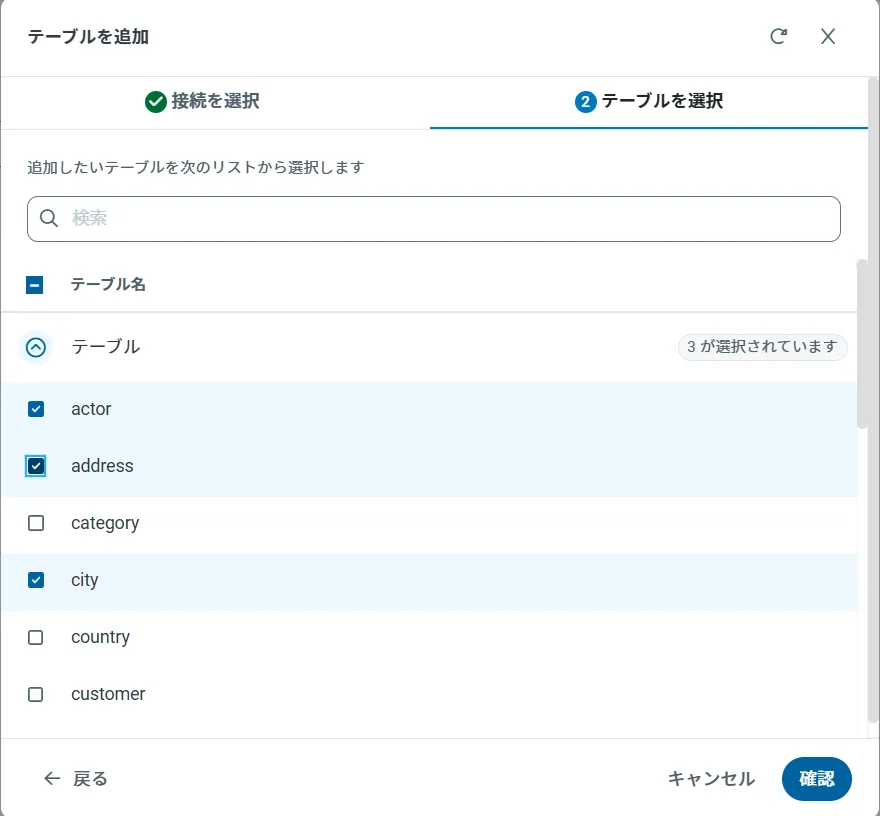
アクセスしたい接続を選択し、次へをクリックします。
-
接続を選択した状態で、各テーブルを選択して確認をクリックすることでエンドポイントを作成します。
OData のエンドポイントを取得
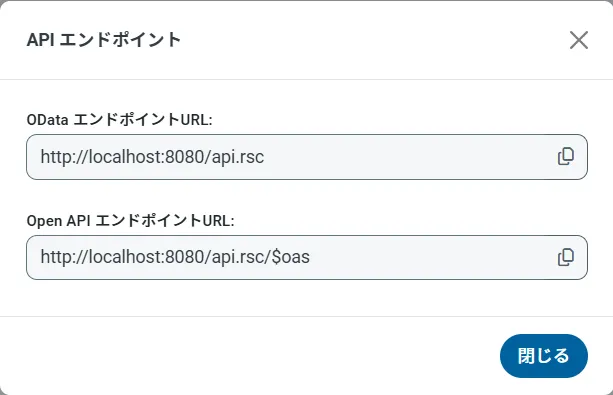
以上でXero への接続を設定してユーザーを作成し、API Server でXero データのAPI を追加しました。これで、OData 形式のXero データをREST API で利用できます。API Server の「API」ページから、API のエンドポイントを表示およびコピーできます。
CORS を有効にする
AngularJS では、サーバーでCORS (Cross-origin resource sharing) を有効にする必要があります。API Server の[SETTINGS Server]タブに移動すると、CORS を有効にできます。 以下の設定を調整する必要があります。
- チェックボックスをクリックして「Enable cross-origin resource sharing (CORS)]をクリックします。
- チェックボックスをクリックして[Allow all domains without '*']を選択するか、Access-Control-Allow-Origin で接続を許可するドメインを指定します。
- Access-Control-Allow-Methods を[GET,PUT,POST,OPTIONS]に設定します。
- Access-Control-Allow-Headers を[authorization]に設定します。
- [Save Changes]をクリックします。
OData フィードのサンプルURL
Xero への接続を構成し、ユーザーを作成してAPI Server にテーブルを追加すれば、それらのテーブルのOData フィードにアクセスできます。 以下は、テーブルにアクセスするためのURL とテーブルのリストです。テーブルへのアクセスについては、([API Server Web]ページの右上にあるAPI リンクをクリックして)API Server のAPI ページに移動できます。 URL には、API Server のアドレスとポートが必要です。 Angular を使用しているため、デフォルトではJSON データを返さないURL の末尾に@json パラメータを追加します。
| Table | URL | |
|---|---|---|
| Entity (table) List | http://address:port/api.rsc/ | |
| Metadata for table Items | http://address:port/api.rsc/Items/$metadata?@json | |
| Account | http://address:port/api.rsc/Items |
返されるフィールドを制限する場合には、標準のOData フィードと同様に、$select パラメータを$filter、$orderby、$skip、$top などの他の標準のOData URL パラメータとともにクエリに追加できます。 サポートされているOData クエリの詳細については、ヘルプドキュメントを参照してください。
シングルページアプリケーションの構築
API Server のセットアップが完了したら、SPA を構築する準備が整います。これは単純なデモンストレーションなので、すべてのCSS、スクリプト、およびAngular コントローラーを1 つのファイルに含め、AngularJS サービス、ファクトリ、およびカスタムディレクティブによって提供される機能を意図的に使用しないようにします。
CSS 定義とAngularJS ライブラリのインポート
まずCSS ルールセットをいくつか作成し、table、th、td、tr 要素を変更してデータのテーブルをフォーマットします。また、SPA で使用するためにAngularJS ライブラリをインポートする必要があります。
  <style>
  table, th, td {
    border:1px solid grey;
    border-collapse: collapse;
    padding:5px;
  }
  table tr:nth-child(odd) {
    background-color: #f1f1f1;
  }
  table tr:nth-child(even) {
    background-color: #ffffff;
  }
  </style>
  <script src="http://ajax.googleapis.com/ajax/libs/angularjs/1.4.8/angular.min.js"></script>
Angular アプリとコントローラーオブジェクトの作成と参照
次に、HTML の[body]タグにng-app ディレクティブとng-controller ディレクティブを追加します。これは、本体がAngular を使用す唯一の場所であるために必要な操作です。 そして、HTML 本文の最後にAngular アプリとコントローラーを作成及び定義するスクリプトタグを作成します。
<body ng-app="DataApp" ng-controller="SimpleController">
...
<script>
var app = angular.module('DataApp', []);
app.controller('SimpleController', function($scope, $http) {
    //we will add code here
    });
</script>
</body>
コントローラーの定義
ここでのコントローラーはAngular オブジェクトを初期化してSPA を設定するinit、選択したテーブルのカラムを取得するgetTableColumns、選択したカラムから選択したフィールドのデータを取得するgetTableData の3つの関数で構成されます。 コントローラを作成するときの最初のアクションとして、init 関数を呼び出します。 他のすべての関数は必要に応じて呼び出され、これらの関数呼び出しでXero のデータを取得するために、API Server に対して必要なHTTP GET 呼び出しを行います。
init();

/*
 * Initialize the data object, which will be used with Angular to
 * build the different parts of our SPA and to retrieve data from
 * the API Server.
 */
function init() {
  $scope.data = {
  availableTables: [],
                 availableColumns: [],
                 selectedTable: {},
                 tableData: []
  };

  /*
   * Call to the API Server to get the list of Tables, select the
   * first table by default, and retrieve the available columns.
   *
   * The call to the API Server returns standard OData, so the
   * data we need is in the value object in the JSON returned.
   */
  $http.get("http://server:port/api.rsc",{headers: {"Authorization":"Basic "  + btoa("MyUser:MyAuthtoken")}})
    .then(function (response) {
        $scope.data.availableTables = response.data.value;
        $scope.data.selectedTable = $scope.data.availableTables[0];
        $scope.getTableColumns();
        });
}

/*
 * Call to the API Server to get the list of columns for the
 * selected table.
 *
 * The data returned here is not standard OData, so we drill
 * down into the response to extract exactly the data we need
 * (an array of column names).
 *
 * With the column names retrieved, we will transform the array
 * of column names into an array of objects with a name and Id
 * field, to be used when we build an HTML select.
 */
$scope.getTableColumns = function () {
  $scope.data.tableData = [];
  $scope.data.selectedColumns = [];
  table = $scope.data.selectedTable.url;
  if (table != "") {
    $http.get("http://server:port/api.rsc/" + table + "/$metadata?@json", {headers: {"Authorization":"Basic "  + btoa("MyUser:MyAuthtoken")}})
      .then(function (response) {
          $scope.data.availableColumns = response.data.items[0]["odata:cname"];
          for (i = 0; i < $scope.data.availableColumns.length; i++) {
            $scope.data.availableColumns[i] = { id: i, name: $scope.data.availableColumns[i] };
          }
          });
  }
}

/*
 * Call to the API Server to get the requested data.We get the data
 * based on the table selected in the associated HTML select.
 * Then we create a comma-separated string of the selected columns.
 *
 * With the table and columns known, we can make the appropriate call
 * to the API Server.Because the driver returns standard OData, the
 * table data is found in the value field of the response.
 */
$scope.getTableData = function () {
  table = $scope.data.selectedTable.url;
  columnsArray = $scope.data.selectedColumns;
  columnString = "";
  for (i = 0; i < columnsArray.length; i++) {
    if (columnString != "") {
      columnString += ",";
    }
    columnString += columnsArray[i].name;
  }

  if (table != "") {
    $http.get("http://server:port/api.rsc/" + table + "?$select=" + columnString, {headers: {"Authorization":"Basic "  + btoa("MyUser:MyAuthtoken")}})
      .then(function (response) { $scope.data.tableData = response.data.value; });
  } else {
    $scope.data.tableData = [];
  }
}
Web ページの構成
コントローラを定義したら、Angular を使用してWeb ページを構築する準備が整います。単純なページには、テーブルを選択するための選択ボックス、カラムを選択するための選択(複数)ボックス、データを取得するためのボタン、およびデータを表示するためのテーブルの4つの主要部分があります。 これら4つの部分の1つずつを通して、Angular の使用方法について説明します。
テーブルを選択
最初のselect 要素では、ng-options ディレクティブを使用し、使用可能なテーブル(前述のinit 関数から取得) を反復処理し、select 要素にデータを入力します。 ng-model ディレクティブを使用して、選択したオプションの値をdata.selectedTable フィールドに割り当てます。 選択したテーブルが変更された場合は、getTableColumns 関数を呼び出して使用可能なカラムを再設定します。
  <label>Select a Table</label>
  <br />
  <select name="tableDropDown" id="tableDropDown"
          ng-options="table.name for table in data.availableTables track by table.url"
          ng-model="data.selectedTable"
          ng-change="getTableColumns()">
  </select>
カラムを選択
2番目のselect 要素では、再びng-options ディレクティブを使用しますが、今回は、(getTableColumns 関数によって取得された)使用可能なカラムを反復処理します。 使いやすさのために、select 要素に入力する前にカラムを名前でソートします。 この選択には複数 の属性が含まれているため、複数のカラムを選択できます。 選択した各列がdata.selectedColumns 配列に追加されます。カラムを選択すると、各列のテーブルヘッダーが作成されます(以下のデータテーブルのセクションを参照)。
  <label>Select Columns</label>
  <br />
  <select name="columnMultiple" id="columnMultiple"
          ng-options="column.name for column in data.availableColumns | orderBy:'name' track by column.id"
          ng-model="data.selectedColumns"
          multiple>
  </select>
テーブルデータを取得
このボタンでは、ボタンがクリックされるたびにgetTableData 関数を呼び出します。ユーザーがカラムを選択していない場合に、ng-disabled ディレクティブを使用してボタンを無効にしていることに注意してください。 また、選択したテーブルの名前でボタンのテキストを動的に更新します。
  <button name="getTableData" id="btnGetTableData"
          ng-click="getTableData()"
          ng-disabled="data.selectedColumns.length == 0">
  Get {{data.selectedTable.name}} Data
  </button>
テーブルデータを表示
このセクションは、選択したテーブルのデータを表示するというSPA の最終目標を満たしています。そのために、いくつかのng-repeat ディレクティブを使用します。1つは選択したカラムを反復処理してテーブルヘッダーを作成し、もう一つは返されたデータの行を反復処理して対応するデータを特定の行に表示します。
Angular を使用することで、表示するカラムを動的に決定できます。データがクリックされる「前」に選択されたカラムのみにデータが含まれることに注意してください。 使用可能なすべてのカラムを選択し、ボタンをクリックしてテーブルデータを取得してから、戻って別のカラムを選択または選択解除し、表示されるデータを変更することは簡単にできます。 選択したテーブルを変更すると、すべてのデータがクリアされます。
  <table>
    <tr>
      <th ng-repeat="column in data.selectedColumns | orderBy:'name'">{{column.name}}</th>
    </tr>
    <tr ng-repeat="row in data.tableData">
      <td ng-repeat="column in data.selectedColumns">{{ row[column.name] }}</td>
    </tr>
  </table>
アプリの完成
<!DOCTYPE html>

<html>
<style>
table, th, td {
border:1px solid grey;
        border-collapse: collapse;
padding:5px;
}
table tr:nth-child(odd) {
  background-color: #f1f1f1;
}
table tr:nth-child(even) {
  background-color: #ffffff;
}
</style>
<script src="http://ajax.googleapis.com/ajax/libs/angularjs/1.4.8/angular.min.js"></script>
<body ng-app="DataApp" ng-controller="SimpleController">
<label>Select a Table</label>
<br>
<select name="tableDropDown" id="tableDropDown"
ng-options="table.name for table in data.availableTables track by table.url"
ng-model="data.selectedTable"
ng-change="getTableColumns()">
</select>
<label>Select Columns</label>
<br />
<select name="columnMultiple" id="columnMultiple"
ng-options="column.name for column in data.availableColumns | orderBy:'name' track by column.id"
ng-model="data.selectedColumns"
multiple>
</select>
<button name="getTableData" id="btnGetTableData"
ng-click="getTableData()"
ng-disabled="data.selectedColumns.length == 0">
Get {{data.selectedTable.name}} Data
</button>
<br />
<br />

<table>
<tr>
<th ng-repeat="column in data.selectedColumns | orderBy:'name'">{{column.name}}</th>
</tr>
<tr ng-repeat="row in data.tableData">
<td ng-repeat="column in data.selectedColumns">{{ row[column.name] }}</td>
</tr>
</table>
<script>
var app = angular.module('DataApp', []);
app.controller('SimpleController', function($scope, $http) {
    init();

    /*
     * Initialize the data object, which will be used with Angular to
     * build the different parts of our SPA and to retrieve data from
     * the API Server.
     */
    function init() {
    $scope.data = {
    availableTables: [],
    availableColumns: [],
    selectedTable: {},
    tableData: []
};

/*
 * Call to the API Server to get the list of tables, select the
 * first table by default, and retrieve the available columns.
 *
 * The call to the API Server returns standard OData, so the
 * data we need is in the value object in the JSON returned.
 */
$http.get("http://server:port/api.rsc",{headers: {"Authorization":"Basic "  + btoa("MyUser:MyAuthtoken")}})
.then(function (response) {
    $scope.data.availableTables = response.data.value;
    $scope.data.selectedTable = $scope.data.availableTables[0];
    $scope.getTableColumns();
    });
}

/*
 * Call to the API Server to get the list of columns for the
 * selected table.
 *
 * The data returned here is not standard OData, so we drill
 * down into the response to extract exactly the data we need
 * (an array of column names).
 *
 * With the column names retrieved, we will transform the array
 * of column names into an array of objects with a name and Id
 * field, to be used when we build an HTML select.
 */
$scope.getTableColumns = function () {
  $scope.data.tableData = [];
  $scope.data.selectedColumns = [];
  table = $scope.data.selectedTable.url;
  if (table != "") {
    $http.get("http://server:port/api.rsc/" + table + "/$metadata?@json", {headers: {"Authorization":"Basic "  + btoa("MyUser:MyAuthtoken")}})
      .then(function (response) {
          $scope.data.availableColumns = response.data.items[0]["odata:cname"];
          for (i = 0; i < $scope.data.availableColumns.length; i++) {
          $scope.data.availableColumns[i] = { id: i, name: $scope.data.availableColumns[i] };
          }
          });
  }
}

/*
 * Call to the API Server to get the requested data.We get the data
 * based on the table selected in the associated HTML select.
 * Then we create a comma-separated string of the selected columns.
 *
 * With the table and columns known, we can make the appropriate call
 * to the API Server.Because the driver returns standard OData, the
 * table data is found in the value field of the response.
 */
$scope.getTableData = function () {
  table = $scope.data.selectedTable.url;
  columnsArray = $scope.data.selectedColumns;
  columnString = "";
  for (i = 0; i < columnsArray.length; i++) {
    if (columnString != "") {
      columnString += ",";
    }
    columnString += columnsArray[i].name;
  }

  if (table != "") {
    $http.get("http://server:port/api.rsc/" + table + "?$select=" + columnString, {headers: {"Authorization":"Basic "  + btoa("MyUser:MyAuthtoken")}})
      .then(function (response) { $scope.data.tableData = response.data.value; });
  } else {
    $scope.data.tableData = [];
  }
}
});
</script>
</body>
</html>
無料トライアルと詳細
Angular で構築されたWeb アプリケーションからXero (またはサポートされている他のデータソースからのデータ)に接続したい場合は、今すぐAPI Server の30日間無料トライアルダウンロードしてください。 API のより一般的な情報およびサポートされている他のデータソースについてはAPI Server ページを参照してください。