





Stripe のデータをDevExpress Data Grid にデータバインドする。

Stripe 用の CData ADO.NET プロバイダーはサードパーティーコントロールで使うことのできる通常のADO.NET データベースアクセスコンポーネントを実装しています。データバインドするための通常のADO.NET プロセスに従うことで、UI コントロールから実データへの双方向アクセスを可能にします。 この記事では、CData を使ってDevExpress Windows Forms とウェブコントロールにデータバインドする方法を説明します。ここでは、最新のデータを表示するチャートにデータバインドします。
Stripeへの接続
それでは、Stripe への接続について説明していきましょう。Stripe では、本番API キーまたはOAuth のいずれかによる認証をサポートしています。
本番API キー
本番API キーで接続するには、以下の2つの設定パラメータを設定する必要があります。
- AuthScheme = APIKey
- LiveAPIKey = 本番API キーの値
本番API キーの値を取得するには、以下の手順で確認できます:
- Stripe ダッシュボードにログインします
- 開発者 → API キー → シークレットキー → 本番環境のキーを表示 に移動します
Stripe では、テストモードで作成されたシークレットキーを使用して、'StripeV2' データモデルのエンティティにはアクセスできませんのでご注意ください。ライブモードまたはサンドボックスモードで作成されたシークレットキーをご利用ください。 さらに、制限付きキーを使用して'StripeV2' データモデルのエンティティにアクセスすることも許可されていません。
OAuth については、ヘルプドキュメントの「接続の確立」をご確認ください。
Windows Forms コントロール
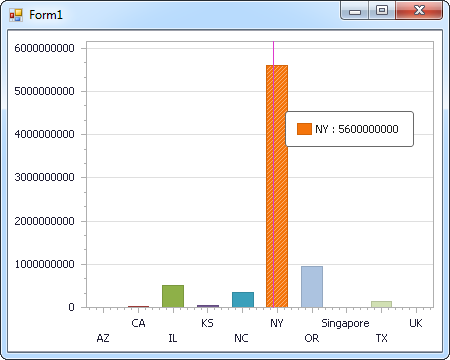
下のコードでは、Stripe でDevExpress のチャートに追加する方法を説明します。StripeDataAdapter はチャートコントロールのSeries プロパティにバインドします。コントロールのDiagram プロパティはx 軸とy 軸をカラム名として定義します。
using (StripeConnection connection = new StripeConnection(
"OAuthClientId=MyOAuthClientId;OAuthClientSecret=MyOAuthClientSecret;CallbackURL=http://localhost:33333;")) {
  StripeDataAdapter dataAdapter = new StripeDataAdapter(
  "SELECT Email, Discount FROM Customers", connection);

  DataTable table = new DataTable();
  dataAdapter.Fill(table);
  DevExpress.XtraCharts.Series series = new DevExpress.XtraCharts.Series();
  chartControl1.Series.Add(series);
  DataTable table = new DataTable();
  series.ValueDataMembers.AddRange(new string[] { "Discount" });
  series.ArgumentScaleType = DevExpress.XtraCharts.ScaleType.Qualitative;
  series.ArgumentDataMember = "Email";
  series.ValueScaleType = DevExpress.XtraCharts.ScaleType.Numerical;
  chartControl1.Legend.Visibility = DevExpress.Utils.DefaultBoolean.False;
  ((DevExpress.XtraCharts.SideBySideBarSeriesView)series.View).ColorEach = true;
}
Web コントロール
下のコードではStripe でDevExpress Web を操作するための設定方法を説明します。StripeDataAdapter はチャートのSeries プロパティにバインドします。Diagram プロパティはx 軸とy 軸をカラム名として定義します。
using DevExpress.XtraCharts;

using (StripeConnection connection = new StripeConnection(
"OAuthClientId=MyOAuthClientId;OAuthClientSecret=MyOAuthClientSecret;CallbackURL=http://localhost:33333;"))
{
  StripeDataAdapter StripeDataAdapter1 = new StripeDataAdapter("SELECT Email, Discount FROM Customers", connection);
  DataTable table = new DataTable();
  StripeDataAdapter1.Fill(table);
  DevExpress.XtraCharts.Series series = new Series("Series1", ViewType.Bar);
  WebChartControl1.Series.Add(series);
  DataTable table = new DataTable();
  series.ValueDataMembers.AddRange(new string[] { "Discount" });
  series.ArgumentScaleType = ScaleType.Qualitative;
  series.ArgumentDataMember = "Email";
  series.ValueScaleType = ScaleType.Numerical;
  ((DevExpress.XtraCharts.SideBySideBarSeriesView)series.View).ColorEach = true;
}

はじめる準備はできましたか?
Stripe Data Provider の無料トライアルをダウンロードしてお試しください:
ダウンロード