





【MCP Server】IBM Informix × Claude Desktop 連携ガイド | AI でデータを徹底活用

Model Context Protocol (MCP) is an emerging, open-source standard for connecting LLMs with external services and data sources. Through MCP Servers, AI clients can perform actions like opening Jira tickets, posting Slack messages, committing GitHub branches and more. With CData MCP Servers, these capabilities expand exponentially.
In this article, we guide the reader through installing the CData MCP Server for IBM Informix, configuring the connection to IBM Informix, and asking questions of the data in Claude Desktop.
Prerequisites
You need to download Claude Desktop (download) and create an account before continuing.
Overview
Here's a quick overview of the steps:
- Download and install the CData MCP Server for IBM Informix
- Configure the connection to IBM Informix
- Ask questions about the data in Claude Desktop
Step 1: Download and install the CData MCP Server
- To begin, navigate to https://www.cdata.com/solutions/mcp/connectors and download the CData MCP Server for IBM Informix.
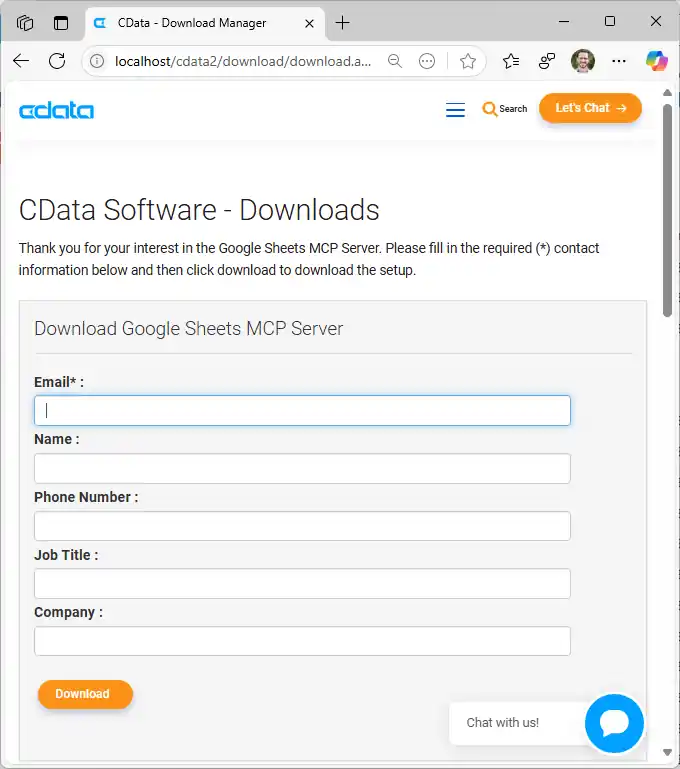
- Find and double-click the installer to begin the installation.
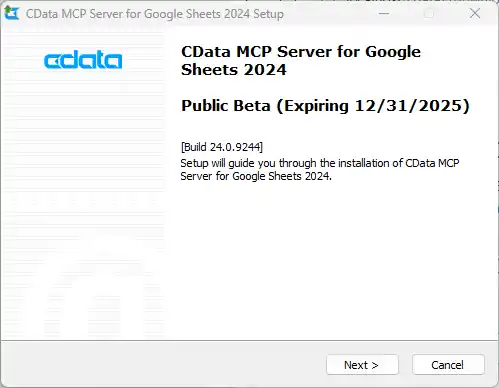
- Follow the prompts to complete the installation.
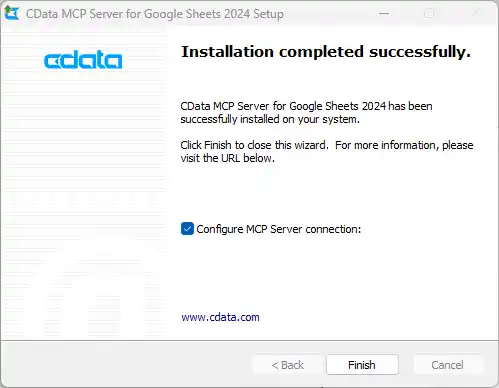
When the installation is complete, you are ready to configure your MCP Server by connecting to IBM Informix.
Step 2: Configure the connection to IBM Informix
- After installation, the CData MCP Server configuration wizard should open automatically.
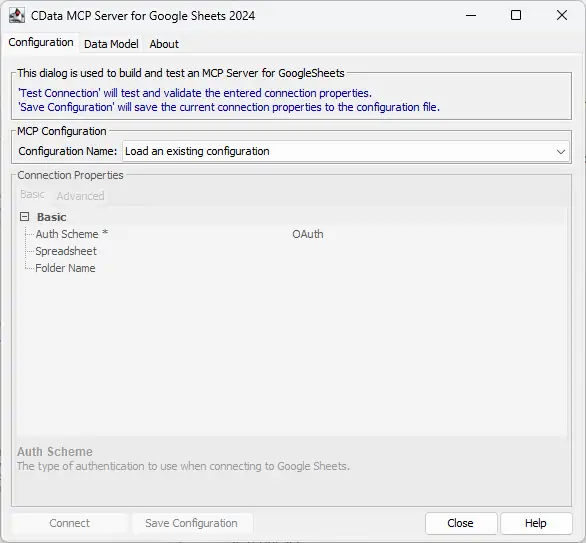
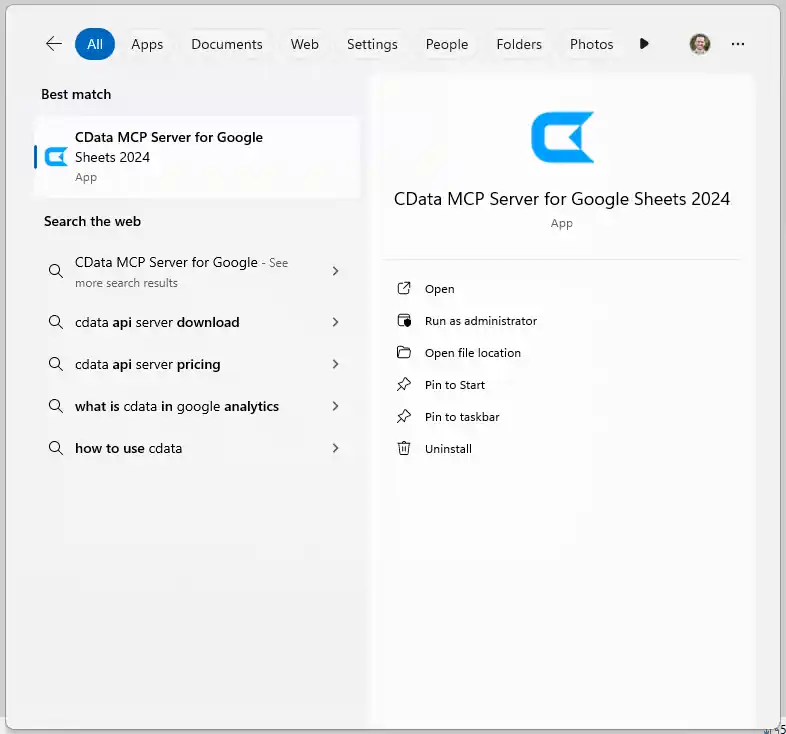
NOTE: If the wizard does not open automatically, search for "CData MCP Server" in the Windows search bar and double-click the application.
- Click the dropdown menu in MCP Configuration > Configuration Name and select "
" 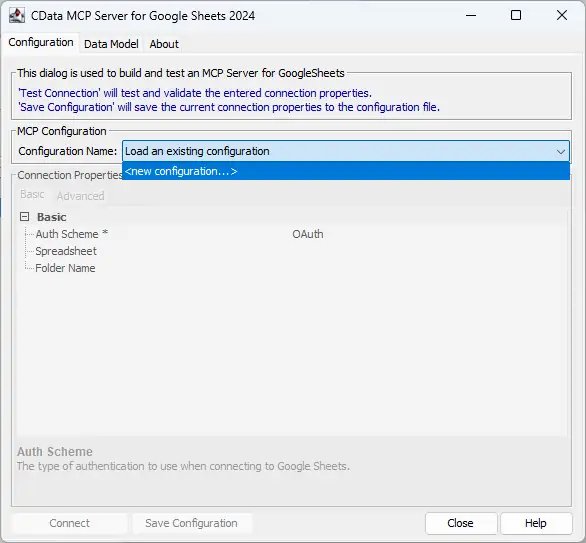
- Name the configuration (e.g. "cdatainformix") and click "OK."
NOTE: This name is used as the name for the MCP server and as the prefix for all of the MCP Server's tools.

Connecting to IBM Informix
以下のプロパティを設定してIBM Informix に接続します。
- Server:IBM Informix を実行しているサーバーの名前に設定。
- Port:IBM Informix サーバーがリッスンしているポートに設定。
- Database:IBM Informix データベースの名前に設定。
- User:データベースへのアクセスを許可されたユーザーのユーザー名に設定。
- Password:データベースへのアクセスを許可されたユーザーのパスワードに設定。
Enter the appropriate connection properties in the configuration wizard.
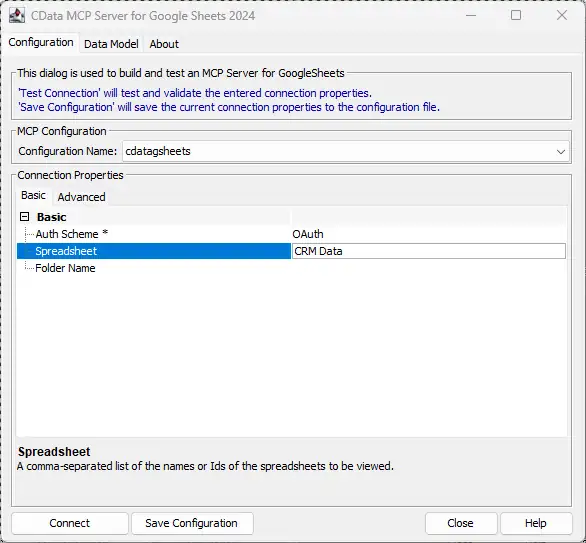
- Click "Connect" to authenticate with IBM Informix.
- Finally, click "Save Configuration" to save the MCP server.
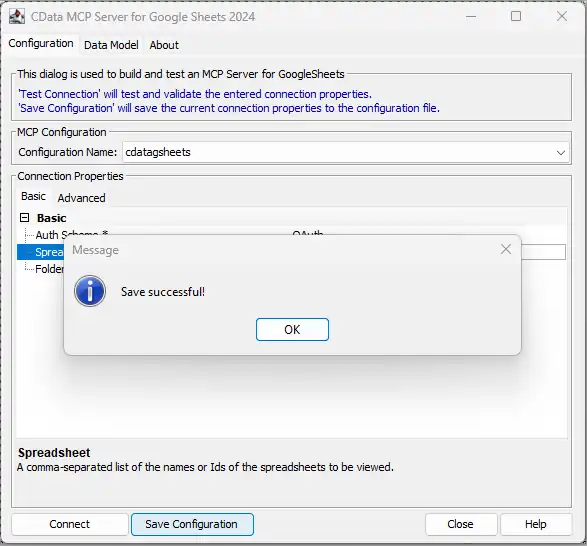
NOTE: This saves the configuration details to a separate file and updates the Claude Desktop configuration file (claude_desktop_config.json) to start the CData MCP Server when the Claude Desktop client starts.
With the CData MCP Server configured, you are ready to start asking questions of your live data from Claude.
Step 3: Ask AI for answers from live IBM Informix のデータ
Now that we have installed the CData MCP Server and configured a connection, we are ready to start with IBM Informix のデータ in Claude Desktop.
- Open Claude Desktop. It may take a moment for the MCP Servers to start, but you will see the list of servers and tools available in the Claude interface (look for the settings icon below the prompt bar).
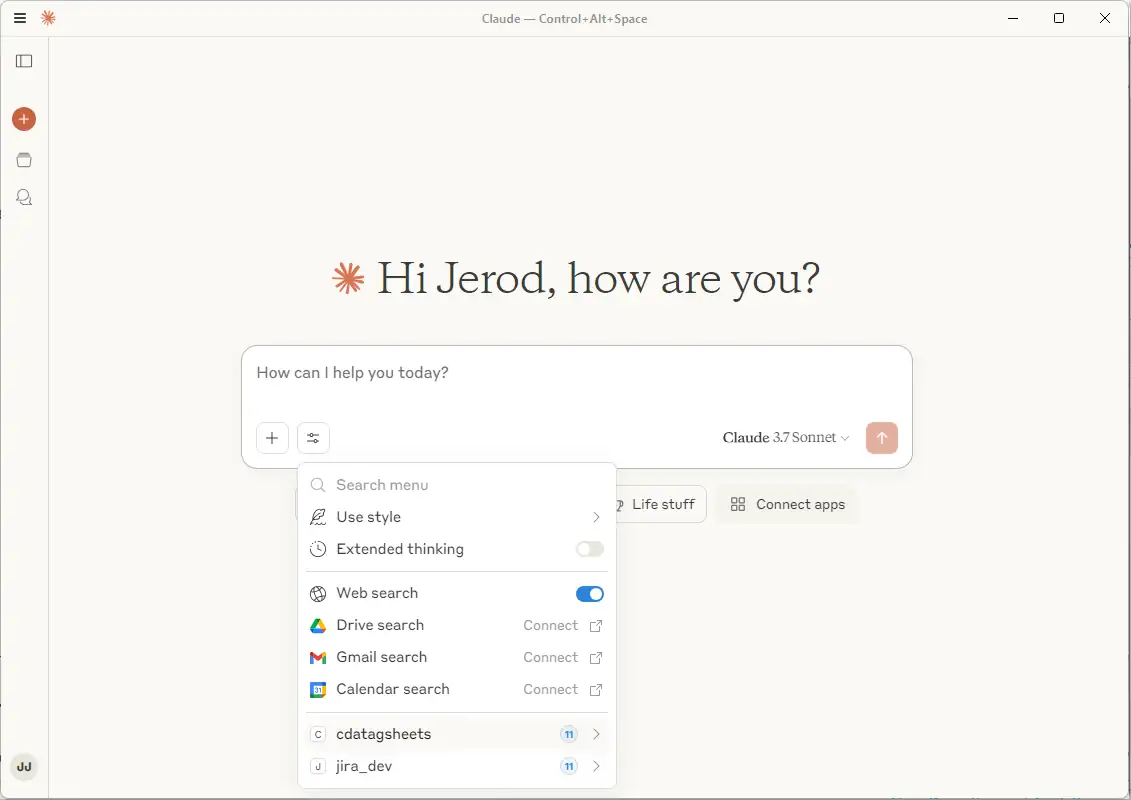
You can individually enable and disable specific tools by clicking on the server name.
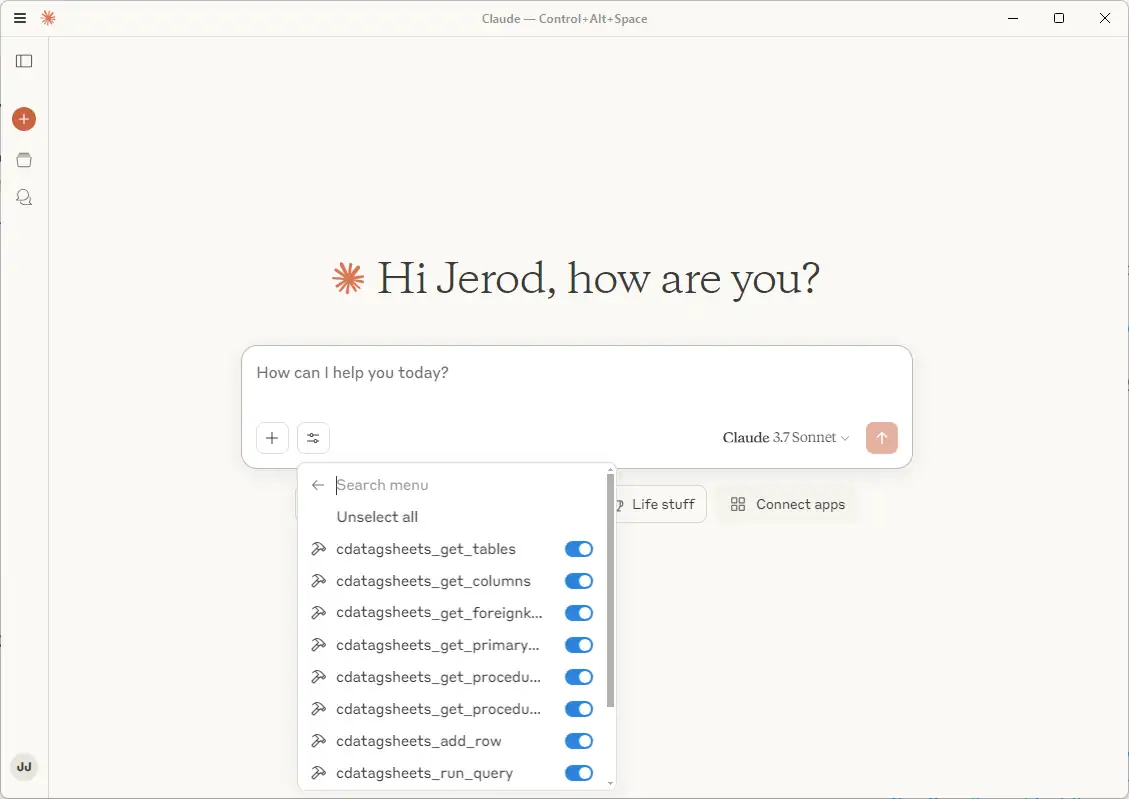
- Now that you have connected, you can ask Claude questions about the IBM Informix のデータ. For example: "Can you give me a quantitative analysis about my closed-won opportunities by industry?"
NOTE: Claude may need to explore the IBM Informix のデータ to make sense of it before it can begin answering questions of the data. The tabular model presented by CData alongside the database tools available simplify the data exploration and analysis for an LLM.

Connect your AI to your data today!
CData MCP Servers make it easier than ever for LLMs to work with live enterprise data. To explore the technology hands-on, download a free, 30-day trial or visit the CData Community to share insights, ask questions, and help shape the future of enterprise-ready AI.
はじめる準備はできましたか?
IBM Informix MCP Server の無料トライアルをダウンロード:
ダウンロード詳細:
 IBM Informix MCP Server
お問い合わせ
IBM Informix MCP Server
お問い合わせ
The CData MCP Server for IBM Informix allows you to connect with live IBM Informix data, directly from LLMs that support MCP.