





Infragistics Reveal で API ののデータを分析・可視化

Reveal は Infragistics が提供するデータ可視化ソリューションで、CData API Server と組み合わせることで、リアルタイムのAPI のデータから動的なダッシュボードを構築できます。CData API Server は API 用の OData API を生成し、Reveal からネイティブに利用できます。この記事では、API Server で API に接続し、Infragistics Reveal から API Server に接続してシンプルなダッシュボードを作成する方法を説明します。
API Server から API に接続
CData API Server は、シンプルなポイント&クリック操作のインターフェースでデータソースに接続し、API を生成できます。
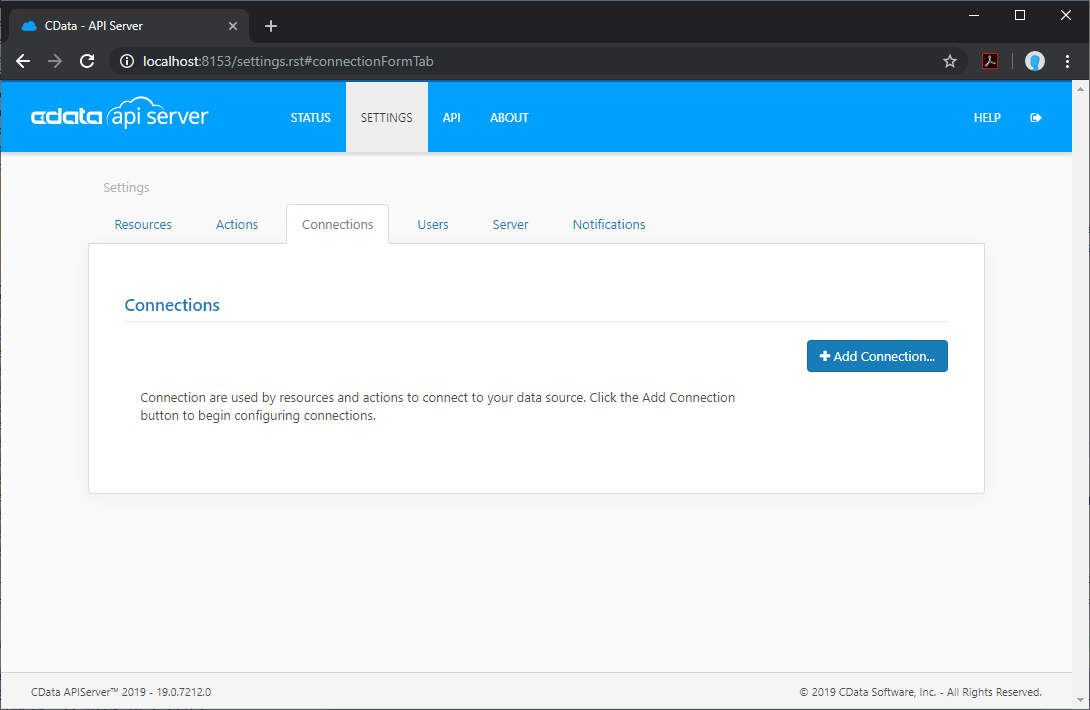
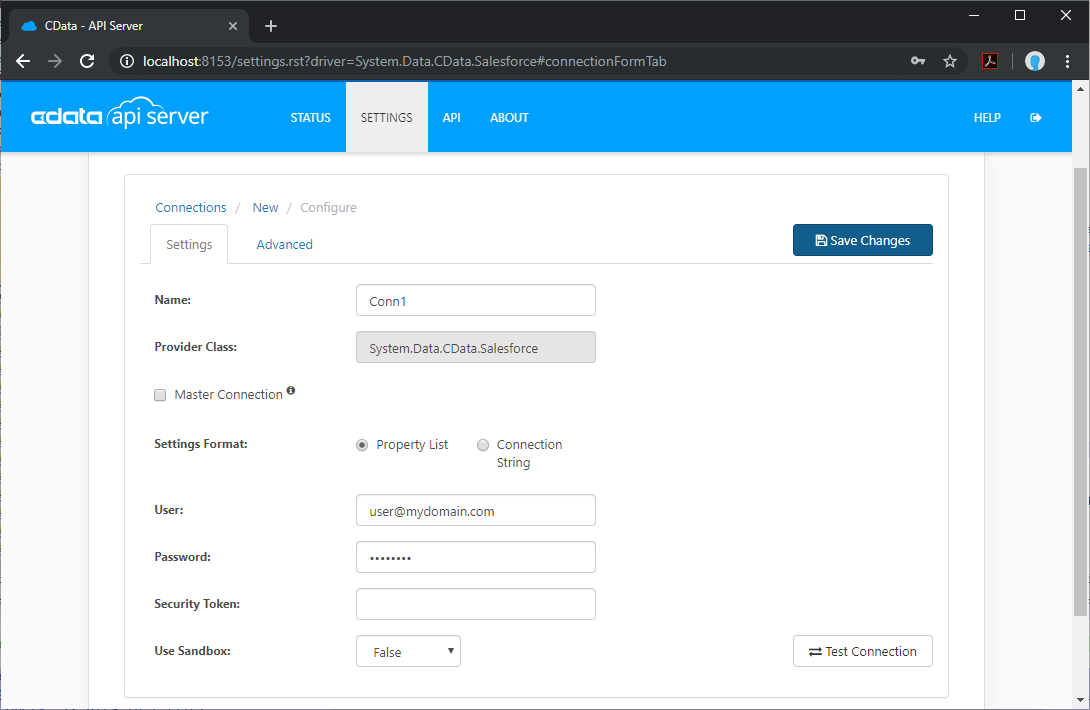
- API Server を開き、Settings -> Connection -> Add Connection をクリックします。
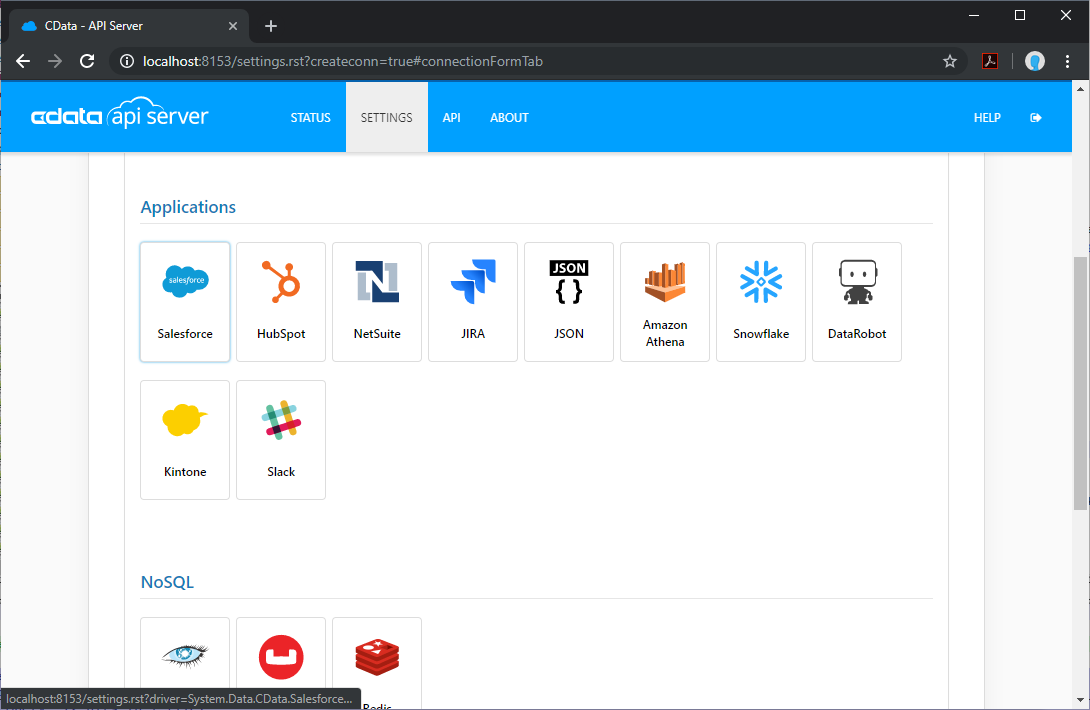
- 「API」を選択します。
- API に接続するために必要な認証プロパティを入力します。
To connect to your API, configure the following properties on the Global Settings page:
- In Authentication, select the Type and fill in the required properties
- In Headers, add the required HTTP headers for your API
- In Pagination, select the Type and fill in the required properties
After the configuring the global settings, navigate to the Tables to add tables. For each table you wish to add:
- Click "+ Add"
- Set the Name for the table
- Set Request URL to the API endpoint you wish to work with
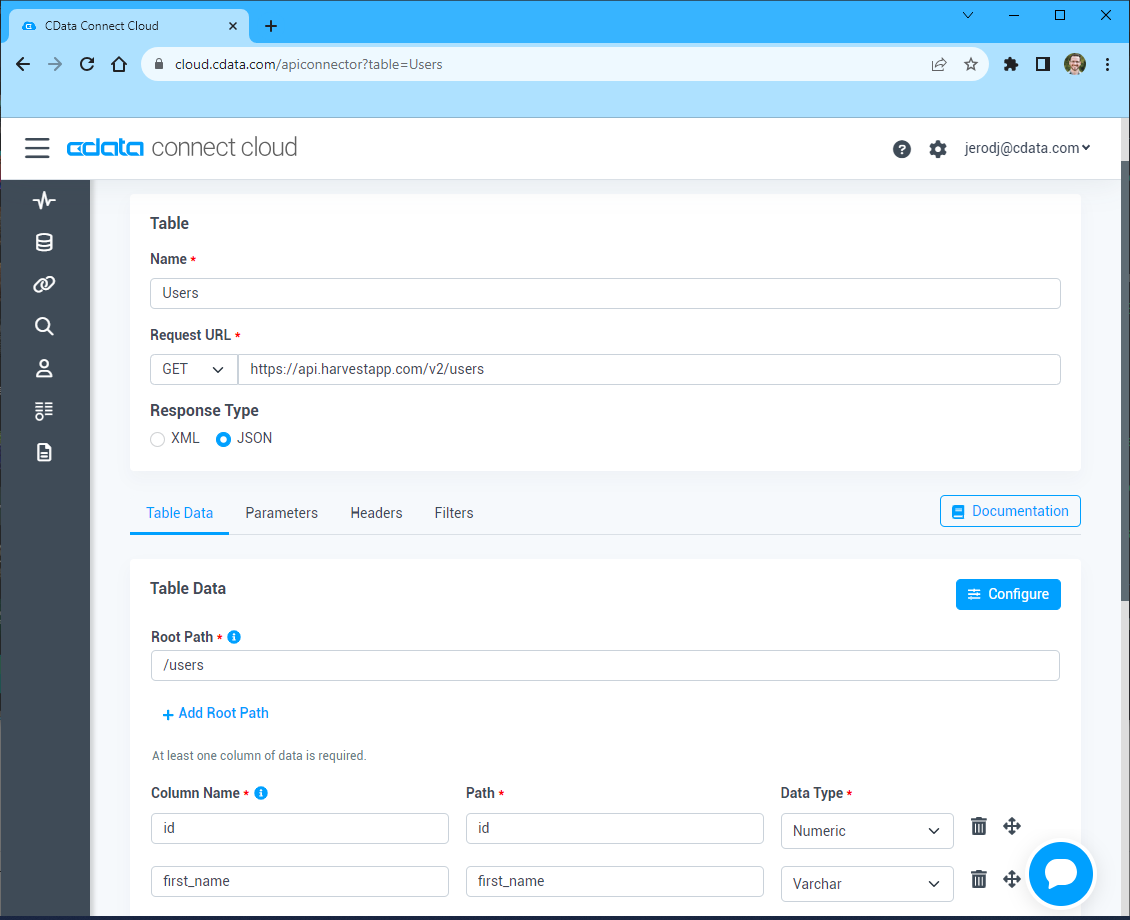
- (Optional) In Parameters, add the required URL Parameters for your API endpoint
- (Optional) In Headers, add the required HTTP headers for the API endpoint
- In Table Data click " Configure"
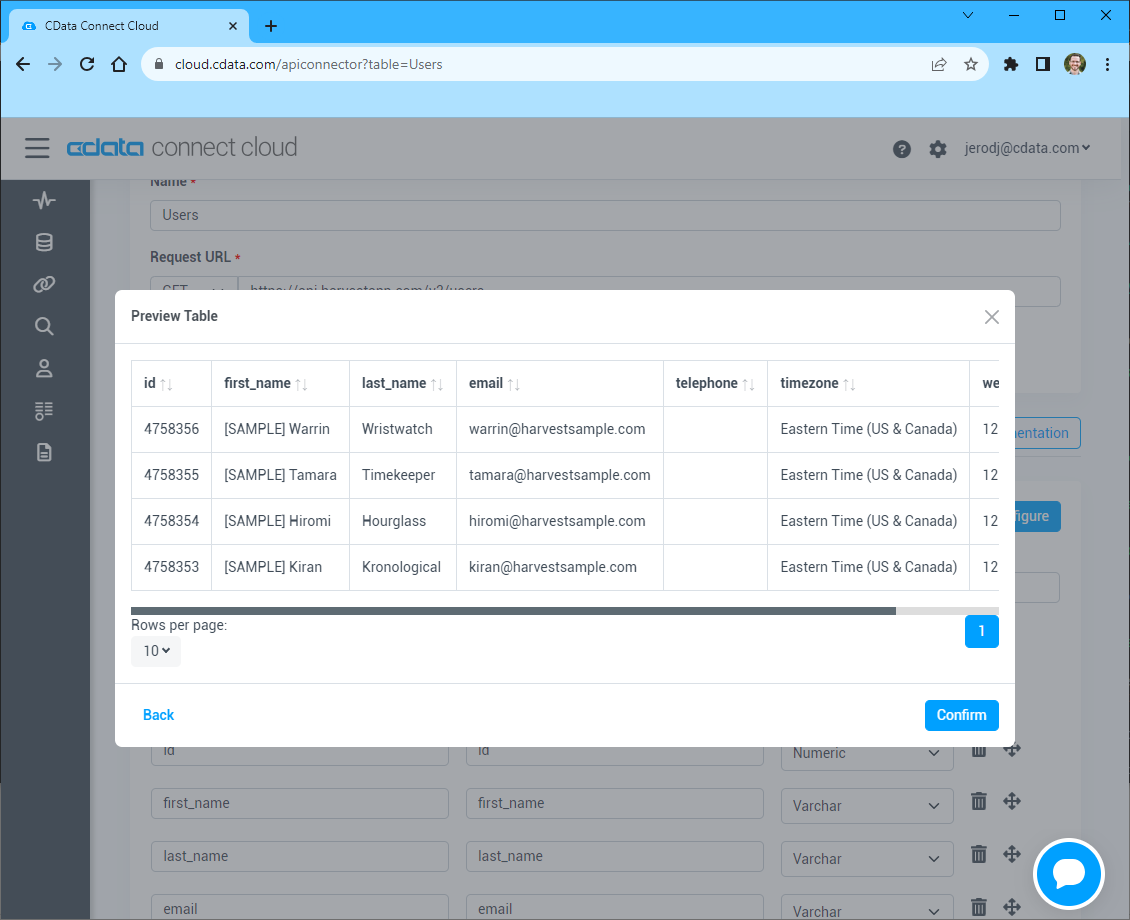
- Review the response from the API and click "Next"
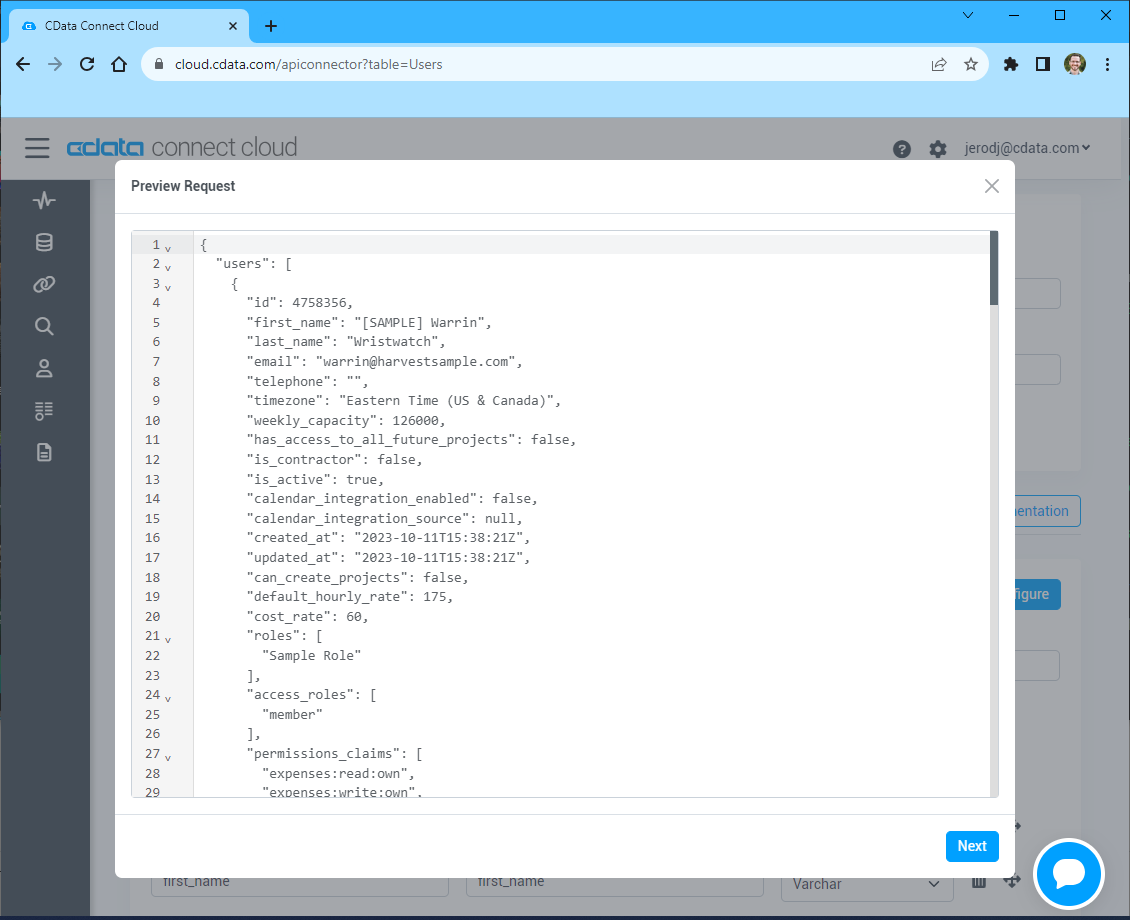
- Select which element to use as the Repeated Elements and which elements to use as Columns and click "Next"
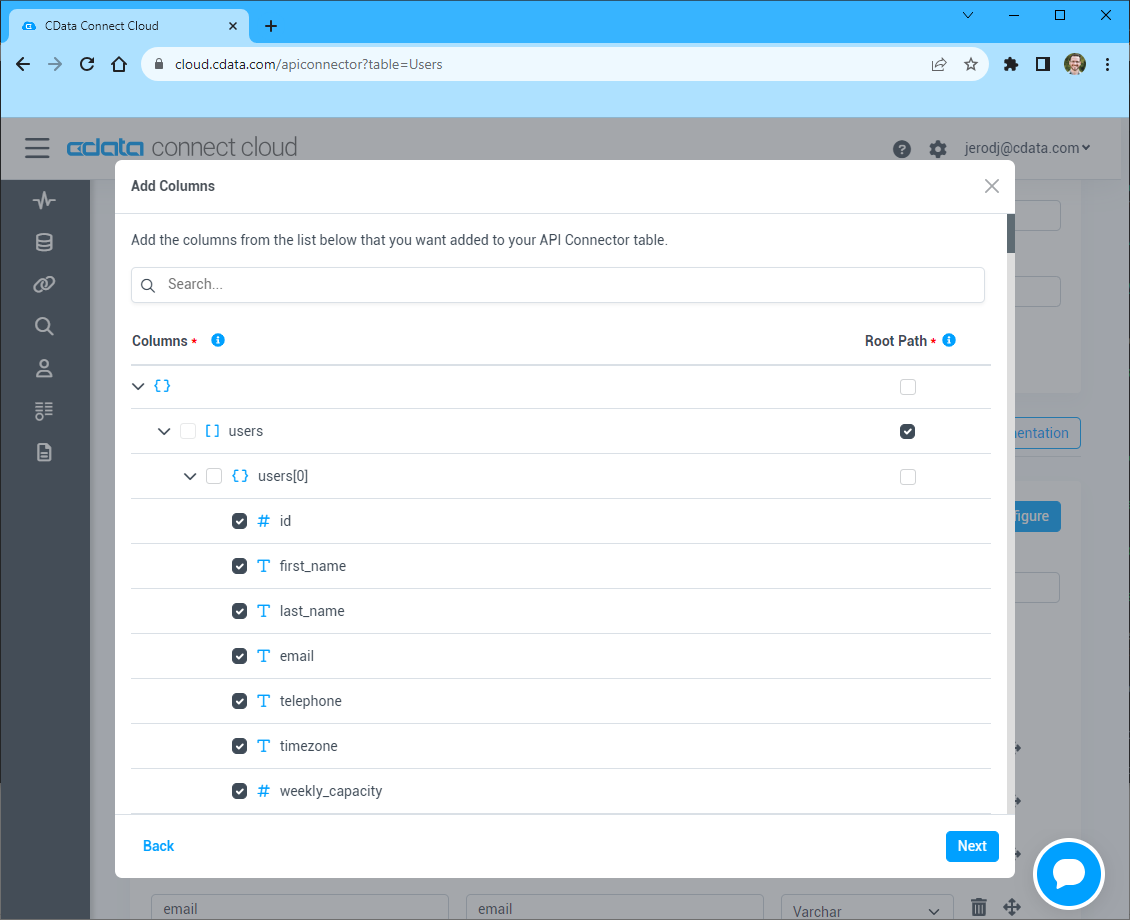
- Preview the tabular model of the API response and click "Confirm"
API Server で API のリソース定義を追加
API に接続したら、API のデータ の API エンドポイントとなるリソースを作成します。
- Settings -> Resources -> Add Resource をクリックします。
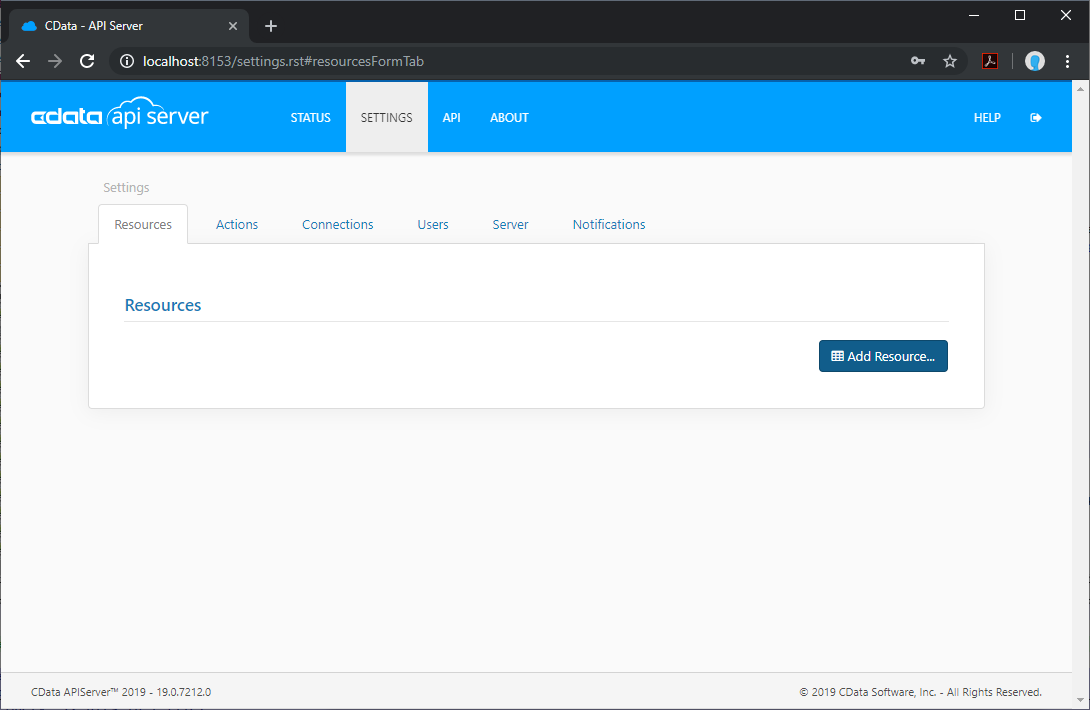
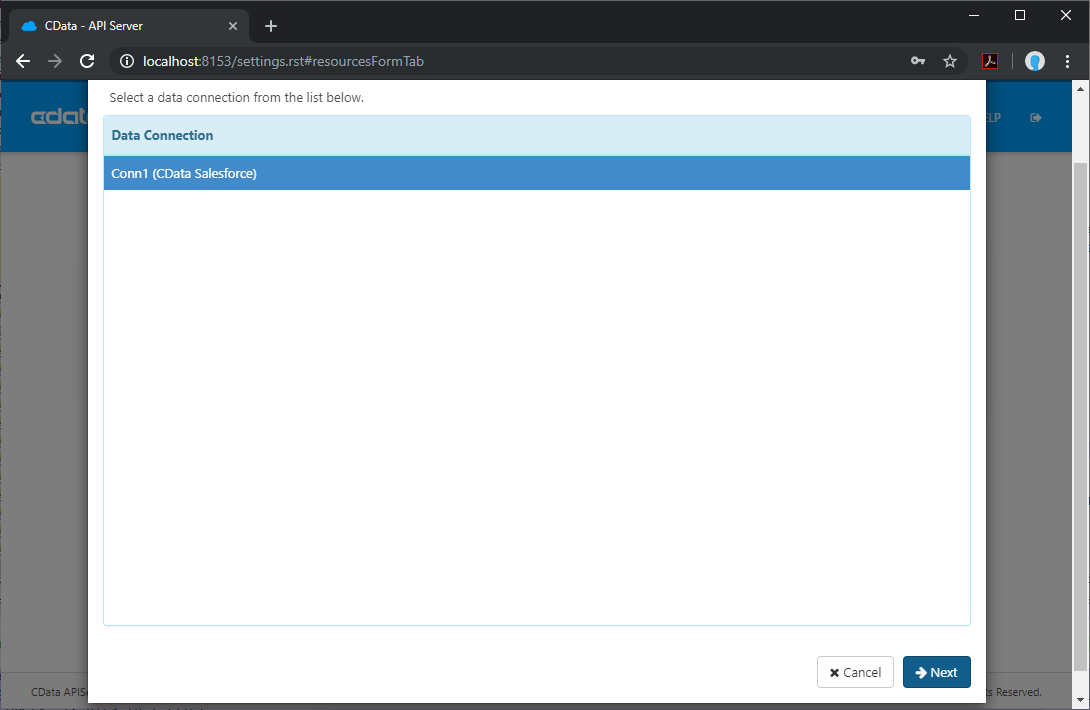
- API の接続を選択します。
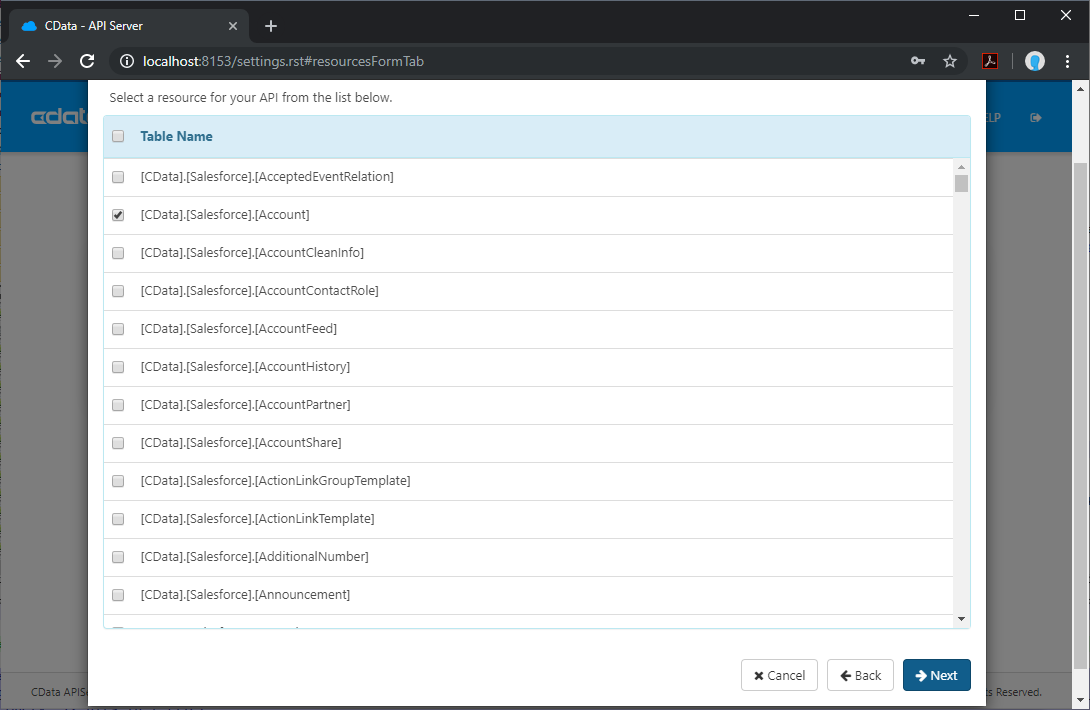
- 取得したいテーブルを選択し、「次へ」をクリックします。
- (オプション) リソースを編集して、特定のフィールドを選択するなどの設定を行います。
- 設定を保存します。
API Server ユーザーの追加
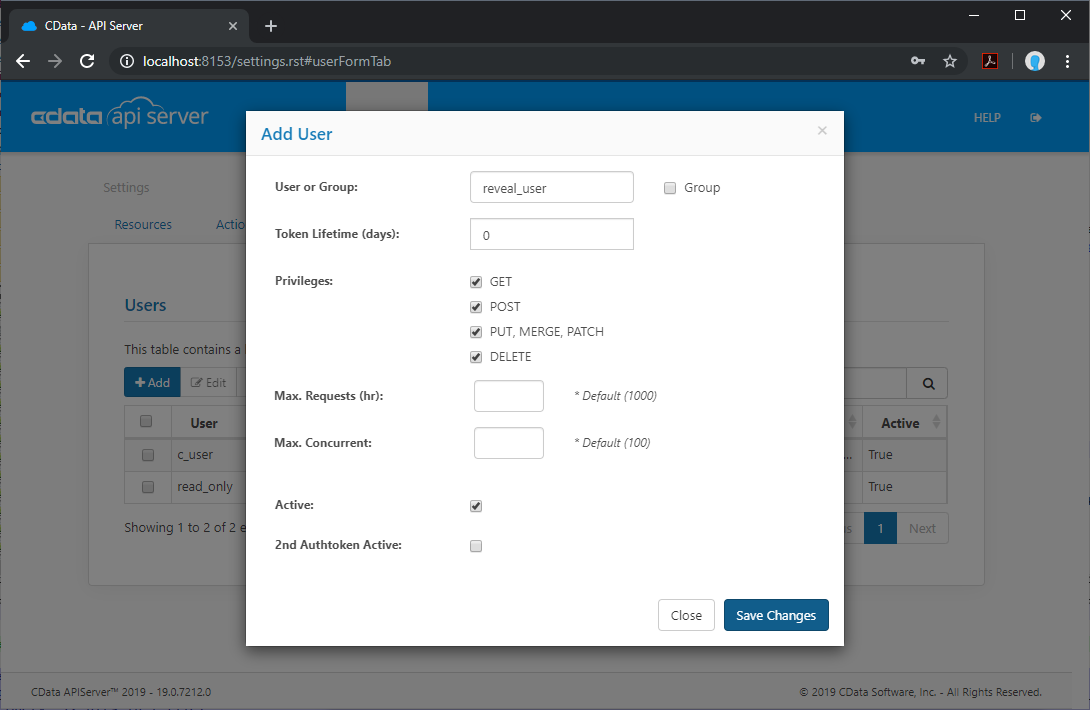
API Server 経由で Reveal から API に接続するためのユーザーを作成します。
- Settings -> Users をクリックします。
- Add をクリックします。
- API の接続とリソースにアクセス可能なユーザーを設定します。
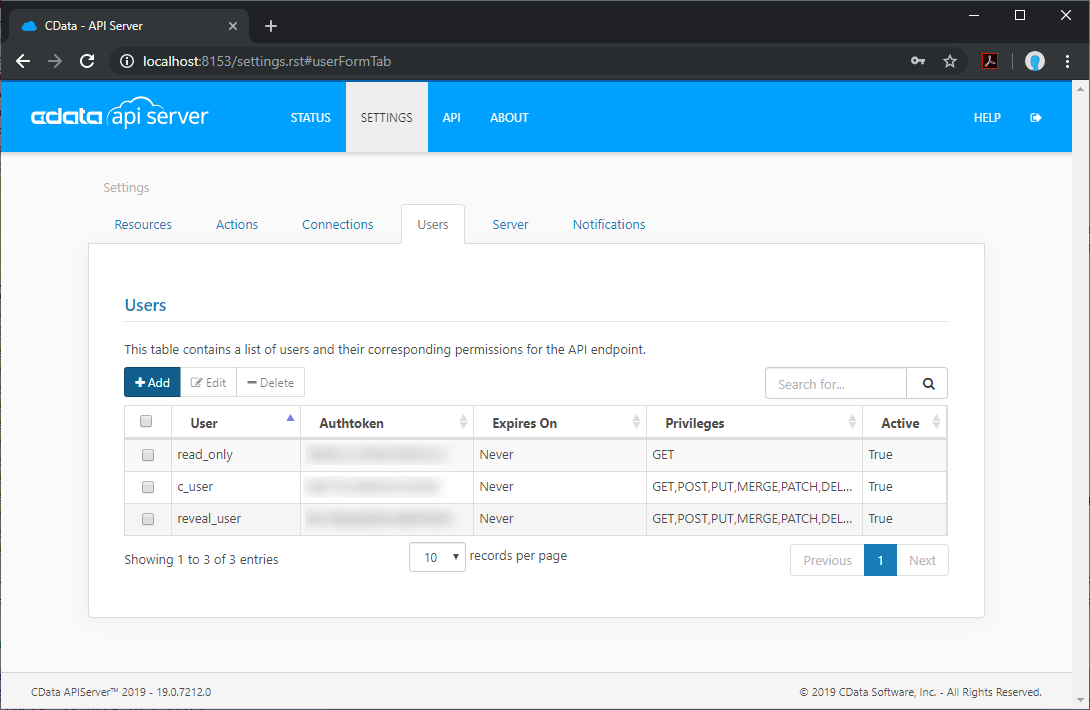
(オプション) クロスオリジンリソースシェアリング (CORS) の設定
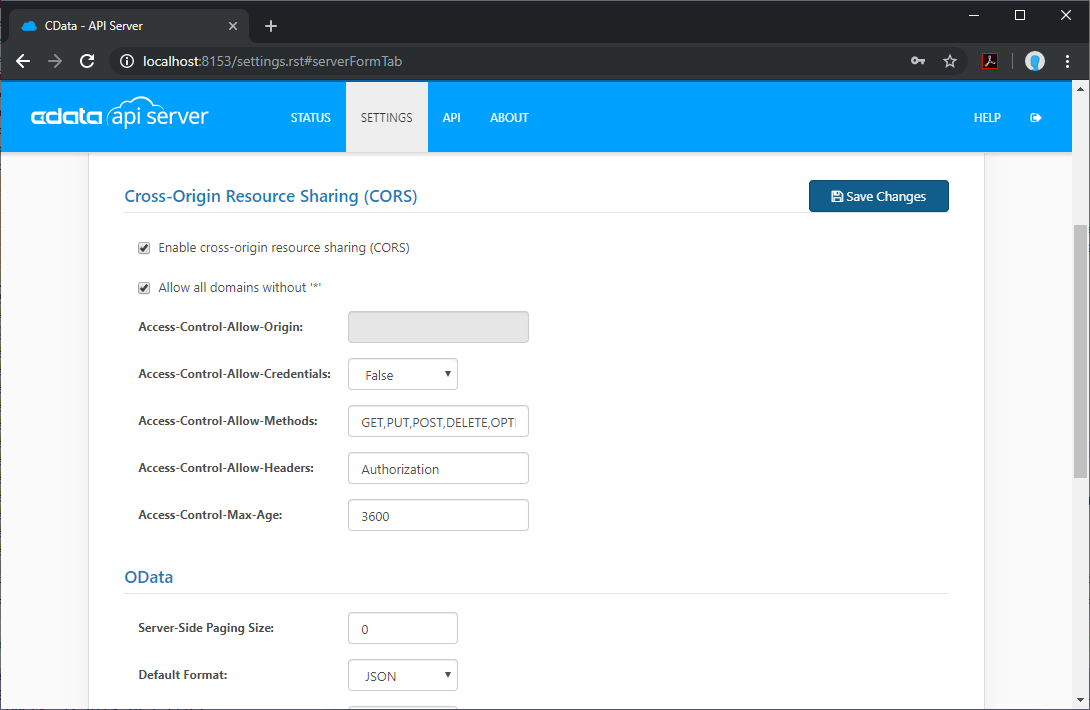
Ajax などのアプリケーションから複数の異なるドメインにアクセス・接続する場合、クロスサイトスクリプティングの制限に抵触する可能性があります。その場合は、Settings -> Server で CORS 設定を行います。
- Enable cross-origin resource sharing (CORS): ON
- Allow all domains without '*': ON
- Access-Control-Allow-Methods: GET, PUT, POST, OPTIONS
- Access-Control-Allow-Headers: Authorization
設定の変更を保存します。
Reveal でダッシュボードを作成
API Server の設定が完了したら、Reveal でAPI のデータを可視化していきましょう。
- Reveal にログインし、Dashboards -> New をクリックします。
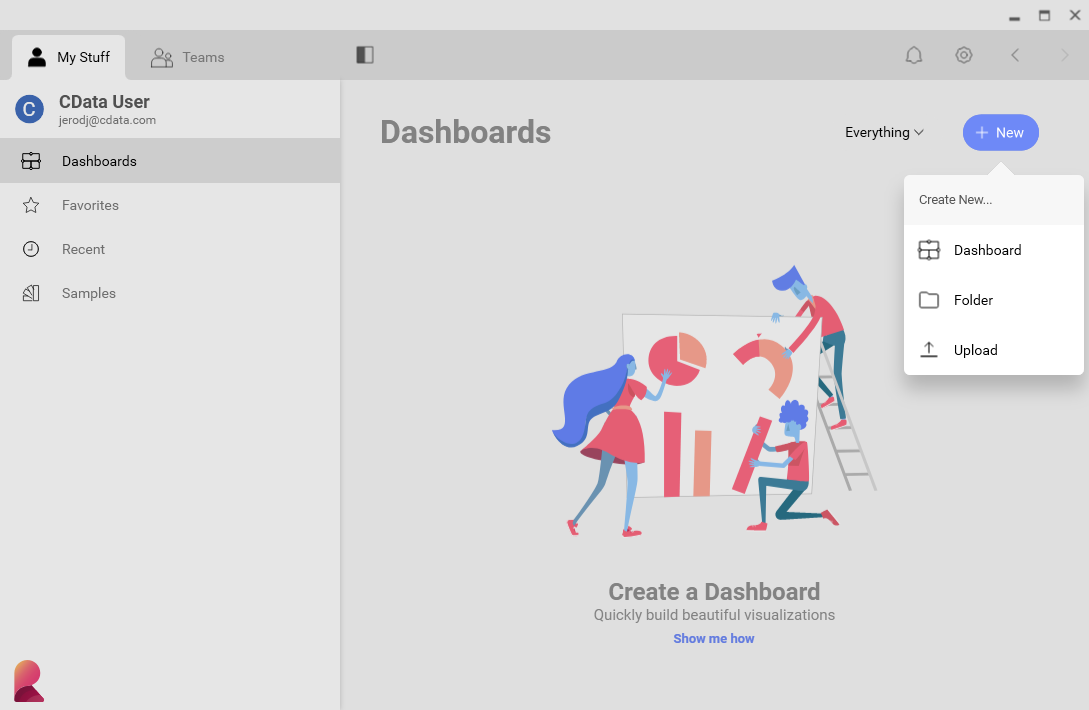
- Data Source -> OData Feed をクリックします。
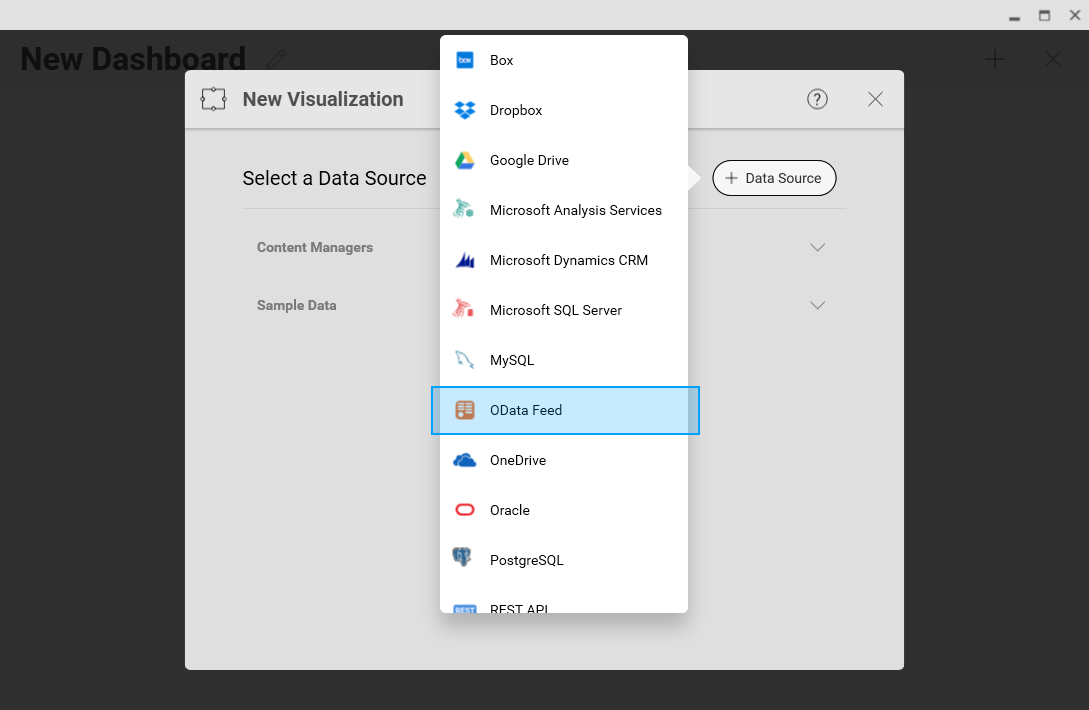
- API Server の API エンドポイント URL を指定します。例: https://serverurl/api.rsc
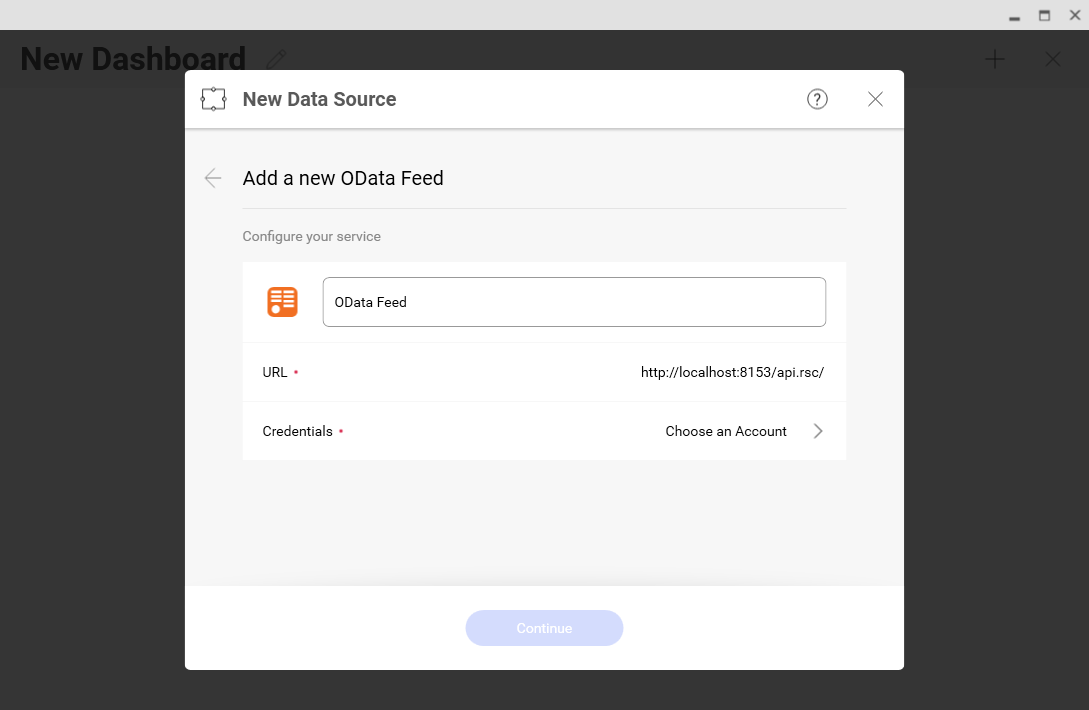
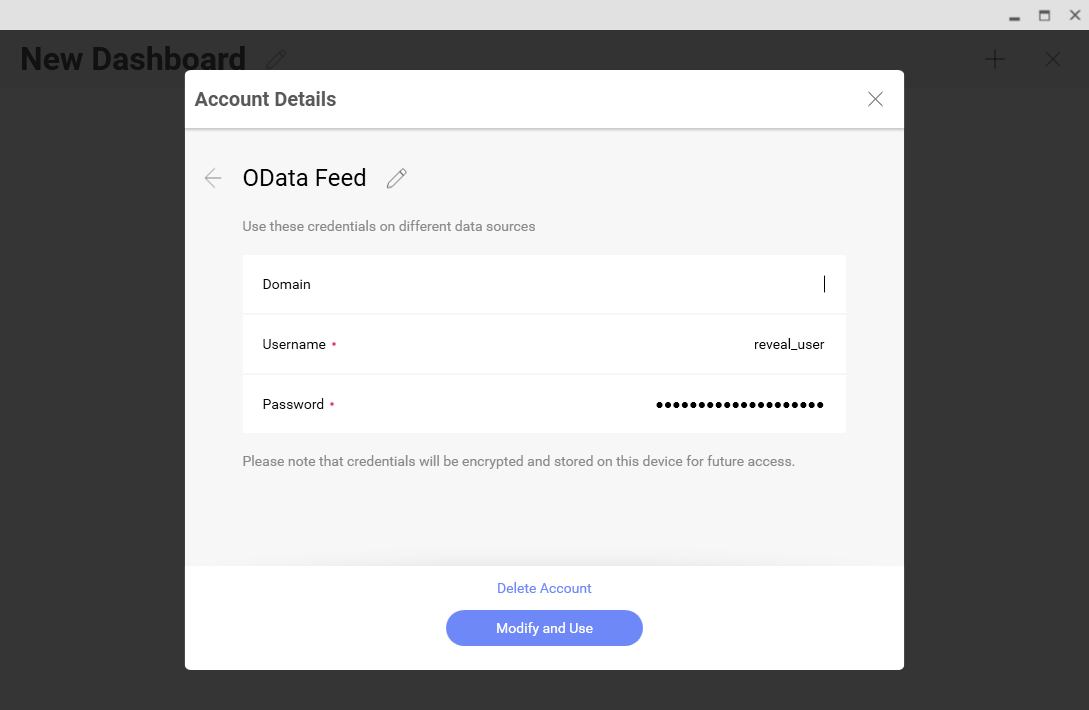
- Generic Credentials を選択し、API Server のユーザー名と認証トークンを指定します。
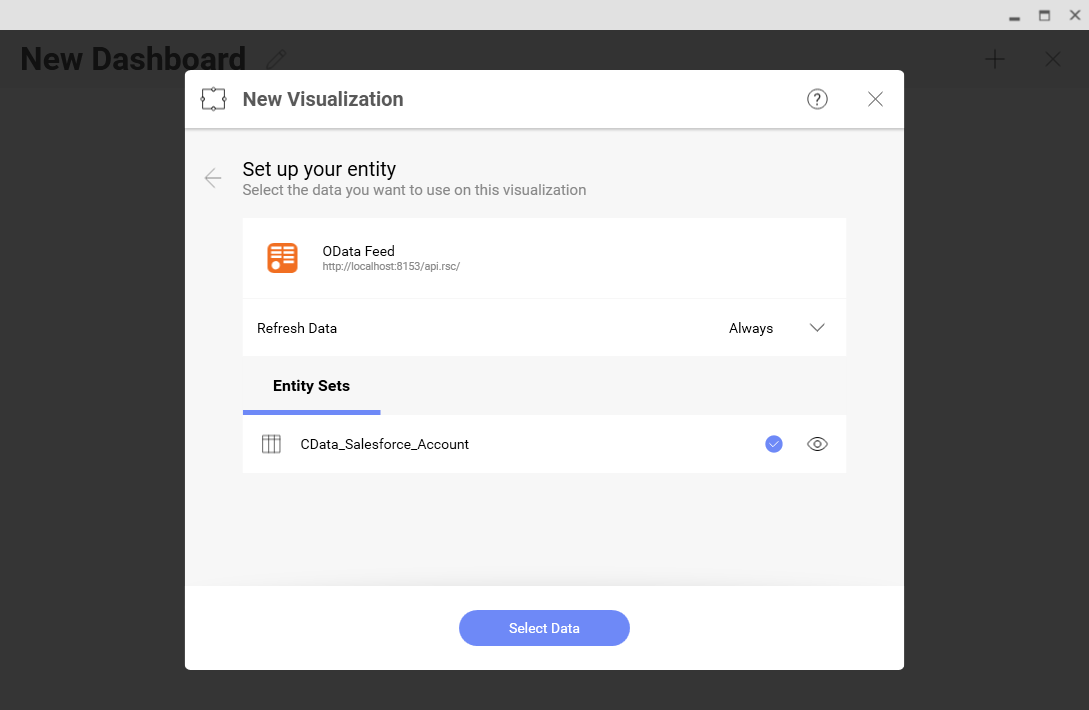
- 可視化したいエンティティを選択します。
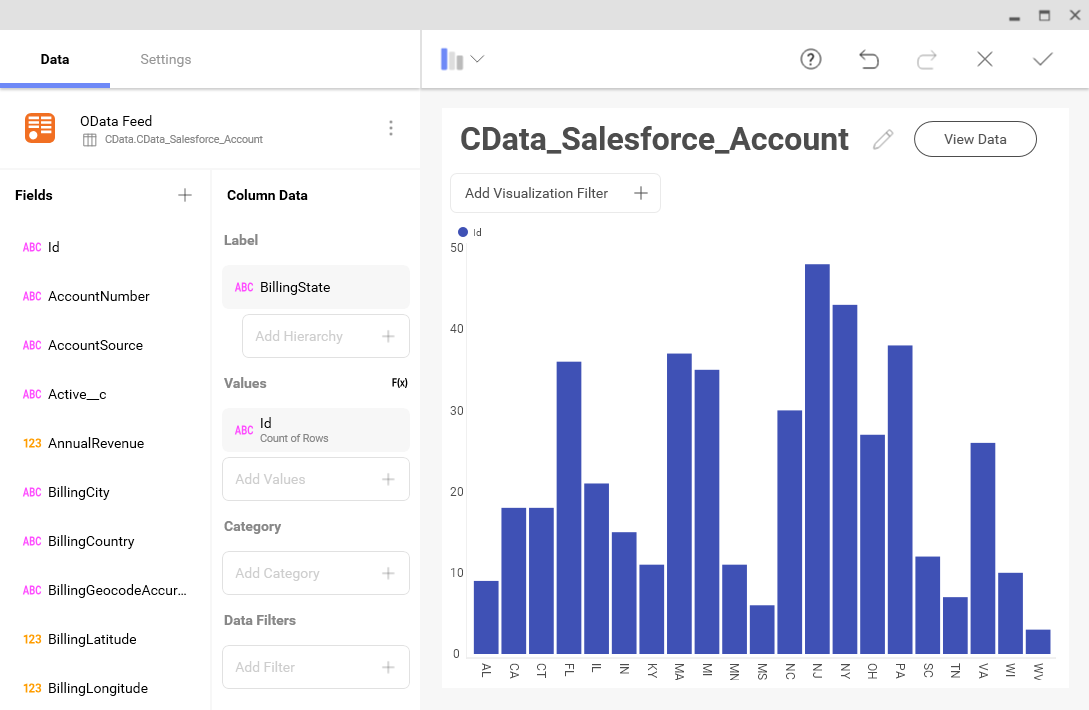
- フィールドを選択し、チャートタイプを選びます。
詳細情報と無償トライアル
これで、リアルタイムのAPI のデータからシンプルなダッシュボードを作成できました。API (および 150 以上のデータソース) から OData フィードを作成する方法の詳細については、API Server ページをご覧ください。30日間の無償トライアルをダウンロードして、OData API を利用するツールでリアルタイムのAPI のデータを活用してみてください。