




Getting Started: Build a Customer Health AI Agent with Microsoft Copilot Studio and CData Connect AI
Microsoft Copilot Studio is a powerful no-code/low-code platform for creating AI agents that can automate tasks, answer questions, and assist with various business processes. When combined with CData Connect AI, you can build intelligent agents that analyze customer health metrics from live data sources like Google Sheets, providing real-time insights and actionable recommendations.
In this article, we'll guide you through creating a customer health AI agent that analyzes account information, sales opportunities, support tickets, and product usage data to provide a comprehensive view of customer health and suggest courses of action.
Prerequisites
You need the following to follow along with this guide:
- A Microsoft account with access to Microsoft Copilot Studio
- A Google account (if you do not have one, create one here)
- A CData Connect AI account (sign up for a free trial)
Overview
Here's a quick overview of the steps:
- Copy the sample Google Sheet with customer health data
- Sign up for CData Connect AI and configure Google Sheets connection
- Create and configure a Microsoft Copilot Studio agent
- Test the customer health AI agent
Step 1: Copy the Sample Google Sheet
We'll start by copying a sample Google Sheet that contains customer health data including accounts, opportunities, support tickets, and product usage information.
- Navigate to the sample customer health spreadsheet in your browser.
- Click File > Make a copy to save a copy to your Google Drive.
NOTE: Remember the name you give to the copy (e.g., "demo_organization"). You'll need this name when configuring the connection in Connect AI.
The spreadsheet contains four sheets with related customer data:
- account: Company information including name, industry, revenue, and employee count
- opportunity: Sales opportunities with stage, amount, probability, and close dates
- tickets: Customer support tickets with priority, status, and descriptions
- usage: Product usage metrics including job runs, records processed, and revenue data
Step 2: Configure Google Sheets Connectivity in Connect AI
Now we'll set up the connection to your Google Sheet in CData Connect AI.
Sign up or Log in to Connect AI
- Navigate to https://www.cdata.com/ai/signup/ to create a new account, or https://cloud.cdata.com/ to log in to your existing account.
- Complete the sign-up process or log in with your credentials.
Add a Google Sheets Connection
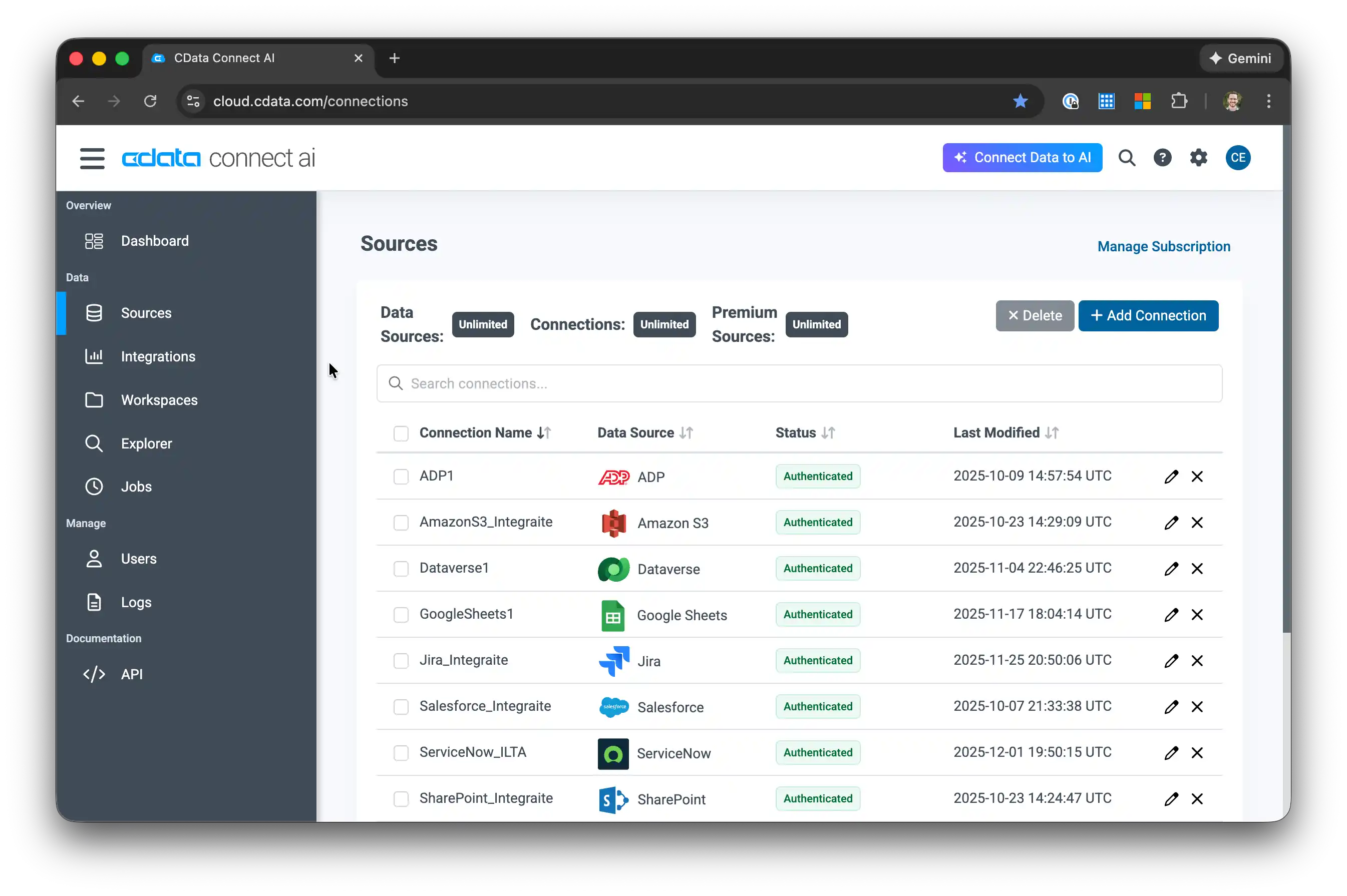
- Once logged in to Connect AI, click Sources in the left navigation menu and click Add Connection.
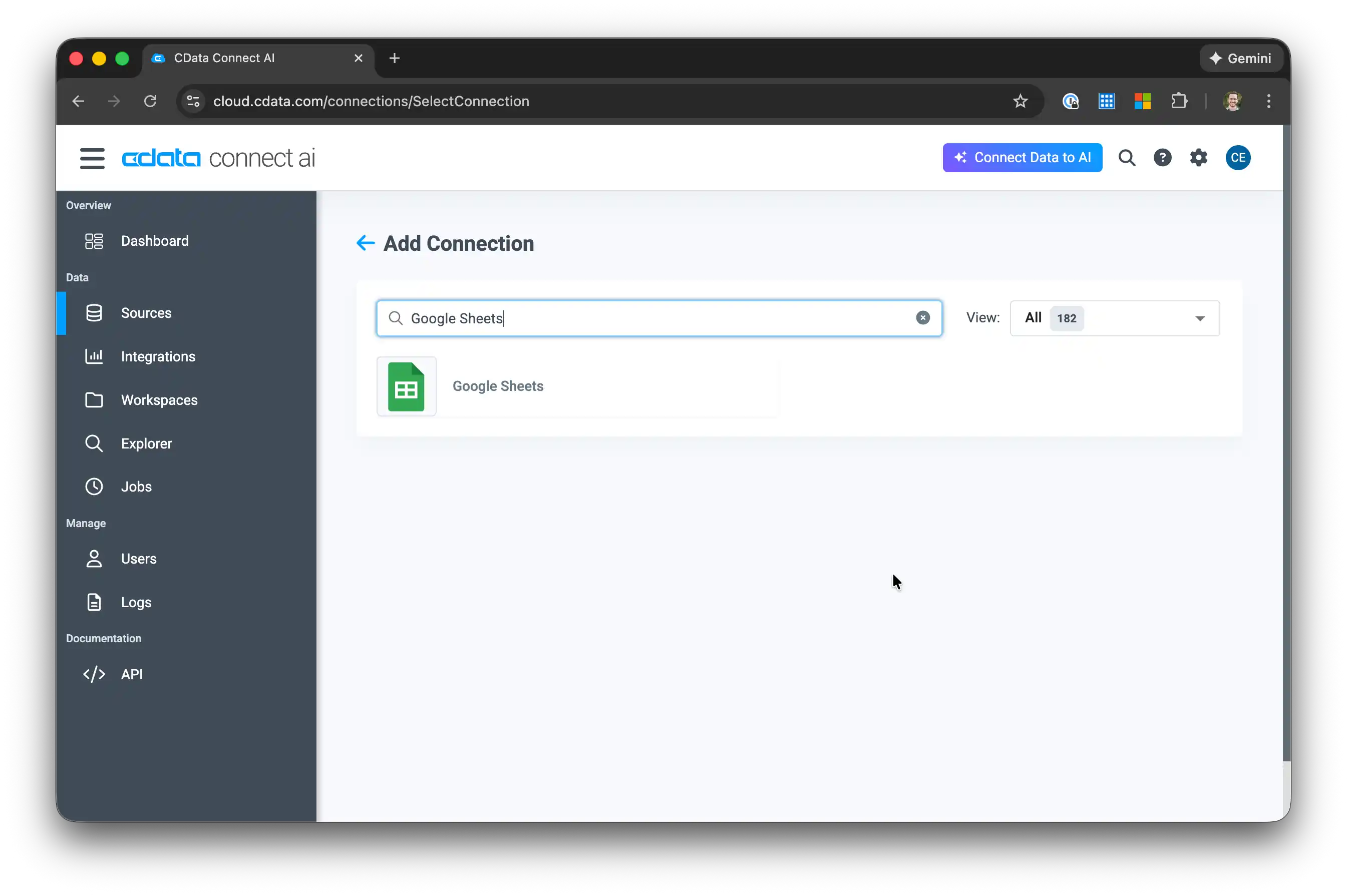
- Select Google Sheets from the Add Connection panel.
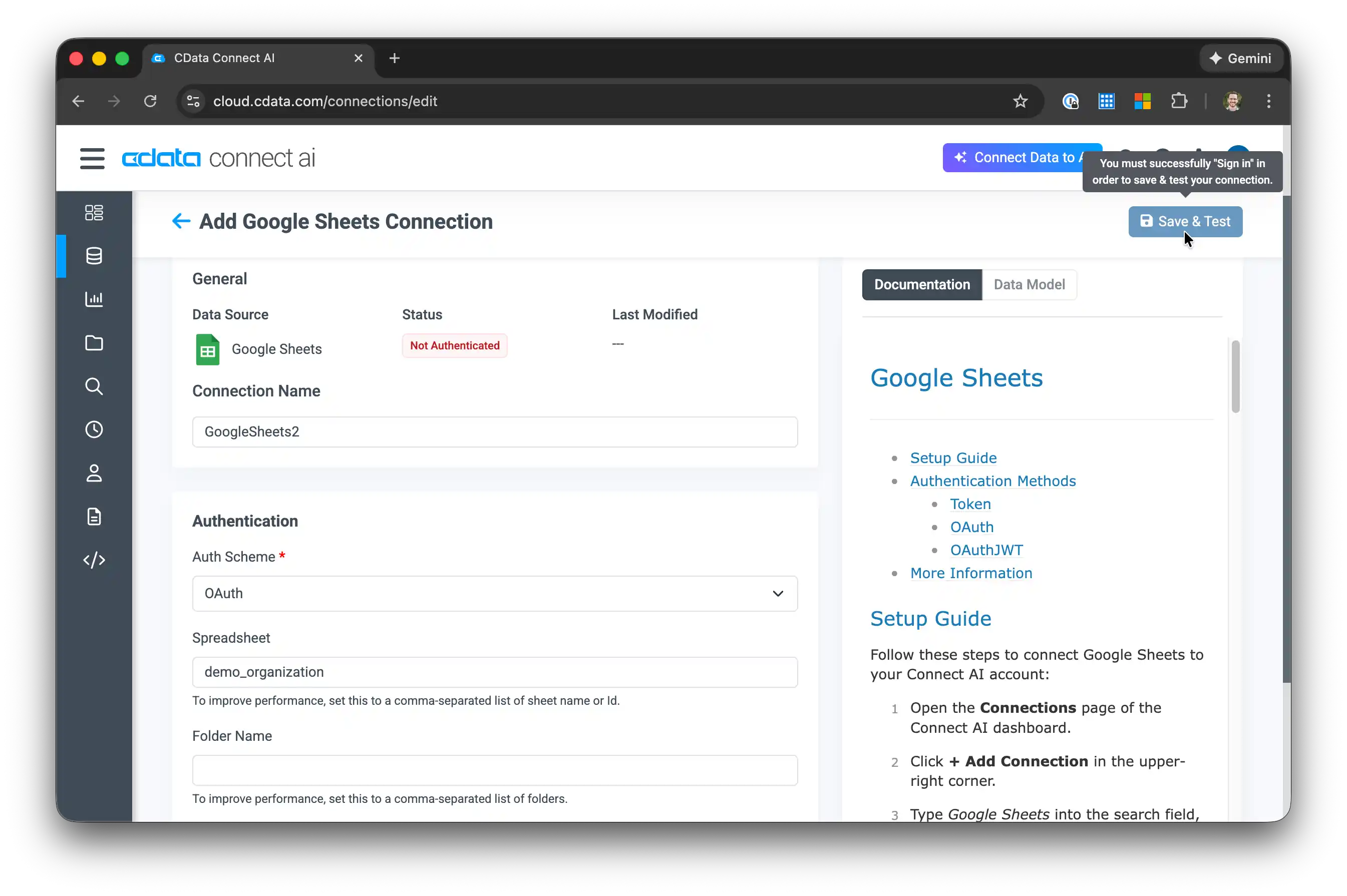
- In the connection configuration:
- Set the Spreadsheet property to the name of your copied Google Sheet (e.g., "demo_organization")
- Click Sign in to authenticate with Google using OAuth
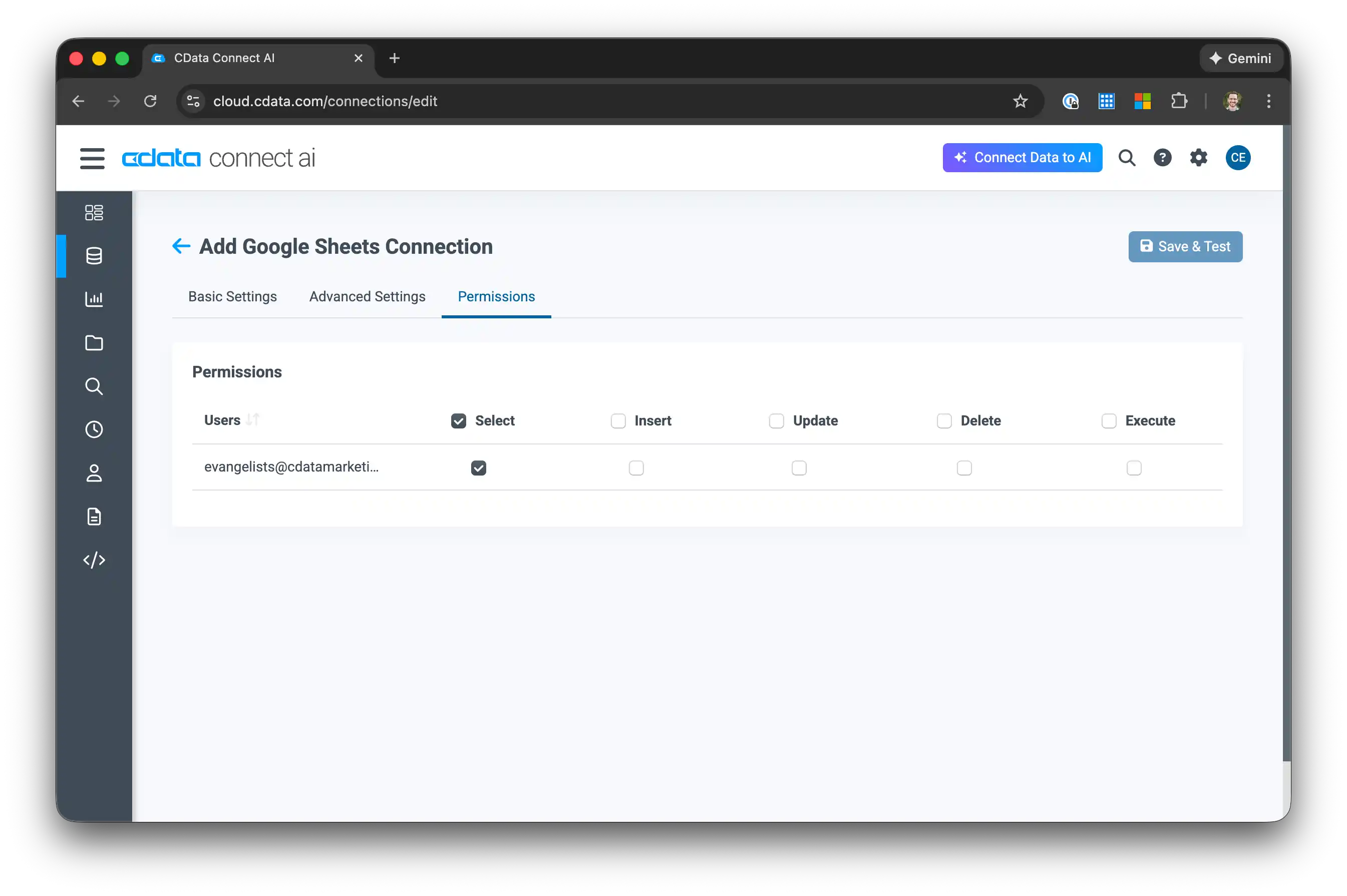
- After successful authentication, navigate to the Permissions tab and configure user-based permissions as needed.
Create a Personal Access Token
A Personal Access Token (PAT) is required to authenticate the connection from Microsoft Copilot Studio to Connect AI.
- Click the gear icon () at the top right of Connect AI to open Settings.
- Go to the Access Tokens section and click Create PAT.
- Give the PAT a descriptive name (e.g., "Microsoft Copilot Studio") and click Create.
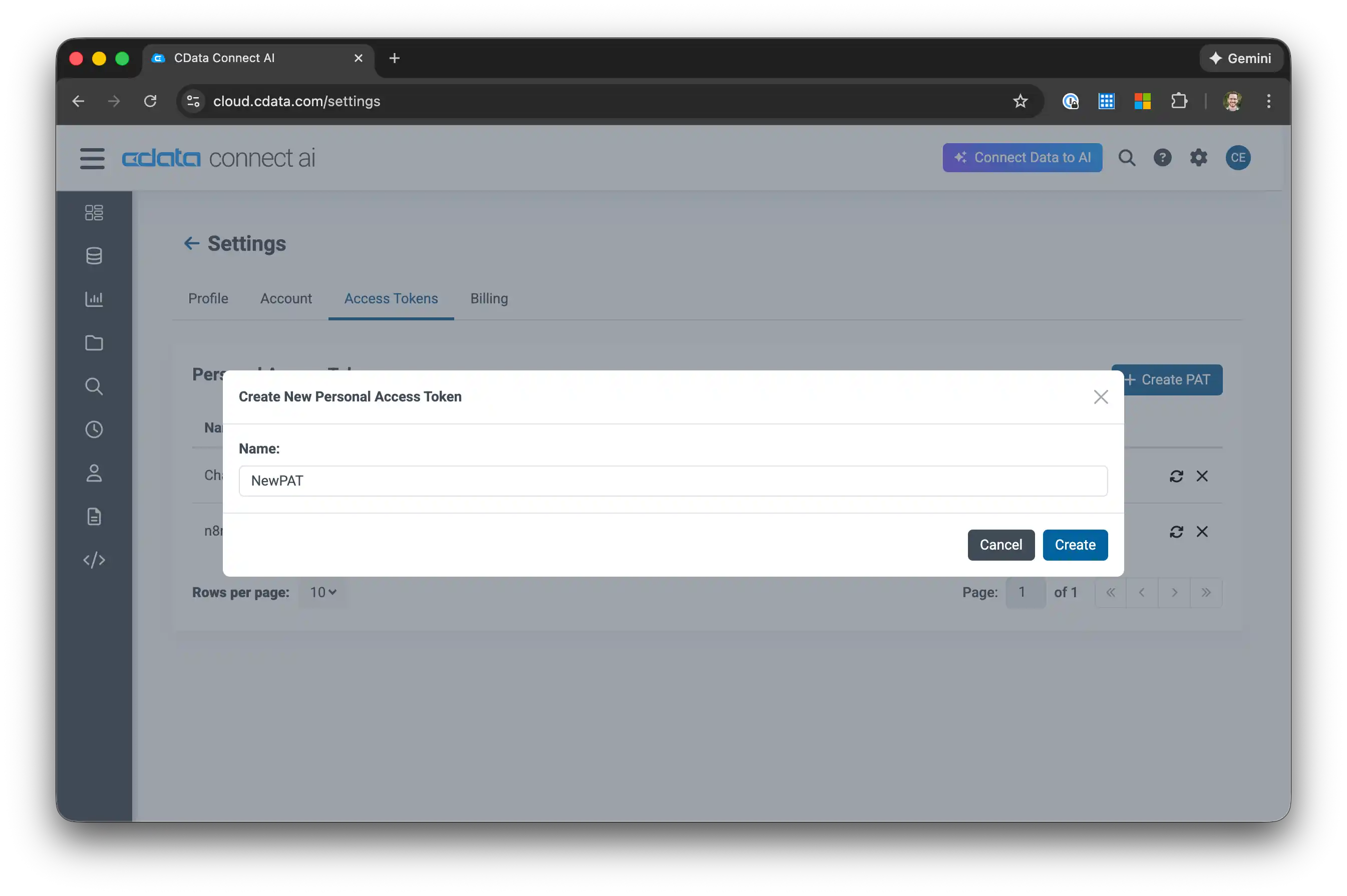
- Copy the PAT value immediately and store it securely—it will only be visible once.
NOTE: You'll need this PAT in the next step when configuring Microsoft Copilot Studio.
Step 3: Create and Configure the Microsoft Copilot Studio Agent
With Connect AI configured, we'll now create an AI agent in Microsoft Copilot Studio that can analyze customer health.
Create a New Agent
- Navigate to Microsoft Copilot Studio and sign in.
- In the navigation menu, click Agents, then click + New agent.
- Toggle the Configure button and enter:
- Name: Customer Health Advisor
- Description: An AI agent that analyzes customer health metrics and provides actionable recommendations
- Instructions: You are a customer success expert who analyzes customer data to assess health and recommend actions. You have access to account information, sales opportunities, support tickets, and product usage data.
- Click Create in the upper right to create the agent.
Add the Connect AI MCP Tool
- Under Tools, click Add tool, then click + New Tool.
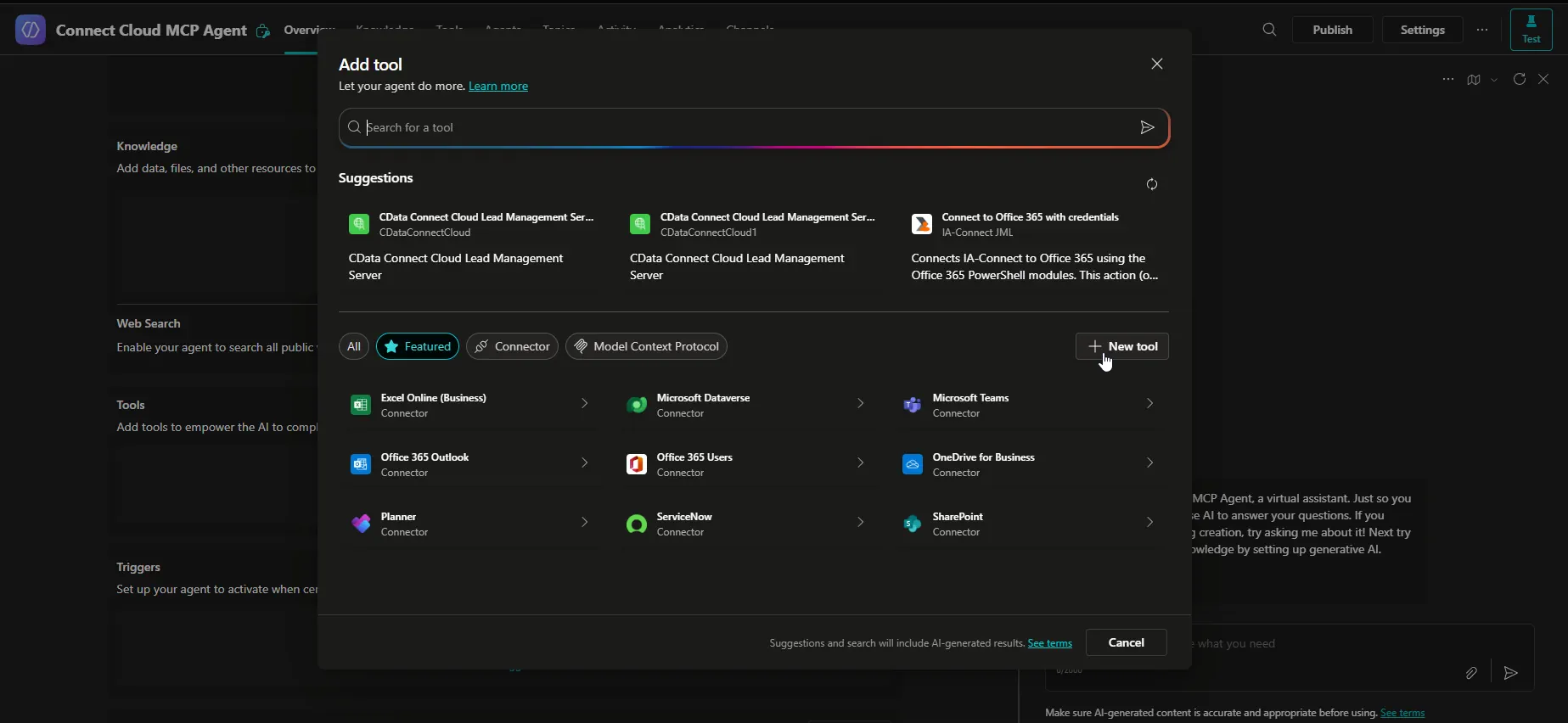
- In the Add Tool window, click Model Context Protocol.
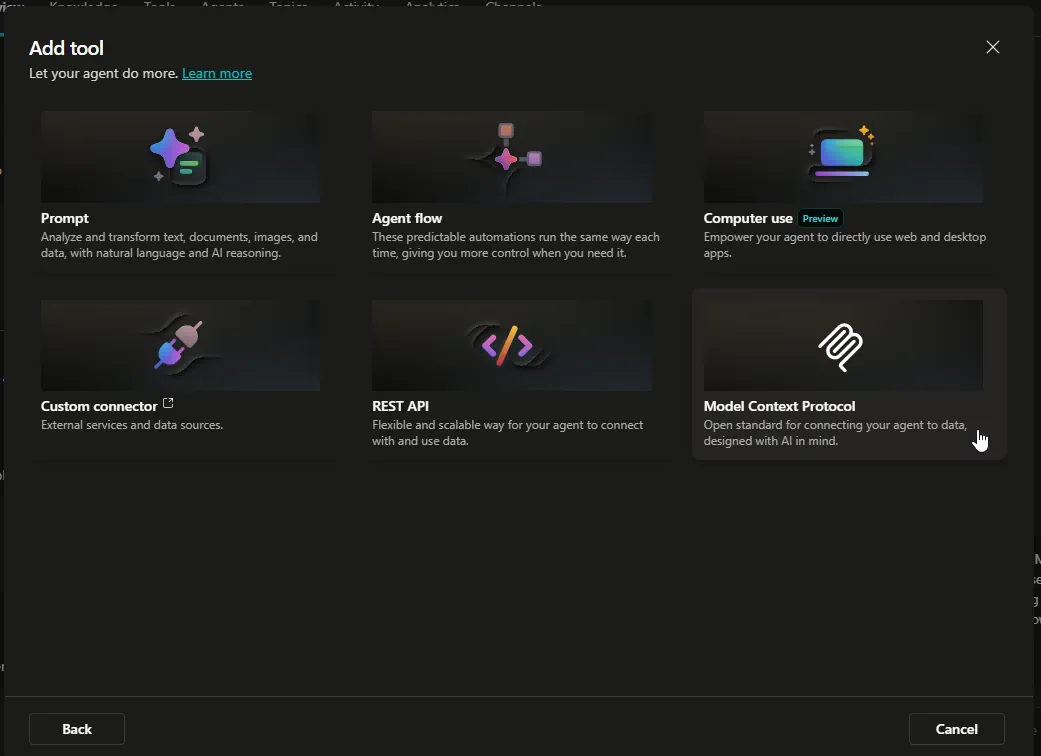
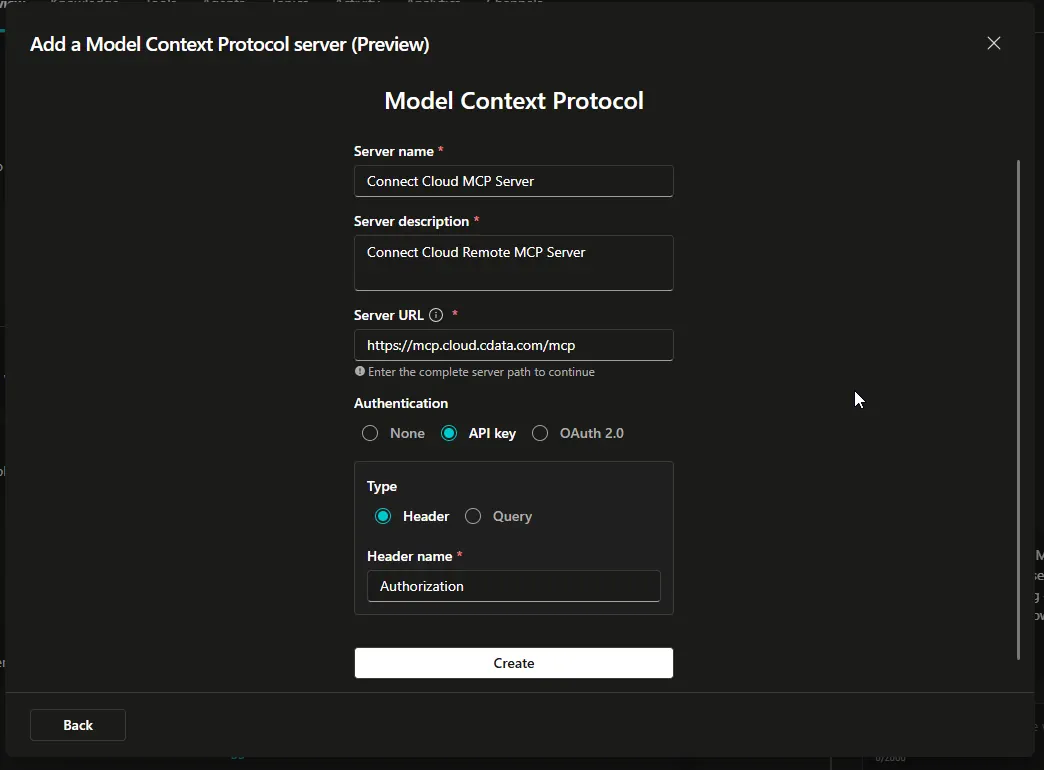
- In the Add a Model Context Protocol server window, enter:
- Server Name: CData Connect AI MCP Server
- Server Description: Provides access to customer health data from Google Sheets including accounts, opportunities, support tickets, and product usage metrics
- Server URL: https://mcp.cloud.cdata.com/mcp
- Authentication Type: API Key
- Header Name: Authorization
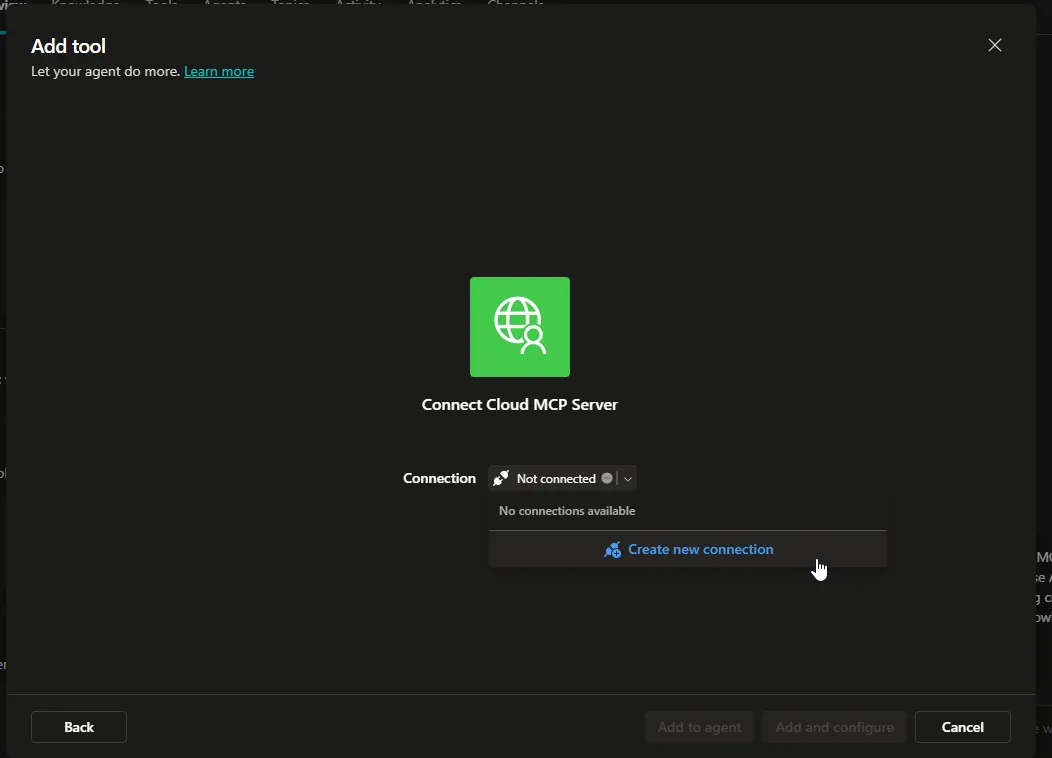
- When prompted to choose a connection, click Create new connection.
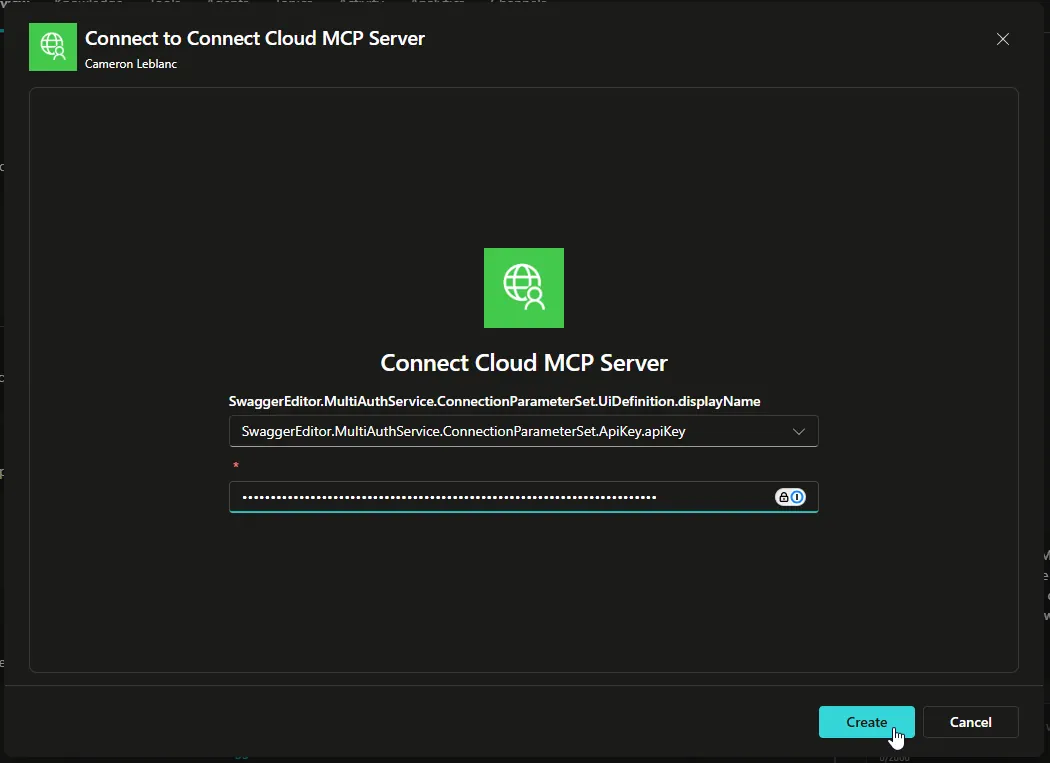
- Set the connection value to:
Basic YOUR_EMAIL:YOUR_PAT
Replace
YOUR_EMAIL
with your Connect AI email address andYOUR_PAT
with the Personal Access Token you created earlier.For example:
Basic john.doe@company.com:Uu90pt5vEO...
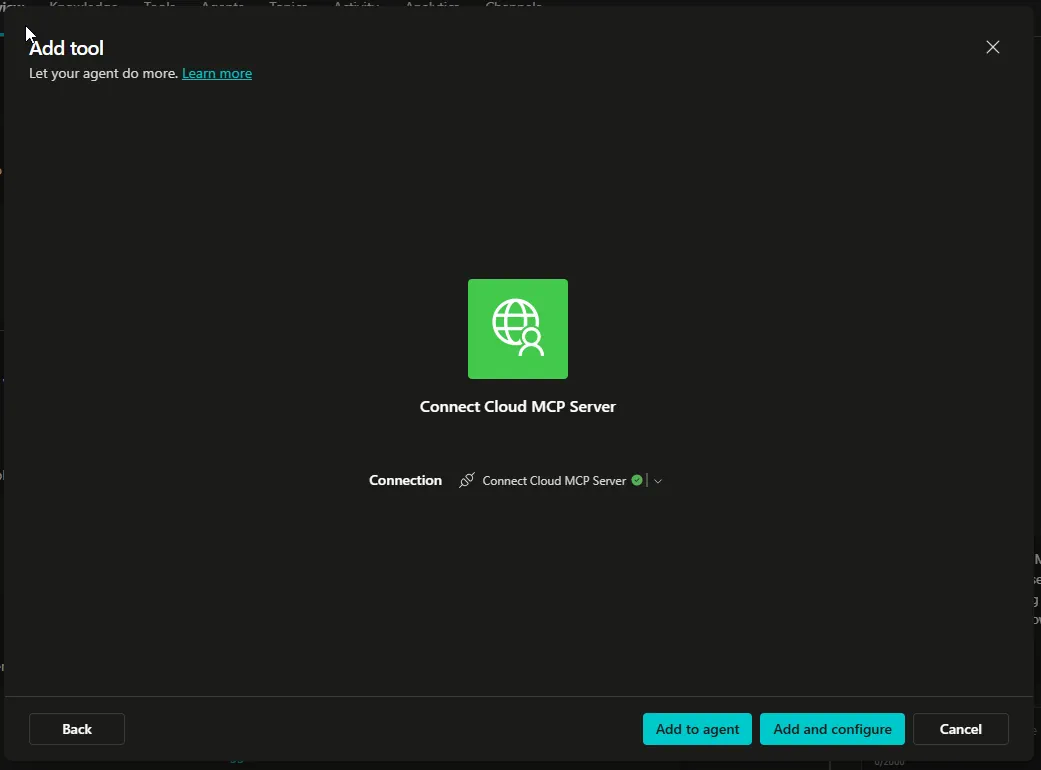
- Click Add to agent to add the MCP tool to your agent.
Enhance the Agent with Detailed Instructions
To improve the agent's effectiveness, you can add more detailed instructions about its role and the available tools:
- In your agent settings, navigate to the Instructions section.
- Add the following enhanced instructions:
You are a customer success expert who analyzes customer health data and provides actionable recommendations. You have access to the CData Connect AI MCP Server which provides the following tools:

- getCatalogs: Retrieve available data connections
- getSchemas: Get database schemas for a specific catalog
- getTables: List available tables (accounts, opportunities, tickets, usage data)
- getColumns: View table structure and column details
- queryData: Execute SQL queries to analyze customer data

When analyzing customer health, consider:
1. Account information (industry, revenue, size)
2. Sales pipeline (opportunities, stages, amounts)
3. Support ticket volume and severity
4. Product usage metrics (adoption, engagement)

Always use fully qualified table names in queries: catalog.schema.table
Provide specific, actionable recommendations based on the data.
Step 4: Test the Customer Health AI Agent
Now it's time to test your customer health AI agent with real queries.
- Open the chat window in your Microsoft Copilot Studio agent.
- Try asking questions like:
- "Show me a picture of the health for Aurora Healthcare Systems"
- "Which customers have high support ticket volume but low product usage?"
- "Analyze the top 5 accounts by revenue and identify any health risks"
- "What accounts have open opportunities but also critical support tickets?"
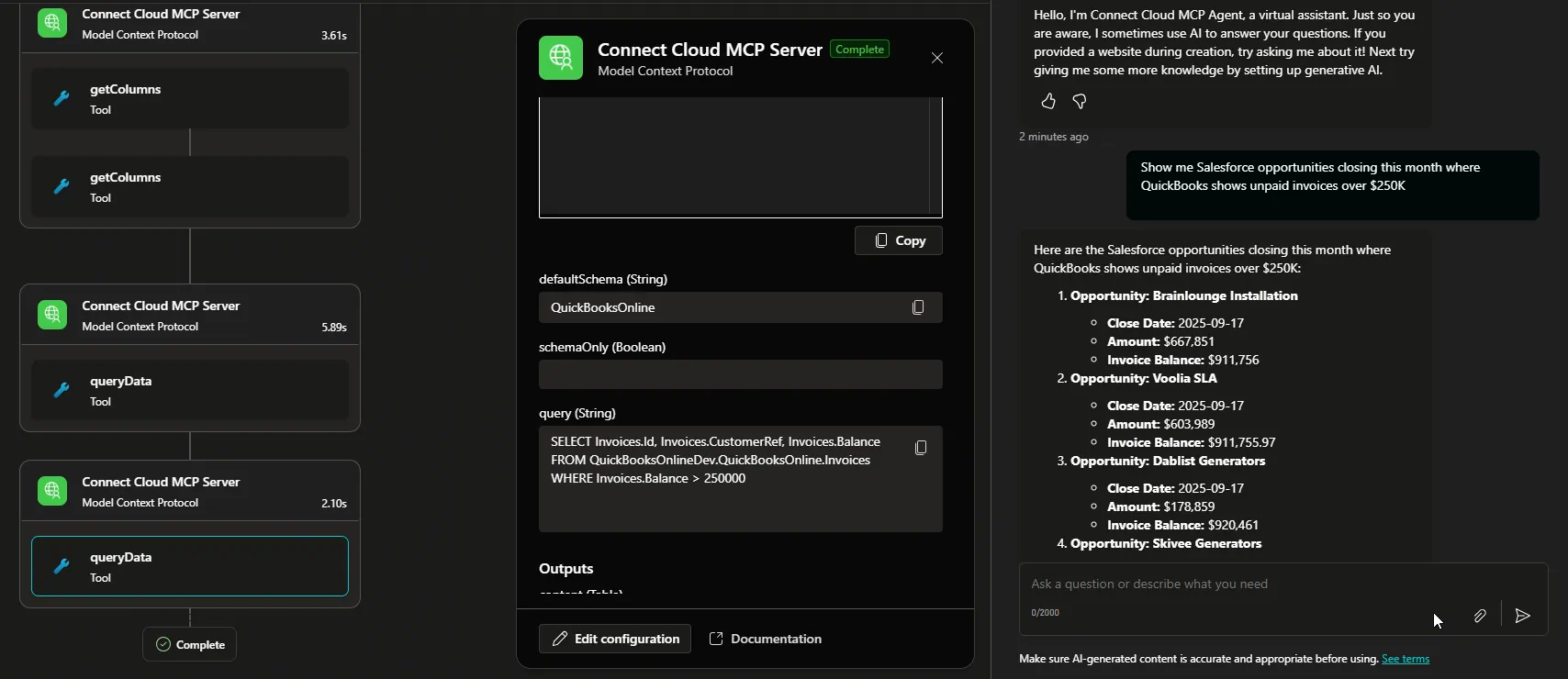
- The agent will use the MCP tools to query your Google Sheets data, analyze the customer health metrics, and provide recommendations.
Example: Customer Health Analysis
When you ask the agent to "create a picture of customer health for Aurora Healthcare Systems", it will:
- Query the account table for company information
- Analyze opportunities to understand the sales pipeline
- Review support tickets for any issues or trends
- Examine product usage metrics to gauge adoption
- Synthesize all data into a comprehensive health assessment
- Suggest specific actions such as:
- Schedule a check-in call if support tickets are increasing
- Offer additional training if usage metrics are declining
- Identify upsell opportunities based on successful usage patterns
- Flag at-risk accounts with multiple warning signs
Next Steps
Now that you have a working customer health AI agent, you can:
- Connect additional data sources beyond Google Sheets (Salesforce, Zendesk, Snowflake, etc.)
- Create more sophisticated queries that join data across multiple tables
- Build custom workflows and automation based on health scores
- Export insights to other systems using Connect AI's integration capabilities
- Refine the agent's instructions to align with your specific business processes
Get Started with CData Connect AI
To get live data access to 300+ SaaS, Big Data, and NoSQL sources directly from your AI applications, try CData Connect AI today!